How to Pair Bluetooth Devices and Solve Connection Issues
Learning how to pair Bluetooth devices is easier than most people think. This guide covers everything from basic Bluetooth pairing steps to fixing stubborn connection problems in your car. You will discover practical Bluetooth troubleshooting tips, expert advice on car Bluetooth setup, and simple fixes for when your Bluetooth not connecting issues ruin your drive.
Have you ever tried to connect your phone to your car and nothing happened? You are not alone. How to pair Bluetooth devices seems simple on paper, but real life throws curveballs. Maybe your Bluetooth connection drops mid-drive. Perhaps your car audio system refuses to recognize your phone. These frustrating moments happen to everyone.
The good news is that fixing Bluetooth problems does not require a tech degree. With the right steps, you can get your car Bluetooth working in minutes. This guide walks you through every stage of Bluetooth pairing and gives you real solutions for common issues. Whether you are connecting a Bluetooth headset, a Bluetooth speaker, or your phone to your car infotainment system, you will find answers here.
We will cover Bluetooth settings, Bluetooth troubleshooting, and expert tips that most guides skip. By the end, you will know exactly what to do when your Bluetooth device refuses to cooperate. Let us get you connected and back on the road with confidence.
Key Takeaways
- Basic Bluetooth pairing only takes a few minutes when you follow the right steps for your car audio system.
- Putting your Bluetooth device in pairing mode is the most commonly missed step that causes Bluetooth pairing problems.
- Resetting Bluetooth settings often solves Bluetooth not connecting issues quickly and easily.
- Keeping your Bluetooth device updated improves Bluetooth compatibility and wireless connection quality.
- Distance and interference affect Bluetooth signal strength, so positioning matters for a stable Bluetooth connection.
- Multiple Bluetooth devices can cause conflicts, so manage paired devices regularly for best performance.
- Hands-free calling and Bluetooth audio streaming work best when you configure settings correctly after pairing.
📑 Table of Contents
- Understanding How Bluetooth Pairing Works
- Step-by-Step Guide to Pairing Bluetooth Devices
- Common Bluetooth Pairing Problems and How to Fix Them
- Advanced Bluetooth Troubleshooting Tips
- Tips for the Best Bluetooth Experience in Your Car
- Comparison: Bluetooth Pairing Methods by Car Brand
- Quick Tips for Smooth Bluetooth Pairing
- Common Mistakes People Make When Pairing Bluetooth
- Expert Insights on Bluetooth Connection Quality
- Key Takeaways
Understanding How Bluetooth Pairing Works
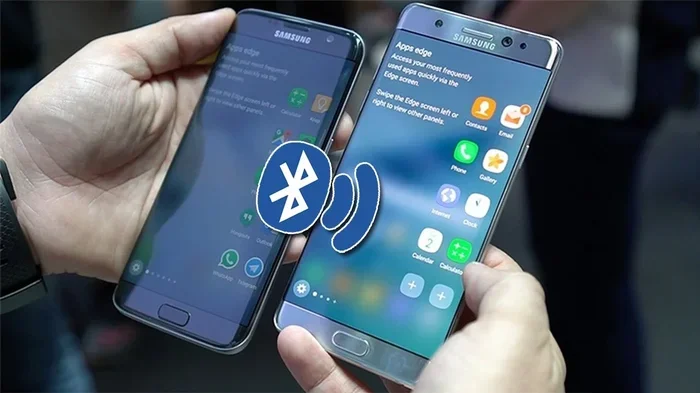
Before you dive into the steps, it helps to understand what happens during Bluetooth pairing. Think of it like introducing two people at a party. Both devices need to be visible, willing, and on the same page. Once they connect, they form a wireless connection that lets you stream Bluetooth audio or make hands-free calling without wires.
Bluetooth range typically reaches about 30 feet. Walls, other electronics, and metal surfaces can weaken your Bluetooth signal. This is why your car Bluetooth sometimes works better when your phone sits on the passenger seat rather than in your back pocket. Understanding these basics makes Bluetooth troubleshooting much easier later.
What Happens During the Pairing Process
When you start how to pair Bluetooth devices, several things happen behind the scenes. Your phone searches for nearby Bluetooth devices. Your car stereo or headset broadcasts its availability. Once they find each other, they exchange security keys. This creates a trusted link. After that, the devices remember each other and reconnect automatically.
This automatic reconnection is a great feature. But sometimes it causes problems. An old paired device can interfere with a new one. That is why managing your Bluetooth settings regularly matters. A clean list of paired devices keeps your wireless connection fast and reliable.
Step-by-Step Guide to Pairing Bluetooth Devices
Now let us get into the actual steps. Following this process will help you pair Bluetooth devices without stress. These steps work for most car audio systems, phones, and Bluetooth devices.
Step 1: Turn on Bluetooth on Both Devices
Start by making sure Bluetooth is active on both sides. On your phone, go to Bluetooth settings and toggle it on. On your car stereo or Bluetooth speaker, make sure the Bluetooth function is enabled. Some devices have a dedicated Bluetooth button. Others hide it in a settings menu.
Quick tip: If you are unsure where the Bluetooth button is on your car stereo, check the owner’s manual. Most modern car infotainment systems have a Bluetooth icon on the home screen. Tap it and you are on your way.
Step 2: Put Your Bluetooth Device in Pairing Mode
This is the step most people skip or do wrong. How to pair Bluetooth devices requires one device to be discoverable. Your phone is always searching. But your car stereo or headset needs to be told to look for new connections.
For most Bluetooth headsets, hold down the Bluetooth button for five seconds. A flashing light usually means it is in Bluetooth pairing mode. For car stereos, go to the Bluetooth settings menu and select “Search for new devices” or “Add new device.”
Without entering pairing mode, your devices will never find each other. This is the number one reason people think their Bluetooth pairing problem is broken when it is really just a missed step.
Step 3: Find and Select the Device
Now go to your phone’s Bluetooth settings and look for available devices. Your car stereo or headset should appear in the list. Tap on it to initiate the connection. Some devices require a PIN. The default is usually 0000 or 1234. Check your device manual if that does not work.
Once you tap connect, wait a few seconds. A confirmation sound or message means the Bluetooth connection is established. You should now see the device listed under your paired devices.
Step 4: Test the Connection
Do not assume everything works just because the connection says “paired.” Play some music or make a test call. Check if your Bluetooth audio streams clearly. Try hands-free calling to make sure your microphone works.
If sound comes through your car speakers or headset clearly, you are done. If not, move on to the troubleshooting section below. Bluetooth troubleshooting is normal, and most issues have simple fixes.
Common Bluetooth Pairing Problems and How to Fix Them
Even when you follow every step perfectly, problems can still happen. Bluetooth not connecting is one of the most common Bluetooth pairing problems drivers face. Here are the most frequent issues and how to solve them.
Bluetooth Not Discovering Devices
If your phone cannot find your car stereo, the first thing to check is distance. Move your phone closer to the car’s infotainment system. Then make sure both devices have Bluetooth turned on. Restart both devices if needed. Sometimes a simple Bluetooth reset clears up discovery issues.
Another cause is too many previously paired devices. Old connections can clutter your Bluetooth settings and slow down the search. Delete devices you no longer use. This frees up memory and improves Bluetooth compatibility with your current device.
Bluetooth Connection Keeps Dropping
A dropping connection is annoying but usually fixable. The most common cause is distance. Stay within the Bluetooth range of about 30 feet. Metal car bodies can also weaken the Bluetooth signal. Try moving your phone to a different spot in the car.
Other electronics can interfere too. USB chargers, GPS devices, and even other phones can disrupt your wireless connection. Turn off unnecessary devices temporarily and see if the connection stabilizes. This simple test often reveals the culprit.
Paired but No Sound
Sometimes your phone connects to the car but no sound comes through. Check your volume on both the phone and the car stereo. Also check that the audio output is set to Bluetooth. On most phones, you can swipe down from the top and tap the Bluetooth audio icon to switch output.
If you are using a Bluetooth speaker or headset, make sure it is set as the audio device. Go to your phone’s Bluetooth settings, find the device, and check the audio profile. Switching between “Media Audio” and “Call Audio” can fix this instantly.
Bluetooth Device Won’t Forget Old Pairings
Old pairings can cause conflicts. If your car stereo remembers a previous phone, it might refuse to connect to your new one. Delete the old pairing from both devices. Then start the how to pair Bluetooth process fresh. This clean slate approach solves many stubborn Bluetooth connection issues.
Advanced Bluetooth Troubleshooting Tips
If basic fixes did not work, try these advanced steps. These Bluetooth troubleshooting techniques handle the tougher problems that regular guides miss.
Clear Your Bluetooth Cache
On Android phones, go to Settings, then Apps, then find your Bluetooth share app. Clear its cache and data. This forces your phone to rebuild its Bluetooth settings from scratch. On iPhones, toggle Bluetooth off and on, then restart the phone. Both methods refresh your Bluetooth connection without losing your paired devices.
Update Your Bluetooth Software
Outdated software causes many Bluetooth pairing problems. Check for phone updates in your settings menu. Car stereos sometimes need firmware updates too. Visit your car manufacturer’s website or use their app if available. Updated Bluetooth compatibility means fewer connection issues and better Bluetooth audio quality.
Factory Reset the Bluetooth Device
When nothing else works, a factory reset can save the day. This clears all pairings and settings. For Bluetooth headsets, this usually involves holding a specific button combination. For car stereos, check the manual for the reset procedure.
After the reset, you will need to pair Bluetooth devices again from scratch. This sounds tedious, but it often fixes deep software glitches that simple restarts cannot reach.
Check for Interference from Other Devices
Your Bluetooth signal can get crowded. If you have multiple Bluetooth devices nearby, they might interfere with each other. USB 3.0 ports, Wi-Fi routers, and microwave ovens all operate on frequencies close to Bluetooth. Move away from these sources and see if your wireless connection improves.
In a car, this is especially relevant if you have a dash cam, wireless charger, or multiple phones. Turn off or move away from these devices and test your Bluetooth audio again. You might be surprised how much difference this makes.
Tips for the Best Bluetooth Experience in Your Car
Once you have your car Bluetooth working, you want it to stay that way. These tips keep your Bluetooth connection strong and reliable every time you drive.
Keep Your Paired Devices List Clean
Go through your Bluetooth settings every few months. Remove devices you no longer use. A clean paired list means your car stereo spends less time searching and more time connecting fast. This small habit prevents many Bluetooth pairing problems before they start.
Place Your Phone in a Good Spot
Your phone’s location in the car affects Bluetooth signal strength. The glove box or center console usually works best. Avoid placing your phone in the trunk or behind metal panels. A strong Bluetooth signal means fewer dropped calls and smoother Bluetooth audio streaming.
Use the Right Bluetooth Profile
Different Bluetooth profiles handle different tasks. The Hands-Free Profile (HFP) is for calls. The Advanced Audio Distribution Profile (A2DP) is for music. Check that both profiles are active in your Bluetooth settings. This ensures you get clear sound for both calls and music through your car infotainment system.
Restart Before You Panic
When your Bluetooth not connecting, the first thing you should do is restart both devices. This sounds too simple, but it works more often than you think. A restart clears temporary glitches and refreshes the Bluetooth connection. Always try this before diving into complex fixes.
Comparison: Bluetooth Pairing Methods by Car Brand
Different car brands handle how to pair Bluetooth in slightly different ways. Here is a quick comparison to help you navigate your specific car system.
| Car Brand | Bluetooth Pairing Steps | Common Issue |
|---|---|---|
| Toyota | Settings > Bluetooth > Add New Device | Phone list fills up quickly |
| Honda | Audio > Phone > Pair Device | Requires PIN entry |
| Ford | Settings > Bluetooth > Add Device | Sync sometimes lags |
| Chevrolet | MyLink > Settings > Bluetooth | Audio profile not auto-selected |
| BMW | iDrive > Phone > Add Device | Multiple phone confusion |
These steps are general guides. Always refer to your specific car model’s manual for exact instructions. The Bluetooth pairing mode process is similar across brands, but menu names can vary. Knowing your car’s specific path saves time and frustration.
Quick Tips for Smooth Bluetooth Pairing
- Always start with both devices charged. Low battery can cause Bluetooth not connecting issues.
- Turn off Bluetooth on other nearby devices. This reduces interference and helps your phone find the right Bluetooth device faster.
- Restart both devices before pairing. A fresh start clears temporary glitches and improves Bluetooth compatibility.
- Delete old pairings regularly. A clean list prevents conflicts and keeps your Bluetooth connection fast.
- Check your car manual for the exact menu path. Every car is slightly different, and knowing the right path saves time.
- Keep your phone software updated. Updates improve Bluetooth audio quality and fix known Bluetooth pairing problems.
Common Mistakes People Make When Pairing Bluetooth
Avoiding these mistakes saves you time and frustration. Many people repeat the same errors without realizing it.
Skipping pairing mode. This is the biggest mistake. You cannot pair Bluetooth if one device is not actively looking for a connection. Always confirm your Bluetooth device is in pairing mode before searching.
Ignoring distance. Bluetooth range is limited. Trying to pair from across the room rarely works. Keep devices within a few feet of each other during the initial pairing process.
Not checking audio settings after pairing. A successful Bluetooth connection does not always mean sound will play automatically. Check your audio output settings to make sure the Bluetooth device is selected.
Leaving too many devices paired. Old, unused devices slow down the connection process and can cause conflicts. Delete them regularly for the best wireless connection experience.
Forgetting to update software. Outdated firmware on your car stereo or phone can cause Bluetooth compatibility issues. Updates fix bugs and improve performance. Make this a regular habit.
Expert Insights on Bluetooth Connection Quality
Automotive audio specialists agree that Bluetooth audio quality has improved dramatically in recent years. Modern Bluetooth versions handle hands-free calling and music streaming with impressive clarity. However, your results depend heavily on your setup.
Experts recommend using Bluetooth 5.0 or higher whenever possible. Newer versions offer better Bluetooth range, stronger Bluetooth signal, and improved Bluetooth compatibility with older car systems. If your phone or car stereo supports an older version, consider upgrading for noticeably better performance.
Another expert tip is to avoid using your phone for heavy tasks while streaming Bluetooth audio. Running navigation, downloading apps, and streaming music simultaneously can strain your Bluetooth connection. Close unnecessary apps and let your wireless connection focus on audio delivery.
Also, consider a Bluetooth adapter if your older car lacks built-in Bluetooth. These small devices plug into your car’s auxiliary port or cigarette lighter. They add modern Bluetooth pairing capability to any car. This is an affordable way to upgrade your car audio system without replacing the entire stereo.
Key Takeaways
- Basic Bluetooth pairing only takes a few minutes when you follow the right steps for your car audio system.
- Putting your Bluetooth device in pairing mode is the most commonly missed step that causes Bluetooth pairing problems.
- Resetting Bluetooth settings often solves Bluetooth not connecting issues quickly and easily.
- Keeping your Bluetooth device updated improves Bluetooth compatibility and wireless connection quality.
- Distance and interference affect Bluetooth signal strength, so positioning matters for a stable Bluetooth connection.
- Multiple Bluetooth devices can cause conflicts, so manage paired devices regularly for best performance.
- Hands-free calling and Bluetooth audio streaming work best when you configure settings correctly after pairing.
Frequently Asked Questions
Why won’t my phone find my car’s Bluetooth?
Make sure both devices have Bluetooth turned on and that your car stereo is in Bluetooth pairing mode. Move your phone closer to the car’s infotainment system. Restart both devices and try again. If it still does not work, delete old pairings and start fresh.
How do I put my Bluetooth device in pairing mode?
For most Bluetooth headsets and speakers, hold down the Bluetooth button for about five seconds until a light flashes. For car stereos, go to Bluetooth settings and select “Add new device” or “Search for devices.” Check your device manual if you are unsure.
Why does my Bluetooth connection keep dropping in the car?
Distance, metal interference, and other electronics can weaken your Bluetooth signal. Keep your phone in the front seat or center console. Turn off unnecessary Bluetooth devices nearby. Also check that both devices have the latest software updates for better Bluetooth compatibility.
Can I pair multiple phones to my car’s Bluetooth?
Yes, most car infotainment systems allow multiple paired phones. However, only one phone can stream Bluetooth audio at a time. When you get in the car, the system usually connects to the last phone used. You can manually switch between paired phones in your Bluetooth settings.
What should I do if Bluetooth audio sounds distorted?
First, check your volume levels on both the phone and car stereo. Then make sure the correct Bluetooth profile is active. Move your phone closer to the car to strengthen the Bluetooth connection. If distortion continues, try a Bluetooth reset on both devices and re-pair them.
How do I delete a paired Bluetooth device?
Go to your phone’s Bluetooth settings and find the device in your paired list. Tap the settings icon next to it and select “Forget” or “Delete.” Do the same on the car stereo or Bluetooth device. This clears the old connection so you can start the how to pair Bluetooth process fresh.
=== CONCLUSION ===
How to pair Bluetooth devices does not have to be stressful. With the right steps and a little patience, you can connect your phone to your car, your headset, or your speaker in just a few minutes. The key is understanding the basics, following the correct sequence, and knowing what to do when things go wrong.
Remember to always put your Bluetooth device in pairing mode first. Keep your Bluetooth settings clean and updated. When problems arise, start with simple fixes like restarting devices and checking distance before trying advanced Bluetooth troubleshooting. These habits keep your Bluetooth connection strong and reliable.
Your car Bluetooth system is designed to make driving safer and more enjoyable. Hands-free calling keeps you focused on the road. Bluetooth audio streaming turns every trip into a personal concert. Once you master how to pair Bluetooth, you will wonder how you ever drove without it.
Use the tips in this guide next time you face a Bluetooth pairing problem. You now have the knowledge to fix most issues on your own. Stay connected, stay safe, and enjoy the freedom of a seamless wireless connection every time you get behind the wheel.