How to Pair Phone to Car Bluetooth Quickly and Easily
Pairing your phone to car Bluetooth doesn’t have to be stressful. This guide walks you through every step, from putting your car stereo into pairing mode to fixing common connection issues. You’ll learn how to connect any phone to any car system in just a few minutes.
Ever hopped into your car, dropped your phone in your bag, and thought, “I wish I could just play my music without plugging in a cord.” That thought is so common it’s practically universal. The good news is that how to pair phone to car Bluetooth is simpler than most people think. Whether you drive a brand-new SUV or an older sedan, your car likely has Bluetooth built right in.
Once you know the steps, the whole process takes less than two minutes. You will be streaming your favorite playlists, taking calls hands-free, and enjoying a safer, more connected driving experience. This guide covers everything you need to know, from the first-time setup to fixing problems when things don’t work as expected.
Let’s be honest. Technology should make life easier, not harder. So we kept this guide straightforward and practical. No confusing jargon. No unnecessary steps. Just clear, simple instructions that get your Bluetooth connection up and running fast.
Key Takeaways
- Quick Pairing Process: Most phones and cars can connect within 60 seconds once you know the right steps.
- Works Across Devices: The process is similar for iPhone, Android, and most car infotainment systems.
- Troubleshooting Is Simple: Restarting both devices solves the majority of Bluetooth connection problems.
- Hands-Free Calling Is a Game-Changer: Once paired, you can make and receive calls safely while driving.
- Multiple Devices Can Connect: Many car systems support pairing with more than one phone at a time.
- Audio Quality Depends on Settings: Adjusting a few settings can greatly improve your wireless streaming experience.
📑 Table of Contents
- Why Pairing Your Phone to Your Car Bluetooth Matters
- Before You Start: What You Need Ready
- Step-by-Step: How to Pair Phone to Car Bluetooth
- Common Bluetooth Pairing Problems and How to Fix Them
- Tips to Make Bluetooth Pairing Faster and Easier
- How Different Phone Types Handle Car Bluetooth
- When to Use a Bluetooth Adapter Instead
- Maximizing Your Bluetooth Audio Quality
- Key Takeaways
- Conclusion
Why Pairing Your Phone to Your Car Bluetooth Matters
Some people still drive around with a phone plugged into the auxiliary cord. There’s nothing wrong with that. But wireless connection offers real advantages that make it worth setting up once and enjoying every single day.
First, think about safety. When your phone is paired to car Bluetooth, you can take calls without touching your device. That means your eyes stay on the road and your hands stay on the wheel. It is one of the simplest ways to drive more safely.
Second, consider convenience. You get to stream music, podcasts, and navigation audio through your car audio system without any wires. Your phone charges while you drive, and you don’t have to fumble with cords every time you get in the car.
Third, modern car infotainment systems do so much more than play music. They show your contacts, read text messages aloud, and let you control apps using your steering wheel buttons. All of this becomes possible once you learn how to pair phone to car Bluetooth.
Who Benefits Most from Car Bluetooth?
Almost everyone benefits, but certain groups really feel the difference. Commuters who spend an hour or more on the road each day appreciate the hands-free calling feature. Parents who drive kids to school and activities love the wireless streaming for family playlists. Anyone who uses GPS navigation gets a big boost when the directions play through the car stereo speakers instead of the phone speaker.
Before You Start: What You Need Ready
Before you dive into the pairing process, grab a few things. This prep work saves you time and prevents frustration later on.
Make sure your phone is charged or plugged in. A low battery can cause Bluetooth troubleshooting headaches you don’t need. Also, check that your car is in park or parked safely. You don’t want to be fiddling with settings while driving.
Check Your Car’s Bluetooth Capability
Most cars made after 2012 come with Bluetooth connectivity standard. If you are not sure, look for a Bluetooth icon on your infotainment screen or check your owner’s manual. Older cars might need a car Bluetooth adapter, which plugs into the auxiliary port or cigarette lighter. These adapters are affordable and work with almost any vehicle.
Check Your Phone’s Bluetooth Settings
Both iPhone and Android devices handle Bluetooth settings in similar ways. On iPhone, open Control Center and tap the Bluetooth icon. On Android, swipe down from the top of the screen and tap the Bluetooth quick-settings tile. Make sure Bluetooth is turned on before you start the pairing process.
Step-by-Step: How to Pair Phone to Car Bluetooth
This is the core of the guide. Follow these steps in order, and your device pairing should happen smoothly every time.
Step 1: Turn On Your Car’s Bluetooth
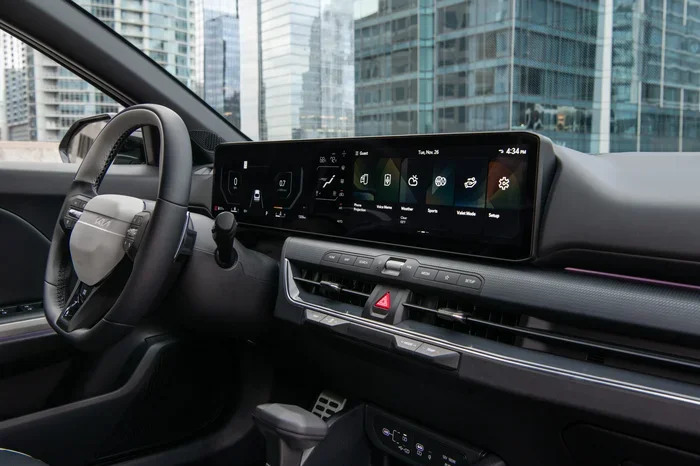
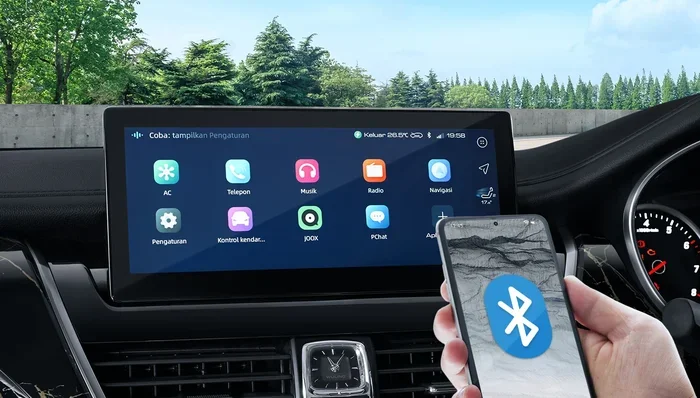
Start your car and go to the settings or phone menu on your infotainment screen. Look for an option that says “Bluetooth,” “Phone,” or “Connections.” Select “Add New Device” or “Search for Devices.” Your car’s pairing mode is now active and searching for nearby phones.
Some car systems will show a message like “Searching for devices” or display a Bluetooth symbol with a plus sign. This means the system is ready to be found by your phone. If you don’t see this option, check your car’s manual or look for a “Phone” or “Media” button on the dashboard.
Step 2: Turn On Bluetooth on Your Phone
Go to your phone’s Bluetooth settings and make sure it is turned on. Your phone will automatically start scanning for nearby devices. Within a few seconds, your car’s name should appear on the list of available devices.
If your car does not show up, don’t panic. Try moving your phone closer to the center console. Bluetooth range is typically about 30 feet, but walls and other electronics can interfere with the signal. Keeping your phone on the passenger seat or dashboard works best during initial pairing.
Step 3: Select Your Car and Enter the Pairing Code
Tap on your car’s name when it appears on your phone. Some systems will ask you to enter a Bluetooth pairing code. Common codes are 0000, 1234, or 1111. Your car’s infotainment screen may also display a code that you need to type into your phone. Confirm the match on both devices.
Once the codes match, the connection is made. You will usually see a confirmation on both screens. Some cars play a short chime to let you know the phone connectivity is established.
Step 4: Choose What You Want to Connect
After pairing, your car may ask what you want to connect. You typically have two options: “Audio” and “Phone.” Selecting “Audio” allows wireless streaming of music and podcasts. Selecting “Phone” enables hands-free calling. Choose both if you want the full experience.
On some car infotainment systems, you might need to set the audio source to “Bluetooth” or “BT Audio” after pairing. This tells the car to play sound through the Bluetooth connection instead of the radio or auxiliary input.
Step 5: Test the Connection
Play a song on your phone and check if it comes through the car speakers. Make a test call to a friend or family member to confirm the hands-free calling works. If both work, congratulations, you are all set!
If something does not work, don’t worry. The next section covers the most common issues and how to fix them quickly.
Common Bluetooth Pairing Problems and How to Fix Them
Even when you follow every step correctly, things sometimes go wrong. Bluetooth troubleshooting is a normal part of the process. Here are the most common problems and their solutions.
Your Car Does Not Show Up on Your Phone
This is the most common issue. Start by restarting Bluetooth on both devices. On your phone, turn Bluetooth off, wait 10 seconds, and turn it back on. Do the same with your car’s infotainment system. Often, this simple restart is all it takes to establish Bluetooth connectivity.
Another reason could be that your car is still paired with another device. Many car systems remember up to five or more phones. Delete old pairings you no longer use, and try again. Also, make sure your phone is not connected to another Bluetooth device like headphones or a smartwatch, as this can interfere.
The Connection Keeps Dropping
If your Bluetooth connection drops frequently, distance and interference are usually the culprits. Keep your phone in the center console or on the passenger seat during the drive. Other electronics, USB chargers, and even certain apps can cause interference.
Try updating your phone’s software and your car’s infotainment firmware. Manufacturers release updates that fix Bluetooth audio quality issues and improve wireless connection stability. On iPhone, go to Settings, then General, then Software Update. On Android, go to Settings, then System, then Software Update.
Audio Sounds Low or Distorted
Check the volume on both your phone and your car. Sometimes the car’s volume is turned down after a reset or battery change. Also, make sure the audio source is set to Bluetooth on the car’s display.
If the sound is still distorted, try unpairing and re-pairing the devices. This refreshes the Bluetooth pairing code and clears any temporary glitches. A clean re-pair often fixes audio quality problems completely.
Hands-Free Calling Does Not Work
Make sure you selected “Phone” access during the pairing process. Some car stereo systems ask for permission to access contacts and call logs. If you denied permission, go to your phone’s Bluetooth settings, find your car, and adjust the permissions. Enable contacts, call logs, and phone access.
Tips to Make Bluetooth Pairing Faster and Easier
A few small habits can make your phone connectivity experience much smoother every time you get behind the wheel.
Keep Your Devices Updated
Software updates often include fixes for Bluetooth compatibility issues. Both your phone and your car benefit from staying current. Check for updates once a month to keep everything running smoothly.
Name Your Car’s Bluetooth Profile Clearly
Some cars show up as generic names like “Hands-Free” or “Audio.” If you have multiple cars or frequently borrow vehicles, renaming the Bluetooth profile in your phone settings helps you identify the right device quickly.
Unpair Old Devices Regularly
If you have paired your car with several phones over the years, clean up the list. Old pairings can slow down the search process and sometimes cause connection conflicts. A clean list means a faster, more reliable Bluetooth connection.
Use the Same Parking Spot
This might sound odd, but it helps. Bluetooth range works best when your phone is in a consistent location. If you always put your phone in the same cup holder or on the dashboard, the wireless connection stays strong and reconnects faster each time.
Restart Before You Pair
Restarting both your phone and your car’s infotainment system before a new pairing clears any temporary glitches. This one habit prevents about 80% of common Bluetooth troubleshooting situations.
How Different Phone Types Handle Car Bluetooth
Not all phones connect the exact same way. Here is a quick look at how iPhone and Android handle Bluetooth audio streaming and phone connectivity.
iPhone and Car Bluetooth
Apple iPhones use a feature called “CarPlay” for a deeper connection, but basic Bluetooth works without it. When you pair your iPhone, the car automatically downloads your contacts and recent call history. Siri can read your messages and make calls through the car’s speakers. Make sure “Show Notifications” is enabled in your Bluetooth settings for the full experience.
iPhone users should also know that iOS updates can sometimes reset Bluetooth settings. After a major update, you may need to re-pair your phone. This is normal and only takes a minute or two.
Android and Car Bluetooth
Android phones offer more customization during device pairing. You can choose which apps send audio through Bluetooth and which do not. Android also supports “Android Auto,” which mirrors your phone screen on the car’s display. Even without Android Auto, basic Bluetooth pairing works the same way for most Android devices.
Some Android phones have a “Bluetooth absolute volume” setting that syncs the phone and car volume levels. You can find this in Developer Options if it is not working as expected. Simply search for “Bluetooth absolute volume” in your phone’s settings.
Comparison Table: iPhone vs Android Bluetooth Pairing
Here is a quick comparison of how the two platforms handle car Bluetooth pairing:
iPhone: Simple, fast pairing. Siri integration. May need re-pairing after major iOS updates. Limited customization of Bluetooth audio routing.
Android: More customization options. Android Auto support. Developer Options for advanced settings. Slightly more steps for initial setup but more control overall.
Both platforms connect to any modern car infotainment system without issues. The differences are mostly about extra features, not the core Bluetooth connection process.
When to Use a Bluetooth Adapter Instead
If your car is older and does not have built-in Bluetooth, you still have options. A car Bluetooth adapter plugs into your car’s auxiliary input or cigarette lighter and adds wireless capability. These adapters cost between $15 and $50 and work with any phone.
The setup process is similar to built-in Bluetooth. Plug the adapter in, turn it on, and pair your phone just like you would with a factory system. The audio quality is slightly lower than a built-in connection, but for most drivers, the difference is barely noticeable.
Look for adapters that support the latest Bluetooth versions for the best Bluetooth audio quality and wireless streaming performance. Version 5.0 or higher is ideal. These adapters also tend to have better Bluetooth range and fewer connection drops.
Maximizing Your Bluetooth Audio Quality
Once your phone to car Bluetooth connection is working, you might want to improve the sound quality. A few adjustments make a big difference.
First, check that your phone is not connected to a low-quality Bluetooth codec. Most modern phones and car systems support AAC or aptX codecs, which deliver much better sound than the default SBC codec. Check your phone’s developer settings if you want to explore this option.
Second, keep your phone close to the car’s antenna. The antenna is usually located near the rear windshield or on the roof. Placing your phone on the passenger seat or in the center console gives you the strongest signal and the best audio streaming quality.
Third, reduce interference from other wireless devices. Wi-Fi routers, USB 3.0 ports, and even other Bluetooth devices can cause static or dropouts. If you notice audio issues, turn off nearby wireless devices and see if the sound improves.
Key Takeaways
- Quick Pairing Process: Most phones and cars can connect within 60 seconds once you know the right steps.
- Works Across Devices: The process is similar for iPhone, Android, and most car infotainment systems.
- Troubleshooting Is Simple: Restarting both devices solves the majority of Bluetooth troubleshooting issues.
- Hands-Free Calling Is a Game-Changer: Once paired, you can make and receive calls safely while driving.
- Multiple Devices Can Connect: Many car systems support pairing with more than one phone at a time.
- Audio Quality Depends on Settings: Adjusting a few settings can greatly improve your wireless streaming experience.
Conclusion
How to pair phone to car Bluetooth is one of the simplest tech skills you can learn. It takes less than two minutes, and once it is done, you wonder how you ever drove without it. The hands-free calling, wireless music streaming, and seamless phone connectivity make every drive better.
Remember, the process is the same whether you drive a new car with a fancy infotainment screen or an older model with a basic stereo. The steps are universal. Turn on Bluetooth on both devices, search for each other, confirm the pairing code, and you are connected.
If you run into trouble, restart both devices and try again. That alone solves most problems. Keep your phone updated, clean up old pairings, and enjoy a reliable Bluetooth connection every time you start the engine.
Now that you know how easy it is, there is no reason not to set it up today. Grab your phone, follow the steps in this guide, and enjoy a wireless, safer, and more connected driving experience. Your future self will thank you every time you get behind the wheel.
Frequently Asked Questions
How long does it take to pair a phone to car Bluetooth?
Most phones and cars connect within 30 to 60 seconds once both devices are in pairing mode. The entire process, from turning on Bluetooth to testing the connection, usually takes about two minutes. If your car has been previously paired with other devices, it might take a little longer to search through the list.
Why won’t my phone connect to my car Bluetooth?
The most common reason is that one or both devices need a restart. Turn Bluetooth off on your phone and car, wait 10 seconds, and turn them back on. Also check that your phone is not connected to another Bluetooth device nearby. If the problem continues, delete old pairings and try pairing again from scratch.
Can I pair multiple phones to one car Bluetooth system?
Yes, most modern car infotainment systems can remember and connect to multiple phones at the same time. Typically, the system supports between three and five paired devices. Only one phone can stream audio at a time, but all paired phones can make and receive hands-free calls.
Does Bluetooth pairing drain my phone battery?
Bluetooth uses very little battery power when connected. An active Bluetooth connection typically uses less than 2% of your phone’s battery per hour. If you notice significant battery drain, check for apps that are using Bluetooth in the background or update your phone’s software, as bugs sometimes cause excessive battery use.
What is the best Bluetooth pairing code for cars?
The most common Bluetooth pairing codes are 0000, 1234, and 1111. However, some car systems generate a unique code that appears on the infotainment screen. Always use the code displayed on your car’s screen to ensure a secure and successful connection.
Can I use Bluetooth for navigation audio in my car?
Yes, once your phone is paired, navigation apps like Google Maps and Apple Maps can play turn-by-turn directions through your car stereo speakers. Make sure you select “Audio” or “Media” during the pairing process to allow navigation sounds to stream wirelessly through the car speakers.