Why Wont My Android Phone Connect to My Car Bluetooth
Struggling with Android phone car Bluetooth issues? This guide covers the most common reasons your phone won’t pair and easy step-by-step fixes. You’ll learn how to troubleshoot pairing problems, reset Bluetooth settings, and prevent connection failures for good.
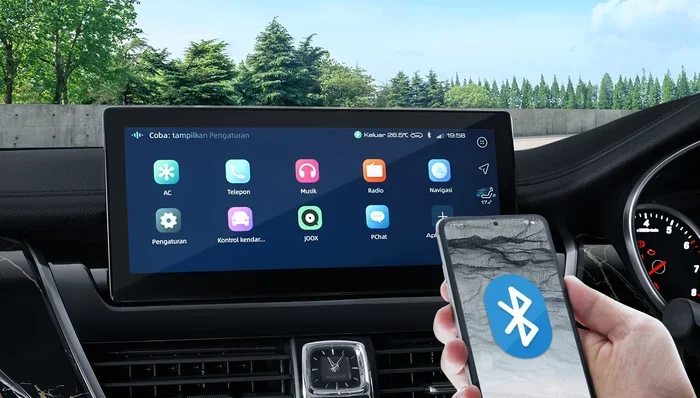
There’s nothing more frustrating than getting into your car, ready to hit the road, and realizing your Android phone won’t connect to car Bluetooth. You’ve done this a hundred times before, but today, the connection just won’t happen. Maybe your phone shows “pairing failed,” or worse, it doesn’t even appear on the car’s screen. Whatever the symptom, a Bluetooth connection problem between your phone and car can throw off your entire morning.
The good news? Most of these issues have simple fixes. In this guide, we’ll walk through every reason your Android phone might not connect to your car and show you exactly how to solve each one. Whether you’re dealing with a Bluetooth pairing failure, a car stereo not detecting phone, or just a random disconnect mid-drive, we’ve got you covered. Let’s get you back on the road with seamless hands free calling and music streaming.
Key Takeaways
- Restart Both Devices: A simple reboot of your phone and car system fixes most temporary Bluetooth glitches.
- Clear Paired Devices List: Removing old pairings frees up memory and resolves connection conflicts.
- Check Bluetooth Permissions: Your Android phone needs the right app permissions to connect to car systems.
- Update Software: Outdated phone or car firmware is a leading cause of pairing failures.
- Reset Network Settings: This clears deeper Bluetooth cache issues that a normal restart won’t fix.
- Distance Matters: Keeping your phone within range of the car’s Bluetooth module improves connection stability.
- Factory Reset as Last Resort: When nothing else works, a factory reset of your car’s infotainment system can solve stubborn problems.
📑 Table of Contents
- Why Won’t My Android Phone Connect to My Car Bluetooth?
- Common Reasons Your Android Phone Won’t Pair with Your Car
- Step-by-Step Fixes to Get Your Android Phone Connected
- How to Properly Pair Your Android Phone with Your Car
- When the Problem Is Your Car’s Bluetooth System
- Preventing Future Bluetooth Connection Issues
- Expert Insights on Android Car Bluetooth Connectivity
- Key Takeaways
Why Won’t My Android Phone Connect to My Car Bluetooth?
Before you start troubleshooting, it helps to understand what’s actually going on. When your Android phone fails to connect to car Bluetooth, the problem usually falls into one of three categories: software, settings, or hardware. Let’s break each one down so you know what you’re dealing with.
Your phone and car communicate through a Bluetooth wireless connection. This connection relies on both devices having the right software, correct settings, and working hardware. When even one part of that chain breaks, the whole thing falls apart. The good thing is that most problems are software-related and easy to fix.
Common symptoms include your phone not showing up on the car screen, the car not appearing on your phone’s Bluetooth list, or a connection that keeps dropping. Each of these points to a different root cause. Understanding the Bluetooth connectivity issues at play helps you pick the right fix instead of guessing.
Software Glitches and Temporary Bugs
Just like any other piece of technology, Bluetooth systems can have temporary hiccups. Your Android phone’s Bluetooth module and your car’s infotainment system both run on software. Sometimes that software gets stuck, and a fresh restart is all it needs to get back on track. This is the most common reason for a Bluetooth pairing failed message and the easiest one to fix.
Incorrect Settings or Permissions
Your Android phone has several settings that control how it connects to other devices. If Bluetooth permissions are off, or if you’ve accidentally turned off media sharing, your phone might connect for calls but not for music. Or it might not connect at all. Checking these settings takes just a few minutes and solves a surprising number of problems.
Outdated Software or Firmware
Both your phone and your car need up-to-date software to work well together. When manufacturers release updates, they often fix known Bluetooth connection problems. If you haven’t updated your phone or your car’s system in a while, that could be the culprit behind your Android phone car connectivity issues.
Common Reasons Your Android Phone Won’t Pair with Your Car
Now that you understand the big picture, let’s look at the specific reasons your phone not connecting to car Bluetooth happens. These are the most common issues we see, and each one has a clear solution.
Bluetooth Is Turned Off or Disabled
It sounds too simple, but this is the number one reason people can’t connect. Your Android Bluetooth might have been accidentally turned off, or it might have disabled itself after a low battery or a system update. Check your quick settings panel first. If the Bluetooth icon isn’t highlighted, tap it to turn it back on. This alone fixes the problem for many drivers.
Too Many Paired Devices in Memory
Your car’s Bluetooth system can only store a limited number of paired devices. If you’ve connected to rental cars, friends’ vehicles, or multiple phones in the past, the memory might be full. When the system runs out of space, it can’t pair with your current phone. Clearing out old pairings often solves this car Bluetooth not working issue right away.
Phone Is Out of Range or Blocked
Bluetooth has a limited range, usually about 30 feet. If your phone is buried in your glove box or tucked behind a metal phone mount, the signal might not reach your car’s Bluetooth module. Metal cases and certain phone mounts can also interfere with the wireless connection between phone and car. Try moving your phone closer to the center console or driver’s seat.
Airplane Mode or Do Not Disturb Interference
Sometimes other settings on your phone can block Bluetooth connections. Airplane mode disables all wireless connections, including Bluetooth. Similarly, some Do Not Disturb modes can restrict background connections. Make sure airplane mode is off and that your phone isn’t in a restricted state before you try pairing again.
Conflicting Third-Party Apps
Some apps on your Android phone can interfere with Bluetooth connections. Apps that control audio output, VPN services, or battery optimization tools might block your phone from connecting to your car. If you recently installed a new app and started having connection problems, that app might be the cause. Try disabling it temporarily to see if the connection comes back.
Step-by-Step Fixes to Get Your Android Phone Connected
Now let’s get into the actual fixes. Follow these steps in order, starting from the simplest solution. Most people find their Android phone connects to car Bluetooth again within the first few steps.
Step 1: Restart Both Devices
This is the golden rule of tech troubleshooting, and it works. Turn off your car’s ignition and Bluetooth system. Power off your Android phone completely. Wait about 30 seconds, then turn both devices back on. Try connecting again. This clears temporary memory and resets the Bluetooth modules on both sides.
Step 2: Toggle Bluetooth Off and On
If a full restart didn’t work, try toggling Bluetooth. Swipe down from the top of your phone screen to access quick settings. Tap the Bluetooth icon to turn it off. Wait 10 seconds, then tap it again to turn it back on. This refreshes the Bluetooth connection without losing your paired devices.
Step 3: Remove Old Pairings and Re-Pair
Go to your phone’s Bluetooth settings and find your car in the list of paired devices. Tap the settings gear next to it and select “Unpair” or “Forget.” Do the same on your car’s infotainment screen. Then start fresh by putting both devices in pairing mode and connecting again. This eliminates any corrupted pairing data that might be causing the problem.
Step 4: Clear Bluetooth Cache on Your Android Phone
Your phone stores cached data for Bluetooth connections. Over time, this cache can become corrupted. To clear it, go to Settings > Apps > Show System Apps > Bluetooth > Storage > Clear Cache. This won’t delete any of your data but can fix deep Bluetooth settings issues that a simple restart can’t touch.
Step 5: Reset Network Settings
If clearing the cache didn’t help, try resetting your network settings. Go to Settings > System > Reset Options > Reset Wi-Fi, Mobile & Bluetooth. This resets all wireless connections to their default state. You’ll need to reconnect to your Wi-Fi and Bluetooth devices afterward, but it often solves stubborn connection problems.
Step 6: Check for Software Updates
Go to Settings > Software Update on your phone and check for any available updates. Install them and restart your phone. Also check your car’s manual or infotainment settings for system updates. Manufacturers regularly release updates that fix Bluetooth pairing problems and improve compatibility with newer phones.
Step 7: Factory Reset Your Car’s Infotainment System
This is the nuclear option for your car’s system. Check your car’s manual for instructions on how to factory reset the infotainment unit. This erases all settings and paired devices, giving you a clean slate. It’s rarely needed, but when nothing else works, it almost always solves the problem.
How to Properly Pair Your Android Phone with Your Car
Prevention is the best medicine. If you follow the right pairing process from the start, you’ll avoid many Bluetooth connection problems down the road. Here’s the best way to pair your Android phone with car Bluetooth every time.
Put Both Devices in Pairing Mode
On your car, go to the Bluetooth settings menu and select “Add New Device” or “Pair New Phone.” On your Android phone, make sure Bluetooth is on and your phone is visible to all nearby devices. You should see your car appear on your phone’s screen and your phone appear on the car’s screen within a few seconds.
Grant All Required Permissions
When pairing, your phone will ask for permissions. Allow contacts access for hands free calling, allow media audio for music streaming, and allow notifications if you want alerts to show on your car’s display. Denying these permissions can cause your phone to connect partially or not at all.
Test Both Calling and Media
After pairing, test a phone call first. Then play some music. If calls work but music doesn’t, you likely have a media audio setting issue. If music works but calls don’t, check your permissions. Testing both ensures a complete connection.
Set Your Phone as a Trusted Device
Most modern cars and Android phones let you mark a device as trusted. This means your phone connects automatically every time you get in the car. Look for this option in your car’s Bluetooth settings and on your phone’s pairing screen. It saves you time and prevents future connection headaches.
When the Problem Is Your Car’s Bluetooth System
Sometimes the issue isn’t your phone at all. Your car’s Bluetooth system might be the source of the problem. Here’s how to tell and what to do about it.
Older Car Models and Bluetooth Compatibility
Older cars with basic Bluetooth might not support newer Android features. If your car was made before 2015, it might only support basic calling and not media streaming. Check your car’s manual to see what Bluetooth profiles it supports. If it doesn’t support media audio Bluetooth, you might need a Bluetooth adapter or an auxiliary cable for music.
Faulty Bluetooth Module in the Car
In rare cases, the car’s Bluetooth module itself might be faulty. Signs of a hardware problem include the Bluetooth system not turning on at all, frequent disconnections even after a factory reset, or error messages that don’t go away. If you suspect a hardware issue, take your car to a dealership or a qualified mechanic for diagnosis.
Aftermarket Bluetooth Adapters
If your car doesn’t have Bluetooth at all or has an outdated system, consider a Bluetooth car adapter. These small devices plug into your car’s audio system and add modern Bluetooth connectivity. They’re affordable and easy to install. Look for adapters that support the latest Bluetooth versions for the best performance.
Preventing Future Bluetooth Connection Issues
Once you’ve got your Android phone connected to your car again, you’ll want to keep it that way. Here are a few habits that prevent future problems.
- Keep Your Phone and Car Software Updated: Regular updates fix known bugs and improve compatibility.
- Restart Your Phone Weekly: A weekly reboot clears temporary files and keeps your Bluetooth module running smoothly.
- Don’t Pair with Too Many Devices: Keep your car’s paired device list clean by removing devices you no longer use.
- Store Your Phone in a Consistent Location: Keeping your phone in the same spot every time helps maintain a strong Bluetooth signal.
- Avoid Using Your Phone While Pairing: Let the pairing process complete without interruptions for the best results.
Following these simple habits goes a long way toward keeping your phone car Bluetooth connection strong and reliable. You’ll spend less time troubleshooting and more time enjoying the drive.
Expert Insights on Android Car Bluetooth Connectivity
Automotive tech experts agree that most Bluetooth connection problems between Android phones and cars are software-related and easily fixable. According to auto tech specialists, the single most effective thing you can do is keep both your phone and your car’s system updated. Manufacturers constantly release patches that address Bluetooth connectivity issues between specific phone models and car brands.
Experts also recommend periodically clearing your car’s Bluetooth memory. Just like your phone, your car’s infotainment system benefits from a clean slate. Removing old pairings and restarting the system every few months keeps everything running smoothly. If you drive a newer car with Android Auto or Apple CarPlay, make sure the app is updated on your phone as well. These apps handle the connection and can cause problems if they’re outdated.
One thing many drivers don’t realize is that certain phone cases can block Bluetooth signals. Thick metal cases or cases with magnetic closures can interfere with the wireless connection between phone and car. If you’ve tried everything else and still can’t connect, try removing your phone case and see if that helps. It’s a small detail that makes a big difference.
Key Takeaways
- Restart Both Devices First: A simple reboot of your phone and car fixes most temporary Bluetooth glitches.
- Clear Old Pairings: Removing previous connections frees up memory and resolves pairing conflicts.
- Check Bluetooth Permissions: Your Android phone needs the right permissions to connect fully to car systems.
- Update Software Regularly: Outdated phone or car firmware is a leading cause of Android phone car Bluetooth failures.
- Reset Network Settings for Stubborn Issues: This clears deeper Bluetooth cache problems that a normal restart won’t fix.
- Consider Hardware Limitations: Older cars may need a Bluetooth adapter for full compatibility with modern Android phones.
- Prevent Problems with Good Habits: Regular updates, clean paired lists, and consistent phone placement keep connections stable.
Can a low battery on my phone prevent Bluetooth from connecting to my car?
Yes, a very low battery can cause your phone to disable Bluetooth to conserve power. Keep your phone charged above 20% to ensure stable Bluetooth connections while driving. If your phone dies while connected, it will reconnect automatically once powered back on.
Why does my Android phone connect to my car Bluetooth but there’s no sound?
This usually means the connection is established but media audio isn’t enabled. Go to your phone’s Bluetooth settings, find your car, and make sure “Media Audio” is turned on. You can also check your car’s audio source setting to make sure it’s set to Bluetooth.
Does clearing Bluetooth cache delete my paired devices?
No, clearing the Bluetooth cache only removes temporary connection data. Your paired devices stay saved. If you want to start completely fresh, you’ll need to manually unpair and then re-pair your devices.
Can too many apps on my phone affect Bluetooth connectivity?
Yes, apps that manage audio output or use Bluetooth in the background can conflict with your car’s connection. Battery optimization apps are especially known to interfere. Try booting your phone in safe mode to see if an app is causing the problem.
How do I know if my car’s Bluetooth is broken?
If you’ve tried all the software fixes, reset your car’s system, and the Bluetooth still won’t turn on or connect, the hardware might be faulty. A dealership can run diagnostics to confirm whether the Bluetooth module needs repair or replacement.
Is there a difference between Bluetooth for calls and Bluetooth for music?
Yes, these use different Bluetooth profiles. Calling uses the HFP profile, while music uses the A2DP profile. If your phone connects for calls but not music, the A2DP profile might be disabled or not supported by your car’s system.
Dealing with a Android phone that won’t connect to car Bluetooth is frustrating, but it’s almost always fixable. Start with the simple stuff — restart both devices, check your settings, and clear old pairings. If those don’t work, move on to clearing your cache, resetting network settings, or updating your software. And remember, prevention is your best friend. Keep your devices updated and your paired list clean.
Most drivers solve their Bluetooth connection problems within minutes using the steps in this guide. The next time your phone refuses to connect, you’ll know exactly what to do. Get back on the road, plug in your favorite playlist, and enjoy the drive with confidence that you can handle any Android car connectivity hiccup that comes your way.
Frequently Asked Questions
What is Why Won’t My Android Phone Connect to My Car?
Why Won’t My Android Phone Connect to My Car is an important topic with many practical applications.