Why Isnt My Phone Connecting to My Car Screen Fix
Your phone not connecting to your car screen is a frustrating but fixable problem. Whether you use Bluetooth pairing, a USB cable, or wireless connection, this guide walks you through every common cause and solution. You will learn how to troubleshoot Android Auto, Apple CarPlay, and your car infotainment system like a pro.
You get in your car, tap your phone against the screen, or plug in your USB cable, and nothing happens. Your phone not connecting to car screen can turn a quick drive into an annoying ordeal. You wanted to stream music, use GPS, or make hands-free calls, and now you are stuck staring at a blank infotainment display.
This problem affects thousands of drivers every day. It does not matter if you drive a sedan, SUV, or truck. The issue can strike any car with a modern infotainment system. The good news is that most causes are simple and free to fix. In this guide, we will walk through every reason your phone connecting to car screen might fail and show you exactly how to solve it.
Key Takeaways
- Restart both devices first: A simple reboot fixes most Bluetooth and USB connection issues.
- Check for software updates: Outdated phone or car firmware is one of the top reasons phones fail to connect.
- Delete old pairings: Removing old Bluetooth connections clears up pairing conflicts.
- Try a different cable or port: Faulty USB cables and dirty ports cause many screen mirroring failures.
- Reset network settings: This clears deep Bluetooth cache issues that a normal restart cannot fix.
- Verify compatibility: Not all phones work with all car systems, so check your model compatibility first.
📑 Table of Contents
- Understanding How Your Phone Connects to Your Car Screen
- Top Reasons Why Your Phone Is Not Connecting to Your Car Screen
- Step-by-Step Fixes to Get Your Phone Connected Again
- How to Prevent Connection Problems in the Future
- Comparison: Bluetooth vs USB vs Wireless Connection
- Expert Insights on Car Phone Connections
- When to Seek Professional Help
- Key Takeaways
- Frequently Asked Questions
- Conclusion
Understanding How Your Phone Connects to Your Car Screen
Before we fix the problem, let us understand how the connection works. Most cars today use one of three methods to link your phone to the display. Each method has its own strengths and quirks.
Bluetooth Connection
Bluetooth pairing is the most common way phones connect to car screens wirelessly. It lets you stream music, make calls, and sometimes view notifications on your dashboard. Bluetooth works over short distances, usually within 30 feet. It does not need a cable, which makes it super convenient.
However, Bluetooth can be finicky. Interference from other devices, outdated software, or a full pairing list can all cause problems. If your car audio system says “device not found,” Bluetooth is likely the culprit.
USB Cable Connection
A USB cable connection gives you a more stable link between your phone and car screen. It charges your phone at the same time. Many drivers prefer USB because it delivers better audio quality and faster data transfer. Android Auto and Apple CarPlay often work best over USB.
The downside? Cables wear out. Dirty ports, frayed wires, and incompatible cables all lead to connection failures. A loose USB connection is one of the most overlooked reasons your phone will not show up on your car display.
Wireless Screen Mirroring
Some newer cars support wireless connection for screen mirroring. This lets your phone display its entire screen on the car display without any cables. It uses Wi-Fi Direct or Bluetooth to create a direct link between devices. Wireless mirroring is great, but it demands both your phone and car support the same protocol.
Top Reasons Why Your Phone Is Not Connecting to Your Car Screen
Now that you understand the basics, let us dive into the most common reasons your phone not showing on car display happens. These are the issues we see over and over again.
Bluetooth Pairing Has Gone Wrong
Bluetooth pairing problems are the number one cause of connection failures. Your phone and car may have been paired before, but the connection broke somehow. Maybe you cleared your car settings during a reset. Perhaps the phone updated its software and dropped the old pairing.
Sometimes too many devices sit in your car’s Bluetooth memory. The system gets confused and refuses to connect. This is especially common in older car infotainment systems that only remember a handful of devices.
Outdated Phone or Car Software
Software updates change how devices communicate. If your phone software update is newer than your car’s firmware, they may not “talk” to each other properly. The same goes the other way around. An old phone trying to connect to a brand-new car system can also fail.
Car firmware update releases fix bugs and add new features. Skipping these updates means you miss important compatibility patches. Check both your phone and your car’s system for pending updates before assuming something is broken.
Faulty or Incompatible USB Cable
Not all USB cables are created equal. Many charging cables only carry power, not data. If your cable cannot transfer data, your car screen will never see your phone. This trips up a lot of people.
Cheap aftermarket cables are especially problematic. They may look the same as the original cable, but they lack the right wiring inside. A damaged cable with a bent tip or frayed sheath will also cause intermittent connection issues. Always use the cable that came with your phone or buy a certified high-quality replacement.
Dirty or Damaged USB Port
Dust, lint, and crumbs love to collect inside USB ports. Over time, this gunk blocks the connection. You may plug in your cable, but the data pins never actually touch. A quick look with a flashlight can reveal a surprisingly dirty port.
Car USB ports also take a beating. They get yanked, bumped, and exposed to heat and cold. A loose or broken port will never make a reliable connection. If wiggling the cable changes anything, the port itself may be damaged.
Phone Settings Are Blocking the Connection
Your phone has settings that control who can connect to it. If Bluetooth settings are set to “hidden” or “non-discoverable,” your car will never find your phone. Airplane mode, do not disturb, or battery saver features can also interfere.
Some phones have a feature that limits background data or restricts connections to certain devices. These settings are easy to accidentally toggle on. Before you tear your car apart, check your phone’s connection settings first.
Device Compatibility Issues
Not every phone works perfectly with every car system. Older phones may not support the latest Android Auto or Apple CarPlay versions. Some budget car stereos lack full compatibility with newer smartphones. This is especially true for smartphone compatibility with media streaming features.
If you just bought a new phone and your car is several years old, the mismatch could be the problem. Check your car manufacturer’s website for a list of supported devices.
Too Many Connected Devices
Bluetooth has a limit on how many devices it can remember. If you have paired your phone with your car, your headphones, a tablet, and a smartwatch, the system may hit its ceiling. The connection timeout error often appears when too many devices are trying to connect at once.
Clearing the Bluetooth memory on your car’s system can free up space and resolve these conflicts. It is a simple step that many people skip entirely.
Step-by-Step Fixes to Get Your Phone Connected Again
Now for the part you have been waiting for. Here are the actual steps to fix your phone not connecting to car screen problem. Try these in order, since the simplest fixes work most of the time.
Step 1: Restart Both Devices
Turn off your car engine and pull the parking brake. Turn off your phone completely, not just put it to sleep. Wait 30 seconds. Turn your phone back on, start your car, and try connecting again. This clears temporary glitches in both devices and resets the Bluetooth connection stack.
Do not underestimate this step. A restart fixes more connection problems than any other single action. It refreshes all wireless modules and clears stuck processes.
Step 2: Delete Old Pairings and Re-Pair
Go into your car’s Bluetooth settings and delete your phone from the paired devices list. On your phone, go to Bluetooth settings and forget the car as well. Now start fresh. Turn on Bluetooth on both devices, make your phone discoverable, and let the car find it.
When you re-pair, do not rush through the process. Follow each prompt carefully. Make sure you approve the connection on both sides. This fresh start clears out any corrupted pairing data that was causing the failure.
Step 3: Try a Different USB Cable and Port
If Bluetooth is not your issue and you are using a cable, swap it out. Use a cable you know works for data transfer, not just charging. Try a different USB port in your car if your vehicle has more than one.
Some cars have USB ports in the center console and others in the rear. The rear ports sometimes serve different functions. Testing different combinations helps you narrow down whether the cable or the port is the problem.
Step 4: Update Your Phone and Car Software
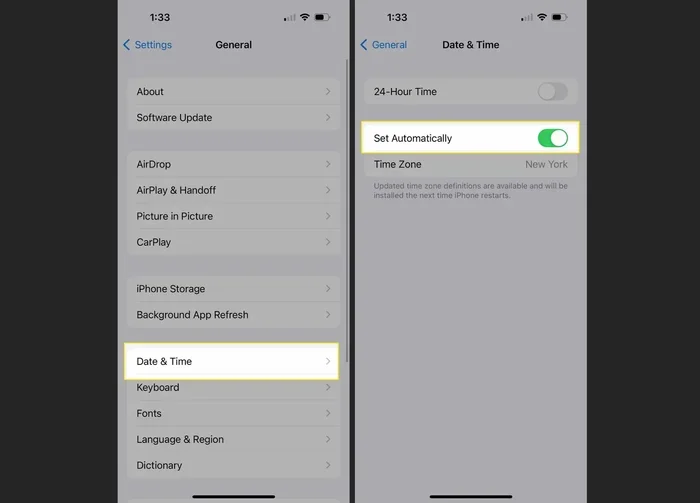
Check for a phone software update in your settings. On iPhone, go to Settings, then General, then Software Update. On Android, go to Settings, then System, then Software Update. Install any available updates and restart your phone.
For your car, check the owner’s manual or visit your dealer. Many modern cars support over-the-air updates now. If yours does, install the latest firmware. This often resolves smartphone compatibility issues with newer phone models.
Step 5: Reset Network Settings on Your Phone
If the connection keeps failing, resetting your phone’s network settings can help. This clears all saved Wi-Fi passwords, Bluetooth pairings, and cellular settings. On iPhone, go to Settings, General, Transfer or Reset, then Reset Network Settings. On Android, go to Settings, System, Reset Options, then Reset Wi-Fi, Mobile, and Bluetooth.
After the reset, you will need to reconnect to your Wi-Fi and re-pair your car. But this deep reset often fixes stubborn connection timeout errors that nothing else can touch.
Step 6: Clear the Car Infotainment System Cache
Some car systems have a cache that stores connection data. When this cache gets corrupted, connections fail. Consult your car’s manual for instructions on clearing the infotainment cache. Some systems require a specific button combination on the dashboard. Others let you do it through the settings menu.
Do not be afraid to dig into your car’s settings. The car infotainment system menu usually has a “Reset” or “Factory Settings” option. Use this as a last resort, as it will erase all your saved presets and paired devices.
How to Prevent Connection Problems in the Future
Once you get your phone connecting to car screen working again, you want to keep it that way. Prevention is always easier than troubleshooting. Here are habits that keep your connection strong.
Keep Your Software Updated
Regular updates fix bugs and improve compatibility. Make it a habit to check for updates once a month on both your phone and your car system. When an update is available, install it promptly rather than ignoring the notification.
Use Quality Cables and Keep Ports Clean
Invest in good cables from reputable brands. Avoid cheap knockoff cables that look fine but lack proper wiring. Clean your USB ports regularly with a soft brush or compressed air. A few seconds of cleaning can save hours of frustration.
Limit Paired Devices
Keep your car’s Bluetooth memory lean. Only pair devices you actually use. If you sell an old phone or give it away, delete its pairing from your car. This prevents the device discovery process from getting cluttered and slow.
Restart Your System Occasionally
A quick restart of both your phone and car system once a week keeps things running smoothly. Think of it like refreshing your browser. It clears out temporary data and prevents small glitches from turning into big problems.
Comparison: Bluetooth vs USB vs Wireless Connection
Not sure which connection method is best for your situation? Here is a quick comparison to help you decide.
| Feature | Bluetooth | USB Cable | Wireless Mirroring |
|---|---|---|---|
| Stability | Good | Excellent | Good |
| Audio Quality | Standard | High | Standard |
| Convenience | High | Medium | Very High |
| Charging | No | Yes | No |
| Compatibility | Wide | Wide | Limited |
| Setup Difficulty | Easy | Easy | Moderate |
Bluetooth is the go-to for most drivers. It is easy to set up and works with almost any phone and car. USB is the best choice if you want reliable audio quality and hands-free calling with Android Auto or Apple CarPlay. Wireless mirroring is the newest option and offers the most convenience, but it requires both devices to support the same standard.
Expert Insights on Car Phone Connections
Automotive technicians who work on car screen troubleshooting every day have a few insights that most drivers never hear. First, they say the most common mistake people make is assuming the car is the problem. In reality, the phone’s settings are usually the issue. Second, they emphasize that cleaning the USB port solves more problems than people realize. Third, they warn against using Bluetooth extenders or signal boosters in cars. These devices can interfere with the car’s native system and create more problems than they solve.
If you have tried everything and your phone not showing on car display persists, it may be time to visit a professional. A certified auto electrician can check your car’s Bluetooth module and infotainment system for hardware issues. Sometimes a faulty antenna or a blown fuse is the real problem, and these need expert attention.
When to Seek Professional Help
Most connection issues are software-related and easy to fix at home. But some problems point to deeper hardware issues. If your car’s infotainment system completely freezes, if the screen goes black during connection attempts, or if you hear static or buzzing through your speakers, these could be signs of a hardware fault.
Do not try to open up your car’s electronics yourself. That can void your warranty and cause further damage. Instead, take your car to a dealer or trusted auto repair shop. They have diagnostic tools that can read error codes from your car’s system and pinpoint the exact problem.
Key Takeaways
- Restart both devices first: A simple reboot fixes most Bluetooth and USB connection issues.
- Delete old pairings and re-pair: Fresh Bluetooth connections clear up most pairing conflicts.
- Use a quality USB cable: Only data-capable cables will make your phone visible to your car screen.
- Keep software updated: Updates on both your phone and car fix compatibility bugs.
- Reset network settings for stubborn issues: This deep reset clears errors that a normal restart cannot fix.
- Clean your USB ports regularly: Dirt and lint are silent connection killers.
- Seek professional help for hardware problems: Frozen screens, static audio, and persistent failures may need expert diagnosis.
Frequently Asked Questions
Why does my phone keep disconnecting from my car screen while driving?
This usually happens because of a weak Bluetooth signal or interference from other electronic devices in your car. Try moving your phone closer to the car’s antenna, which is often near the rearview mirror. Also check if other devices like tablets or smartwatches are fighting for the same Bluetooth connection. Disconnecting unused devices often solves this problem immediately.
Can a dirty USB port really prevent my phone from connecting?
Yes, absolutely. Dust, lint, and debris inside the USB port can block the metal pins from making proper contact. Even a thin layer of dust can cause a connection to fail. Use a toothpick or compressed air to gently clean the port. After cleaning, plug your cable back in and see if the connection works.
Why does my phone connect via Bluetooth but not show on the car screen?
Bluetooth audio and screen mirroring are separate features. Your phone might connect for calls and music but not mirror your screen if the car does not support that specific feature. Check if your car supports Android Auto or Apple CarPlay. Also make sure screen mirroring is enabled in your phone’s Bluetooth settings under the media audio and call audio options.
How do I know if my car and phone are compatible?
Check your car manufacturer’s website for a list of supported devices and software requirements. Look for specific mentions of Android Auto or Apple CarPlay compatibility. Your phone’s user manual will also list supported car connection types. If both devices support the same protocol, they should work together.
Will resetting my car’s infotainment system delete my saved music and presets?
Yes, a factory reset on your car’s infotainment system will erase saved radio presets, Bluetooth pairings, and some app data. Always note down your radio stations or take a photo of your settings before performing a reset. The reset itself will not damage your car, but it will return the system to its original out-of-the-box state.
Is there an app that can help me troubleshoot car phone connections?
Several apps can help diagnose Bluetooth and USB issues. Apps like Bluetooth Manager for Android let you see connection logs and force re-pairing. iPhone users can use the built-in Wireless Diagnostics tool. Some car manufacturers also offer their own companion apps that help troubleshoot phone connecting to car screen problems directly from your smartphone.
Conclusion
A phone not connecting to car screen is almost always a solvable problem. Whether the cause is a simple Bluetooth glitch, a dirty USB port, outdated software, or a compatibility mismatch, you now have the tools to fix it. Start with the basics, work through each step methodically, and you will be back to streaming music, using GPS, and making hands-free calls in no time.
Remember that prevention is your best friend. Keep your software updated, use quality cables, and clean your ports regularly. These small habits save you from the frustration of a failed connection on a busy morning. Share this guide with friends who struggle with the same issue. A little knowledge goes a long way toward keeping your drives smooth and connected.