How Do I Get Waze on My Car Screen Step by Step Guide
Wondering how do I get Waze on my car screen? This step-by-step guide shows you the easiest ways to connect Waze to your car’s infotainment system using Android Auto, Apple CarPlay, or a simple mirror link. You’ll learn compatibility checks, setup steps, and pro tips to keep navigation smooth and safe.
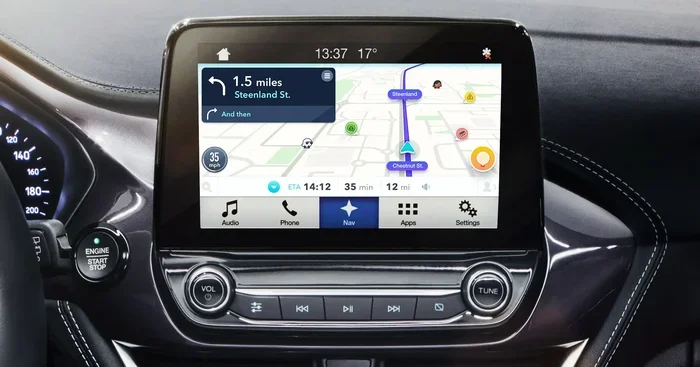
Driving with Waze is one of the best ways to avoid traffic and find the fastest route. But staring at a small phone screen while driving can be distracting and unsafe. That is why many drivers want to get Waze on their car screen. The big dashboard display makes navigation clearer and keeps your eyes on the road. If you have been asking yourself how do I get Waze on my car screen, you are in the right place.
This guide walks you through every method step by step. You will learn how to use Android Auto, Apple CarPlay, and mirror link options. I will also share quick tips to make the experience smooth and safe. By the end, you will know exactly how to set up Waze on your car’s infotainment system.
Whether you drive a new sedan or an older SUV, there is a way to get Waze on your car screen. The process is simpler than you think. Let us get started.
Key Takeaways
- Check Compatibility First: Ensure your car supports Android Auto or Apple CarPlay before you start.
- Use a USB Cable for Best Results: A wired connection is more stable than Bluetooth for Waze.
- Set Up Voice Commands: Keep your hands on the wheel with Waze’s hands-free features.
- Adjust Display Settings: Match Waze’s screen brightness to your car’s dashboard to avoid glare.
- Try Mirror Link for Older Cars: Even without smart integration, you can project Waze using a mirror link adapter.
- Enable Community Alerts: Get real-time traffic and hazard updates directly on your car screen.
📑 Table of Contents
- Why Waze on Your Car Screen Makes Driving Better
- Check If Your Car Supports Smartphone Integration
- How Do I Get Waze on My Car Screen Using Android Auto
- How to Get Waze on My Car Screen with Apple CarPlay
- Mirror Link and Other Methods for Older Cars
- Tips for a Safe and Smooth Waze Experience
- Conclusion
Why Waze on Your Car Screen Makes Driving Better
Using Waze on a car screen changes the whole driving experience. The app gives you real-time traffic updates, accident alerts, and fuel price comparisons. When you see this information on a large display, it is much easier to digest. You do not have to squint at a tiny phone mount.
Here are some key benefits of using Waze on your car screen:
- Larger display: The car screen shows maps in full detail. You can see turns and exits clearly.
- Hands-free control: You can use voice commands to set destinations without touching your phone.
- Real-time traffic alerts: Waze updates you about jams, slowdowns, and hazards instantly.
- Community alerts: Other drivers report police, accidents, and road closures right on your dashboard.
- Fuel price info: See cheap gas stations near you without leaving the route.
When Waze is on your car screen, you stay more focused. The GPS navigation feels built-in and professional. It is a huge upgrade over holding a phone.
Quick Tip: Adjust the screen brightness in your car settings to match the ambient light. This reduces glare and eye strain during night drives.
The Safety Advantage of a Bigger Screen
A small phone can block your view of the road. A car-mounted screen sits at eye level and does not obstruct your view. Waze on a car screen lets you glance at directions without taking your eyes off the highway for long. The larger icons and turn-by-turn arrows are easier to read. This simple change can make your daily commute much safer.
Common Mistake: Many drivers place their phone too low or too high on the dash. This creates glare or blocks the view of the instrument panel. Always position the screen where you can see it without leaning forward.
Check If Your Car Supports Smartphone Integration
Before you connect anything, you need to know what your car can do. Not all cars support Android Auto or Apple CarPlay. But even older models often have a way to get Waze on the car screen. The first step is checking compatibility.
What Is Android Auto and Apple CarPlay?
Android Auto and Apple CarPlay are systems that mirror your phone’s screen onto the car’s infotainment display. They let you run apps like Waze, Spotify, and Maps on the big screen. Android Auto works with most Android phones. Apple CarPlay works with iPhones. Both systems provide a simplified, driver-friendly interface. They are designed to keep you safe and focused.
Does Your Car Have a Head Unit That Supports Them?
Your car’s head unit is the main screen and control system. Most cars built after 2016 come with head units that support either Android Auto or Apple CarPlay. Some older models may have a basic infotainment system that does not support these features. You can check your car’s manual or the manufacturer’s website to see what is supported.
Look for terms like smartphone integration, Apple CarPlay, or Android Auto in the specs. If your car does not have native support, do not worry. There are still ways to get Waze on your car screen using mirror link or a phone mount.
Expert Insight: Many car dealerships can check compatibility for free. You can also look up your car’s model year and trim online to see if it includes CarPlay or Android Auto.
Quick Check: Is Your Car Compatible?
Here is a simple way to check without opening the manual:
- Look for a smartphone icon on your car’s infotainment screen.
- Check if the car’s menu has a Phone or Apps section.
- Search online for your car model plus Apple CarPlay or Android Auto.
If you see any of these, your car likely supports smartphone integration. If not, move on to the mirror link section later in this guide.
How Do I Get Waze on My Car Screen Using Android Auto
If your car supports Android Auto, you are in luck. This is the most direct way to get Waze on your car screen with an Android phone. The process is straightforward and takes only a few minutes.
What You Need
- An Android phone running Android 5.0 or later.
- A compatible car head unit with Android Auto support.
- A USB cable (the one that came with your phone works best).
- The Waze app installed on your phone.
Step-by-Step Setup
Follow these steps to connect Waze via Android Auto:
- Plug your phone into the car’s USB port using the cable.
- Wake up the car’s infotainment screen and select the Android Auto icon.
- Unlock your phone if prompted. You may see a permission screen asking to allow access to apps and settings.
- Accept the permissions. Android Auto will load the simplified home screen.
- On the Android Auto home screen, find and tap the Waze app icon.
- Waze will open on the car screen. Set your destination and start driving.
Once connected, Waze will appear on the car display. You can control it using the car’s touchscreen or voice commands. The app will use your phone’s GPS and internet connection to provide live traffic updates.
Quick Tip: If Android Auto does not start automatically, try a different USB port or cable. Some cars require you to select File Transfer or MTP mode on the phone when connected.
Troubleshooting Android Auto Connection Issues
Sometimes the connection fails. Here are common fixes:
- Restart both your phone and the car’s infotainment system.
- Try a different USB cable. Cheap cables often cause connection problems.
- Clear the Waze cache on your phone. Go to Settings Apps Waze Clear Cache.
- Update the Waze app and Android Auto in the Google Play Store.
- Make sure your phone’s screen is unlocked and not in Do Not Disturb mode.
Common Mistake: Leaving your phone in a thick case can block the USB connection. Remove the case or try a different cable. Also, avoid using USB hubs or extension cords; plug directly into the car’s port.
How to Get Waze on My Car Screen with Apple CarPlay
If you drive an iPhone, Apple CarPlay is your best option. It works just like Android Auto but for iOS. Getting Waze on your car screen with CarPlay is simple and reliable.
What You Need
- An iPhone running iOS 12 or later.
- A car head unit that supports Apple CarPlay.
- A Lightning cable or USB-C cable (depending on your iPhone model).
- The Waze app installed on your iPhone.
Connecting Your iPhone to CarPlay
Follow these steps to set up Waze:
- Plug your iPhone into the car’s USB port.
- On the car’s infotainment screen, select the Apple CarPlay icon.
- If prompted, tap Allow on your iPhone to grant access.
- The CarPlay home screen will appear. Look for the Waze icon.
- Tap Waze to launch it on the car display.
- Set your destination and enjoy hands-free navigation.
CarPlay also supports wireless connection on some cars. If your car supports wireless CarPlay, you can connect without a cable. Just go to your iPhone’s Settings General CarPlay and select your car. The connection will happen automatically when you get in.
Expert Insight: You can set Waze as your default navigation app in CarPlay. Go to iPhone Settings CarPlay Customize Apps and select Waze for the navigation slot. This ensures Waze opens automatically when you start CarPlay.
Setting Waze as Your Default Navigation App
Making Waze your default means it will open with one tap. Here is how:
- Open the Settings app on your iPhone.
- Go to General CarPlay.
- Select your car from the list.
- Tap Customize Apps.
- Find the navigation slot and choose Waze.
Now every time you connect to CarPlay, Waze is ready to go. This saves time and makes the process seamless.
Common Mistake: Forgetting to enable Location Services for Waze. Go to iPhone Settings Privacy and Security Location Services and make sure Waze is set to While Using the App. Without this, Waze cannot provide accurate directions.
Mirror Link and Other Methods for Older Cars
Not all cars have Android Auto or Apple CarPlay. But you can still get Waze on your car screen using mirror link technology. This method works with almost any car that has an auxiliary input or a basic infotainment system.
What Is Screen Mirroring?
Screen mirroring sends your phone’s screen to the car display. It shows everything on your phone, including Waze, on the big screen. The car’s screen acts like a mirror of your phone. You control Waze using the car’s touchscreen or knobs. This is not as seamless as Android Auto or CarPlay, but it works well in a pinch.
Using a Mirror Link Adapter
A mirror link adapter is a small device that connects your phone to the car. Here is how to use one:
- Plug the mirror link adapter into your car’s USB port or auxiliary input.
- Connect your phone to the adapter using a USB cable.
- On your phone, enable screen mirroring or USB debugging (if needed).
- The car screen should display your phone’s interface.
- Open Waze on your phone. It will appear on the car screen.
- Use the car’s controls to interact with Waze.
Mirror link adapters are affordable and easy to find. They cost around $20 to $50. Brands like AA MirrorLink and JVC offer reliable options. This method is perfect for older cars that lack smart integration.
Using a Phone Mount and Bluetooth
If mirror link is not an option, you can still use Waze on your car screen with a phone mount and Bluetooth. This method does not send the map to the car display, but you can hear directions through the car speakers. You will still need to look at the phone for visual directions.
- Mount your phone on the dashboard or windshield using a secure car mount.
- Pair your phone with the car’s Bluetooth system for audio.
- Open Waze and set your destination.
- Waze will read directions aloud through the car speakers.
- Glance at the phone for visual guidance when needed.
This setup is not as safe as a full car screen integration, but it is better than holding the phone. It keeps your hands free and eyes mostly on the road.
Expert Insight: Some aftermarket head units can be installed to add Android Auto or CarPlay to older cars. This is a more permanent solution if you want full Waze integration. A professional installer can do this in a few hours.
Tips for a Safe and Smooth Waze Experience
Once you have Waze on your car screen, you want it to work flawlessly. A few simple habits make a big difference. Here are tips to keep your Waze experience safe and smooth.
Keep Your Phone Charged
Waze uses a lot of battery, especially with the screen on and GPS active. A dead phone means no navigation. Always plug your phone into the car’s USB port while driving. If your car has a fast-charging port, even better. You can also use a car charger that plugs into the cigarette lighter.
Use Voice Commands to Stay Hands-Free
One of the biggest advantages of Waze on a car screen is voice control. You can say Hey Waze, go home or Hey Waze, avoid traffic. This keeps your hands on the wheel and eyes on the road. Both Android Auto and Apple CarPlay support voice commands. You can also use Siri or Google Assistant to control Waze.
Quick Tip: Before you start driving, practice a few voice commands. Say Hey Waze, find a gas station or Hey Waze, report an accident. This builds muscle memory so you can use them safely on the road.
Update Waze and Your Car Software Regularly
Waze releases updates often. These updates fix bugs and add new features. Similarly, your car’s infotainment system may get updates that improve compatibility. Check for Waze updates in the app store once a week. For your car, look for software updates in the settings menu or visit a dealer.
Set Up Preferences Before You Drive
Do not fiddle with settings while driving. Before you start the car, open Waze and set your preferences. Choose your route type (fastest, shortest, or eco-friendly). Set your home and work addresses for quick access. Adjust the voice volume to match your car’s audio level. This preparation makes the drive smoother and safer.
Common Mistake: Changing Waze settings while moving. This is distracting and dangerous. Always set up Waze while parked. If you need to change something, pull over safely first.
Adjust Display Settings for Day and Night
Waze has a night mode that reduces screen brightness and uses darker colors. This prevents glare at night. You can set it to turn on automatically based on the time of day. In your car’s settings, you can also adjust the overall screen brightness. A well-adjusted display is easier on the eyes and reduces fatigue during long drives.
Key Takeaway: A few simple habits like charging your phone, using voice commands, and updating software keep Waze running smoothly on your car screen.
Conclusion
Getting Waze on your car screen is easier than you think. Whether you use Android Auto, Apple CarPlay, or a mirror link adapter, the process is straightforward. You now know how do I get Waze on my car screen and can set it up in minutes. The big dashboard display makes navigation safer and more enjoyable. You get live traffic alerts, community updates, and hands-free control right on your car screen.
Take a few minutes today to connect Waze to your car. Follow the steps in this guide and you will wonder how you ever drove without it. Safe travels and happy navigating!
Frequently Asked Questions
Can I use Waze on my car screen without Android Auto or Apple CarPlay?
Yes, you can. If your car does not support Android Auto or Apple CarPlay, you can use a mirror link adapter to project your phone screen onto the car display. You can also use a phone mount with Bluetooth audio to hear directions through the car speakers. While these methods are not as seamless, they still let you use Waze safely.
Is it safe to use Waze on my car screen while driving?
Yes, it is safe when set up correctly. Using a large car screen reduces the need to look at your phone. You can use voice commands to control Waze without taking your hands off the wheel. Always set your destination before you start driving and pull over if you need to make changes.
Do I need an internet connection for Waze to work on my car screen?
Yes, Waze needs an internet connection to provide live traffic updates, accident alerts, and community reports. You can use your phone’s mobile data or connect to your car’s Wi-Fi hotspot if available. Without internet, Waze will still give basic GPS directions but will lack real-time alerts.
Can I use Waze on multiple cars with the same phone?
Absolutely. You can connect your phone to any car that supports Android Auto, Apple CarPlay, or mirror link. Just plug in or pair the phone, and Waze will appear on that car’s screen. Your preferences and routes sync automatically with your Waze account.
What should I do if Waze keeps disconnecting from my car screen?
First, try a different USB cable or port. A loose connection is the most common cause. Restart both your phone and the car’s infotainment system. Make sure your phone is not in battery saver mode, as this can block connections. If the problem continues, update the Waze app and your car’s software.
Can I control Waze using the car’s steering wheel buttons?
Yes, many cars allow you to control Android Auto and Apple CarPlay with steering wheel buttons. You can answer voice commands, adjust volume, and even tap the screen using the car’s controls. Check your car’s manual to see which buttons are compatible with smartphone integration.