How Do I Change My Automatic Time Setting on My Device
Changing your automatic time setting is easier than you think. Whether your car clock is wrong or your device syncs to the wrong zone, this guide walks you through every step. You will learn how to adjust time settings on vehicles, phones, and tablets with simple instructions.
Have you ever glanced at your car dashboard and thought, “That clock is way off again”? Or maybe your phone jumped to a completely different time zone after a road trip. It happens to all of us. The good news is that fixing this is usually a quick and painless process. In this guide, we will walk you through exactly how to change your automatic time setting on any device. We will cover cars, smartphones, and tablets so you can get the right time no matter where you are.
The automatic time feature is designed to make life easier. It pulls the current time from satellites, cell towers, or Wi-Fi networks. This keeps your clock synced without you lifting a finger. But sometimes, that convenience backfires. Maybe you drove through a state line and your clock refuses to update. Or perhaps your vehicle’s infotainment system grabbed the wrong time zone entirely. Whatever the reason, knowing how to take control of your time settings puts you back in charge. Let us dive in and fix this together.
Key Takeaways
- Automatic time settings use GPS and networks to keep your clock accurate across devices.
- You can switch to manual mode on most cars, phones, and tablets in just a few taps.
- Wrong time zones cause the biggest headaches, so always double-check your location settings first.
- Daylight saving time can throw off auto sync, requiring a quick manual fix.
- Each car brand has its own menu path for changing time settings, and we cover the top ones.
- Restarting your device often fixes sync glitches after changing time settings.
- Keeping your time zone updated prevents future issues when traveling across regions.
📑 Table of Contents
- What Is an Automatic Time Setting and Why Does It Matter?
- How to Change the Automatic Time Setting in Your Car
- How to Change Automatic Time on Your Phone and Tablet
- Why Your Automatic Time Setting Might Be Wrong
- Quick Tips for Managing Time Settings Like a Pro
- Common Mistakes People Make with Automatic Time Settings
- Expert Insights: How Time Sync Technology Works in Vehicles
- When to Seek Professional Help for Time Setting Issues
- Conclusion
What Is an Automatic Time Setting and Why Does It Matter?
An automatic time setting is a feature that syncs your device clock with an external source. On a car, this usually means pulling time data from GPS satellites. On a phone or tablet, it connects to your cellular network or Wi-Fi. The goal is simple: always show the correct time without manual input. Most modern vehicles and devices come with this turned on by default. It works great most of the time. But it is not perfect. Travel across time zones, software glitches, or outdated map data can all cause problems.
Why does this matter so much? Think about your daily routine. You use your car clock to check the time during commutes. You rely on your phone for meetings and appointments. If the time is wrong, you could miss something important. Worse, some navigation systems use time data to calculate arrival estimates. A bad clock means bad estimates. That is why learning how to manage your automatic time setting is a small skill that pays off big. It keeps your schedule on track and your devices reliable.
How to Change the Automatic Time Setting in Your Car
Every car brand handles time settings a little differently. But the general process is similar across most models. You will usually find the option in the settings or display menu on your infotainment screen. Let us walk through the steps for popular car brands so you can find what works for your vehicle.
Changing Time Settings on Toyota and Lexus Vehicles
Toyota and Lexus vehicles make it pretty straightforward. Start by pressing the “Settings” button on your infotainment screen. Look for “Clock” or “Time Zone” in the menu. You will see an option for “Automatic Time Zone.” Toggle it off if you want to set the time manually. Once it is off, you can adjust the hour and minute to match your local time. On newer models, you can also pick your time zone from a list. This helps the clock update correctly when you cross into a new zone.
Adjusting Time on Ford and Lincoln Models
Ford vehicles use the SYNC system, which handles time settings through the “Settings” app. Tap on “General” and then look for “Date and Time.” You will find a switch for “Automatic Time Zone.” Turn it off to gain manual control. From there, you can set the time zone, hour, and minute yourself. Some Ford models also let you choose between a 12-hour and 24-hour display format. This is a small detail, but it makes a big difference if you are used to the military clock style.
Honda and Acura Time Zone Setup
Honda and Acura vehicles store time settings in the “Settings” menu on the display audio unit. Navigate to “General Settings” and then “Clock.” You will find the “Auto Time Zone” option there. Disabling it lets you enter the time zone offset manually. Honda vehicles also allow you to set the clock forward or backward by one hour, which is handy during daylight saving time transitions. If your Honda clock keeps resetting, a quick visit to a dealer can check for software updates that may fix the issue.
BMW, Mercedes, and Luxury Brand Time Controls
Luxury brands like BMW and Mercedes-Benz offer more detailed time controls. In a BMW, go to “Settings,” then “General,” and then “Time/Date.” The “Automatic Time Zone” toggle works the same way as in other brands. Mercedes-Benz users can find similar options under “Settings” and “Time Zone.” These brands often include additional features like world time displays. This is useful if you travel internationally frequently. You can set multiple time zones and switch between them with a tap.
How to Change Automatic Time on Your Phone and Tablet
Your phone and tablet also rely on automatic time settings. These devices use a mix of cellular networks, Wi-Fi, and GPS to stay accurate. But when they get it wrong, the fix is usually just a few taps away. Let us cover both iPhone and Android devices so you have a complete picture.
iPhone Time Settings: Step-by-Step
On an iPhone, open the “Settings” app and tap “General.” Then tap “Date & Time.” You will see a toggle for “Set Automatically.” If this is turned on, your iPhone pulls the time from your cellular or Wi-Fi network. To change it manually, turn off the toggle. The clock will become editable, and you can set the time and time zone yourself. iPhones also have a “Time Zone” search feature. You can type in any city and the phone will adjust accordingly. This is super useful when you are traveling and want your phone to match your destination.
Android Phone Time Settings Made Easy
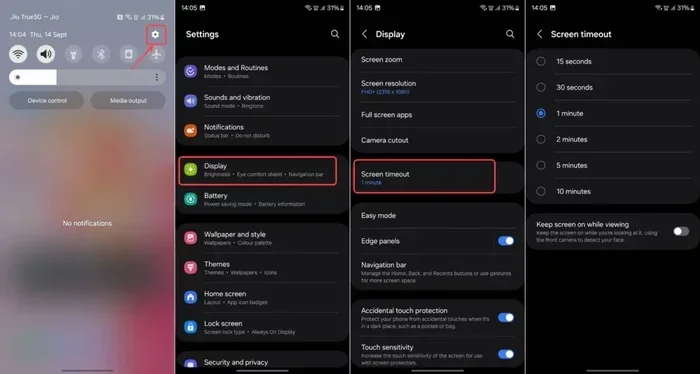
Android phones follow a similar path. Open “Settings” and look for “System” or “General Management,” depending on your brand. Then tap “Date and Time.” You will find the “Automatic date and time” toggle. Turn it off to take manual control. Android also lets you pick a time zone from a list or search for one. Samsung, Google Pixel, and other Android brands may place these options slightly differently. But the general flow stays the same. The key is finding that automatic toggle and flipping it off when you need to make changes.
Tablet Time Settings for iPad and Android Tablets
iPads follow the same settings path as iPhones since they share the same operating system. Android tablets work similarly to Android phones. The main difference is screen size, which makes navigating the menus a bit easier. On both devices, you can disable the automatic time sync and adjust the clock manually. This is especially helpful for tablets used as navigation screens in cars. If your tablet clock is off, your GPS arrival times will be wrong too.
Why Your Automatic Time Setting Might Be Wrong
A wrong clock is frustrating, but understanding why it happens can help you prevent it in the future. Several common causes lead to incorrect automatic time settings. Let us look at the top reasons your device might be showing the wrong time.
Time zone detection errors are the most common culprit. When you cross state or country borders, your device needs to recognize the new location. GPS-based systems rely on satellite data to figure out where you are. If your GPS signal is weak or delayed, the time zone might not update right away. This often happens in rural areas, tunnels, or mountainous regions where satellite signals are weaker.
Network issues can also cause problems. If your phone or car system relies on cellular data for time sync, a weak signal means an outdated clock. This is common in remote areas or underground parking garages. Your device might hold onto the last known time and refuse to update until the signal returns.
Daylight saving time glitches are another frequent issue. Not all devices handle the daylight saving time switch smoothly. Some older car models do not recognize the updated daylight saving rules. This means your clock might jump an hour too early or too late. Software updates from the manufacturer often fix these issues, so keeping your device updated is important.
Outdated map or software data can also throw off your time zone. Car navigation systems store map data that includes time zone boundaries. If that data is old, the system might not know about recent time zone changes in certain regions. A map update or software refresh usually solves this problem.
Quick Tips for Managing Time Settings Like a Pro
Managing your time settings does not have to be complicated. A few simple habits can save you a lot of headaches down the road. Here are some quick tips to keep your clocks accurate and your schedule on track.
- Check your time zone after traveling. Even with automatic settings, it is smart to verify the clock matches your current location. A quick glance takes just a second.
- Keep your device software updated. Manufacturers regularly release updates that fix time sync bugs and improve GPS accuracy. Do not ignore those update notifications.
- Restart your device after making time changes. A simple restart helps the system apply new settings and refresh the connection to time servers.
- Use manual mode when traveling through multiple time zones quickly. If you are on a long road trip crossing several zones, manual control prevents the clock from jumping back and forth.
- Mark daylight saving time dates on your calendar. This reminds you to check your clock the week before the change. It is an easy way to catch problems early.
- Keep a portable phone charger handy. Low battery can sometimes cause devices to lose their time sync. A full charge keeps everything running smoothly.
Common Mistakes People Make with Automatic Time Settings
Even when you know how to change your settings, mistakes still happen. Being aware of these common errors can help you avoid them. Here is what to watch out for.
Forgetting to turn off automatic sync before traveling. Many people leave automatic mode on when they cross time zones. This sounds logical, but it can cause the clock to jump unexpectedly. If your GPS signal is slow to update, your clock might lag behind or jump ahead suddenly.
Not checking the time zone after a software update. Software updates can sometimes reset your time preferences. This is rare, but it happens. After updating your car infotainment system or phone, take a moment to verify the clock is still correct.
Ignoring the 24-hour format option. Some people do not realize their device has switched to a 24-hour display. This can cause confusion, especially if you are used to a 12-hour clock. Always double-check your display format when the time looks “off.”
Assuming all devices sync at the same speed. Your phone might update the time zone instantly, while your car takes a few minutes. This difference can be confusing when you first arrive in a new zone. Give each device a moment to catch up before assuming something is broken.
Overlooking battery or power issues. A weak car battery can cause the clock to reset to a default time. If your clock keeps reverting to midnight or another strange time, check your battery health. A simple test at an auto parts store can tell you if your battery needs replacing.
Expert Insights: How Time Sync Technology Works in Vehicles
Understanding how your car syncs time gives you a better sense of why things sometimes go wrong. Most modern vehicles use a combination of GPS and network-based time sources. The GPS receiver in your car picks up signals from satellites orbiting the Earth. These satellites carry highly accurate atomic clocks. Your car’s system calculates its position and the current time based on those signals.
Some vehicles also use cellular network time as a backup. If the GPS signal is lost, the car can pull time data from the nearest cell tower. This is why your clock might update differently in urban areas versus rural highways. The more signal sources available, the more accurate your time sync will be.
Newer vehicles are moving toward always-connected systems that pull time from the internet. This provides the most accurate and up-to-date time information. But it also means that a weak Wi-Fi or cellular connection can disrupt the sync. Understanding this technology helps you troubleshoot problems more effectively. It also explains why restarting your system or checking your connection often fixes time issues.
When to Seek Professional Help for Time Setting Issues
Most time setting problems are easy to fix on your own. But there are times when professional help is the right call. If your car clock keeps resetting to the wrong time no matter what you do, there might be a deeper issue. A faulty GPS antenna, a software bug, or a wiring problem could all be to blame. A certified mechanic or dealership technician can run diagnostics to find the root cause.
Similarly, if your phone or tablet loses time accuracy across multiple networks, it could signal a hardware problem with the internal clock or antenna. These issues are less common but worth investigating if the problem persists. Do not hesitate to reach out to a professional when simple fixes do not work. It saves time and prevents further frustration.
Conclusion
Changing your automatic time setting is a simple skill that makes a big difference in your daily life. Whether you are adjusting the clock in your car, phone, or tablet, the process is straightforward once you know where to look. The key is understanding how automatic sync works and when to take manual control. With the tips and steps in this guide, you can keep your devices showing the right time no matter where you go. Remember to check your settings after traveling, keep your software updated, and restart your device when changes do not take effect right away. A little attention to your time settings goes a long way toward staying on schedule and avoiding those annoying clock surprises.
Frequently Asked Questions
Why does my car clock reset after I turn off the engine?
This usually happens when the car battery is weak or dying. A low battery can cause the infotainment system to lose its time settings. Have your battery tested at a repair shop or auto parts store to see if it needs replacement.
Can I change the automatic time setting without turning off GPS?
Yes, on most devices you can adjust the clock manually while keeping GPS active. However, turning off the automatic time zone feature prevents the clock from changing based on your location. You can keep GPS on for navigation and still control the time display yourself.
How do I fix my clock after daylight saving time changes?
First, check that your automatic time sync is turned on. If it is and the clock is still wrong, toggle it off and back on again. You can also manually adjust the hour forward or backward. Updating your device software often fixes daylight saving time bugs too.
Does changing the automatic time setting affect my GPS navigation?
No, changing your clock settings does not affect GPS accuracy or navigation routing. The GPS system uses satellite signals for positioning, not your display clock. However, arrival time estimates may be affected if your clock is significantly off.
How often should I check my device time settings?
It is a good habit to check after traveling across time zones or after a major software update. Beyond that, most devices handle time sync automatically without any intervention. A quick check once a month is more than enough for most people.
What should I do if my automatic time setting keeps failing?
Start by restarting your device and checking your network or GPS connection. If the problem continues, update your software and reset the time settings to default. If none of that works, consult a professional technician who can run deeper diagnostics on your device or vehicle system.