Can I Use Google Maps in My Toyota for Seamless Navigation
You can absolutely use Google Maps in your Toyota for seamless navigation. This guide covers compatibility, setup methods, and key features for Toyota models with or without built-in infotainment. Learn how to connect your phone, use Apple CarPlay or Android Auto, and get real-time traffic updates right from your Toyota’s touchscreen.
Can I Use Google Maps in My Toyota? Absolutely! This guide covers everything you need to know about using Google Maps for seamless navigation in your Toyota. You will learn about compatibility, setup methods, key features, and troubleshooting tips. Whether you drive a new 2024 Toyota or an older model, you can get Google Maps on your dashboard with ease.
You love your Toyota. It is reliable, comfortable, and gets you where you need to go. But when you are driving in an unfamiliar area, you need more than just a gut feeling. You need a good navigation app. Google Maps is one of the most popular choices worldwide. It offers real-time traffic, voice guidance, and millions of points of interest. The big question is: can you use it in your Toyota? The short answer is yes. But the details matter. This article will walk you through every step. You will learn which Toyota models support Google Maps, how to set it up, and what features you can expect. By the end, you will feel confident using Google Maps in your Toyota every day.
Navigation has changed a lot over the years. Old GPS devices are clunky and often outdated. Today, your smartphone is smarter. It knows the fastest routes, warns about speed cameras, and shows you nearby restaurants. Toyota understands this. That is why they have made it easy to bring Google Maps into the car. Whether you drive a new 2024 Toyota RAV4 or an older Camry, there is a way to get Google Maps on your dashboard. You just need to know how. In the following sections, we will break it down simply. No jargon. No confusing steps. Just clear, practical advice you can use right away.
Key Takeaways
- Google Maps works in most Toyotas: You can use it via Apple CarPlay, Android Auto, or the built-in browser.
- Setup is simple: Just plug in your phone or connect via Wi-Fi for a seamless experience.
- You get live traffic and directions: Google Maps provides real-time updates, voice commands, and offline maps.
- Not all Toyotas are equal: Older models may need a compatible head unit or smartphone mirroring.
- Keep your maps updated: Regular updates ensure accurate routes and points of interest.
- Voice commands make driving safer: Use Google Assistant to navigate hands-free.
📑 Table of Contents
- Can I Use Google Maps in My Toyota for Seamless Navigation?
- How Google Maps Connects to Your Toyota’s Infotainment System
- Setting Up Google Maps on Your Toyota: Step-by-Step Guide
- Key Features and Benefits of Using Google Maps in Toyota
- Compatible Toyota Models and Years
- Troubleshooting, Expert Tips, and Conclusion
Can I Use Google Maps in My Toyota for Seamless Navigation?
The short answer is yes. You can use Google Maps in most Toyotas made after 2018. The method depends on your Toyota’s infotainment system. Newer models come with Apple CarPlay and Android Auto. These features mirror your phone’s screen onto the car’s display. You get the full Google Maps experience right on the dashboard. Older Toyotas may not have these smart features. But you can still use Google Maps through the built-in web browser or by connecting your phone via Bluetooth for audio directions. Let us explore each option.
How Google Maps Connects to Your Toyota
There are three main ways to use Google Maps in a Toyota. The first is through Apple CarPlay. If you have an iPhone, CarPlay lets you see your phone’s screen on the car’s display. You can open Google Maps, zoom in, and tap on destinations. The second way is Android Auto. Android phone users get the same experience. The third method is the Toyota browser. Some older Toyotas have a web browser built into the infotainment system. You can open Google Maps in that browser. It works, but the interface is smaller and less touch-friendly. All three methods give you access to Google Maps navigation. The difference is in how smooth and integrated the experience feels.
Quick Tip: If your Toyota supports wireless CarPlay or Android Auto, you do not need a cable. The phone connects automatically when you start the car. This is the most convenient option. Check your Toyota’s manual to see if wireless mirroring is supported.
How Google Maps Connects to Your Toyota’s Infotainment System
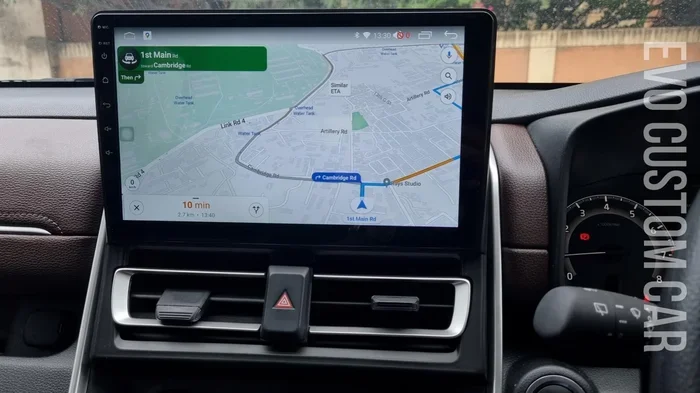
Toyota infotainment systems have evolved quickly. Today, many Toyotas run on the Toyota Audio Plus or JBL Audio systems. They feature large touchscreens and smart connectivity. Google Maps integrates smoothly with these systems through smartphone mirroring. The car’s screen becomes an extension of your phone. You control the map with touch or voice. The audio comes through the car’s speakers. This makes navigation safer and more convenient.
Apple CarPlay and Google Maps
Apple CarPlay is a standard feature in most Toyotas from 2019 onward. When you connect your iPhone, the car screen shows a simplified version of your phone’s home screen. You tap the Google Maps icon. The app launches on the car’s display. You can use Siri to search for destinations hands-free. Say “Hey Siri, navigate to the nearest gas station.” CarPlay sends the directions to Google Maps. You get turn-by-turn voice guidance and a clear map view. The Toyota steering wheel controls let you adjust volume or mute the voice.
Android Auto and Google Maps
Android Auto works similarly for Android phones. It mirrors your phone’s Google Maps app onto the Toyota screen. You get the same features: live traffic, voice search, and offline maps. Android Auto also supports Google Assistant. You can say “Hey Google, find a restaurant nearby.” The system will search and show results on the Toyota display. Android Auto supports both wired and wireless connections. Wireless Android Auto is available on newer Toyota models like the 2023 and 2024 RAV4, Camry, and Highlander.
The Toyota Built-In Browser Option
For Toyotas without CarPlay or Android Auto, you can use the built-in web browser. Open the browser on the Toyota screen and go to maps.google.com. The page loads a basic version of Google Maps. You can type in a destination and get directions. The map will not be as responsive as a native app. But it still provides accurate navigation. This method works well for older Toyotas from 2015 to 2018. It is a great fallback option.
Setting Up Google Maps on Your Toyota: Step-by-Step Guide
Setting up Google Maps in your Toyota is quick and easy. Follow these simple steps to get started.
Step 1: Check Your Infotainment System
First, find the source or media button on your Toyota’s touchscreen. Look for the CarPlay or Android Auto icon. If you see it, your car supports smartphone mirroring. If not, you might have a basic audio system. In that case, you can still use Google Maps on your phone and play audio through the car’s speakers via Bluetooth.
Step 2: Connect Your Phone
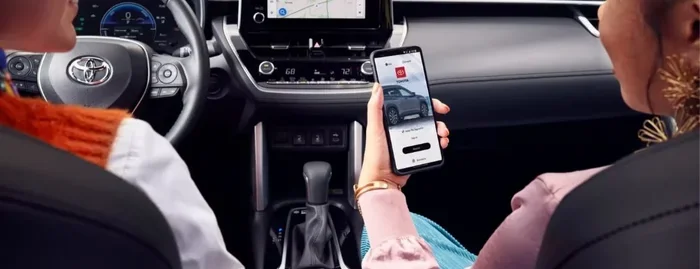
Plug your phone into the USB port. Use a high-quality cable. For wireless connection, make sure your phone and car are on the same Wi-Fi network. Follow the on-screen prompts to pair. You may need to unlock your phone and trust the car. Once connected, your phone’s screen will appear on the car’s display.
Step 3: Open Google Maps
On your phone, open Google Maps. It will automatically appear on the car screen. Set your destination and start navigating. You can use voice commands to search for places. Say “Hey Google, find the nearest gas station.” The car’s touchscreen will show the route. You will hear turn-by-turn directions through the speakers.
Quick Tips for a Smooth Setup
- Use a USB cable that supports data transfer, not just charging.
- Enable “Allow Access” on your phone when prompted.
- Update your Toyota infotainment software before connecting.
- Keep your Google Maps app updated on your phone.
- For wireless connection, ensure your phone is fully charged.
- Restart your Toyota’s infotainment system if the connection fails.
- Make sure your phone’s screen brightness is set to auto for better visibility.
Common Mistakes to Avoid
- Using a low-quality USB cable: A cheap cable might only charge your phone. It will not transfer data. Use the cable that came with your phone or buy a certified one. Look for “Made for iPhone” or “USB-IF” certification.
- Forgetting to enable permissions: Google Maps needs permission to access your location. If you deny permission, the app will not show your position on the map. Always choose “Allow” when prompted. You can also change this in your phone’s settings under Privacy and Location.
- Ignoring software updates: Old software causes glitches. If your Toyota’s infotainment system is outdated, CarPlay might disconnect. Check for updates in the Toyota app or at the dealer. On your phone, update Google Maps from the App Store or Google Play Store.
- Not setting up offline maps: You might assume you always have signal. But tunnels and rural roads can block it. Download offline maps before you travel. Open Google Maps, tap your profile picture, and select “Offline maps.” Choose the area you need. This simple step saves you from getting lost.
- Leaving the app open on your phone: When CarPlay or Android Auto is active, you do not need to keep the app open on your phone. The car screen takes over. Closing the app on your phone can sometimes cause the connection to drop.
Key Features and Benefits of Using Google Maps in Toyota
Using Google Maps in your Toyota gives you many useful features. Here are the ones you will love most.
Real-Time Traffic and Route Updates
Google Maps is famous for its live traffic data. It knows about accidents, road closures, and slowdowns. It reroutes you automatically to save time. This feature is a game-changer for daily commuters. You will avoid jams and reach your destination faster. The Toyota touchscreen makes it easy to see the traffic color on the map. Red lines mean slow traffic. Green lines mean clear roads. You can also see the estimated arrival time and adjust your departure time accordingly.
Voice Commands and Hands-Free Navigation
Safety comes first when driving. Google Maps supports voice commands. You can say “Hey Google, navigate to home.” Or “Take me to the nearest coffee shop.” The system will respond without you touching the screen. This keeps your eyes on the road and hands on the wheel. Toyota’s steering wheel controls also let you adjust volume or mute the map voice. You can even say “Stop navigation” to end the trip. This hands-free experience is one of the biggest advantages of using Google Maps in your Toyota.
Offline Maps for Areas with No Signal
One of the best features is offline maps. You can download a map of your city or a whole state before you leave. Then, even if you lose cell signal, Google Maps still works. It will guide you using the downloaded data. This is perfect for road trips through mountains or rural areas. You do not need a Toyota with built-in Wi-Fi to use this. Just download the map on your phone when you have Wi-Fi. The app will use the phone’s GPS receiver to track your location offline.
Points of Interest and Local Search
Google Maps knows millions of places. You can search for gas stations, restaurants, hotels, and EV charging stations. The app shows ratings, hours, and photos. When you are hungry, say “Find a pizza place nearby.” Google Maps will show options along your route. You can also save favorite places for quick access. This makes exploring new cities fun and easy. The Toyota touchscreen makes browsing these results comfortable and safe.
Map and App Updates
Google Maps updates automatically when you have an internet connection. Your Toyota infotainment system may also receive updates. Keep both your phone and car software up to date. This ensures you get the latest maps, features, and bug fixes. A Toyota dealer can help with software updates during regular service visits. The Toyota app can also notify you when a software update is available for your car.
Expert Insight: Use the Toyota App for Extra Features
Toyota has its own app. It lets you remote start the car, check fuel levels, and find your parked car. When combined with Google Maps, you get a powerful tool. The app can send destinations from your phone to the car’s infotainment system. This is called “Smart Device Integration.” It works smoothly with many 2023 and 2024 Toyota models. You can also use the Toyota app to check if your car needs a software update for better compatibility. Some Toyotas even support sending a destination from the Toyota app directly to Google Maps on the car screen.
Using Google Maps for Road Trips
Google Maps is excellent for road trips. You can plan your route in advance, adding stops along the way. The app will suggest the best time to leave based on traffic predictions. You can also search for hotels and attractions along your route. Offline maps are especially useful here. Download the maps for the entire route before you leave. You will not worry about losing signal in remote areas. The Toyota’s large touchscreen makes it easy to see the next turn and adjust the route on the fly.
Safety Features While Using Google Maps
Google Maps includes several safety features. It warns you about speed cameras and red-light cameras. It reminds you to stay focused on the road. The app also has a “Do Not Disturb” mode that silences notifications while driving. When connected to your Toyota via CarPlay or Android Auto, these safety features work seamlessly. The Toyota’s built-in systems can also detect if the car is moving and limit certain phone functions. This layered safety approach keeps you and your passengers protected.
Compatible Toyota Models and Years
Most Toyota models from 2018 onward support Apple CarPlay or Android Auto. Here are some popular examples:
- Toyota RAV4 (2019 and newer) – Full CarPlay and Android Auto support.
- Toyota Camry (2018 and newer) – Seamless smartphone mirroring.
- Toyota Highlander (2020 and newer) – Works with both Apple and Android.
- Toyota Tacoma (2023 and newer) – New infotainment system with smart features.
- Toyota Tundra (2022 and newer) – Supports wireless CarPlay on higher trims.
- Toyota Corolla (2019 and newer) – Basic CarPlay and Android Auto available.
- Toyota Sienna (2021 and newer) – Great for families with built-in Wi-Fi.
- Toyota 4Runner (2024 and newer) – Updated system with Google Maps support.
If you drive an older model, do not worry. You can still use Google Maps. You just might need a different approach. Check your owner’s manual or ask a Toyota dealer to confirm your system’s capabilities. Many Toyotas from 2015 to 2017 can use the built-in browser or Bluetooth audio for directions. The Toyota Entune system in older models may also support Google Maps through a browser or app integration.
Quick Reference: Toyota Model Year and Google Maps Support
Here is a quick comparison table to help you find your model.
| Toyota Model | Model Years | Google Maps Support | Connection Method |
|---|---|---|---|
| RAV4 | 2019+ | Full support via CarPlay/Android Auto | USB or Wireless |
| Camry | 2018+ | Full support via CarPlay/Android Auto | USB or Wireless |
| Highlander | 2020+ | Full support via CarPlay/Android Auto | USB or Wireless |
| Tacoma | 2023+ | Full support with new infotainment | USB or Wireless |
| Corolla | 2019+ | CarPlay and Android Auto | USB |
| Older Models (pre-2018) | Varies | Basic support via browser or Bluetooth | Browser or Bluetooth audio |
Keep in mind that trim levels matter. Higher trims often come with the more advanced infotainment systems. The base trims might have a smaller screen or fewer connectivity options. Always check the specific trim of your Toyota before assuming full support. For example, a base 2020 Toyota RAV4 might not have wireless CarPlay, but the higher trims do.
Troubleshooting, Expert Tips, and Conclusion
Troubleshooting Common Google Maps Issues in Toyota
Even with a smooth setup, you might run into small issues. Here are the most common problems and how to fix them.
- Google Maps does not appear on the car screen: Make sure your phone is unlocked and CarPlay or Android Auto is enabled. Try a different USB port or cable. Restart both your phone and the Toyota infotainment system by holding the power button for 10 seconds.
- Voice commands are not working: Check that Google Assistant is enabled on your phone. Make sure the car’s microphone is not muted. In some Toyotas, you need to press the voice command button on the steering wheel first. Also, ensure your phone’s microphone is not covered by a case.
- Traffic data is not showing: Ensure your phone has a cellular data connection. Google Maps needs data for live traffic. If you are on Wi-Fi only, traffic updates might not work. Turn off Wi-Fi and use cellular data for the best experience.
- The map is slow or lagging: Close other apps on your phone. A phone with low memory can slow down the mirroring experience. Restart the car’s infotainment system. You can also try disconnecting and reconnecting your phone.
- Audio directions are not playing through the car speakers: Check the audio source on the Toyota screen. It should be set to CarPlay or Android Auto. If it is set to radio or Bluetooth audio, the map voice will not come through the speakers.
Expert Tips for the Best Google Maps Experience
- Keep your phone cool and charged: Google Maps uses a lot of battery and processing power. On a long drive, your phone might overheat. Use a high-quality car charger. If your Toyota has wireless CarPlay, the phone might still charge slowly. Consider a fast-charging cable to keep your phone powered up.
- Explore third-party apps too: Google Maps is great, but it is not the only option. Waze is another Google app that focuses on community traffic alerts. Some drivers prefer it for daily commuting. You can use Waze with CarPlay or Android Auto just like Google Maps. The Toyota infotainment system supports many apps. You can also use Spotify, Podcasts, and more while navigating.
- Share your location with family: Google Maps lets you share your real-time location. This is great for meeting friends or letting family know your ETA. You can do this from the car’s screen when connected via CarPlay or Android Auto.
- Use the “Save” feature for frequent destinations: Save your home, work, and favorite spots. This makes starting a navigation quick. Just say “Navigate to home” and Google Maps takes you there.
- Update both your phone and car software regularly: Toyota releases infotainment updates that improve compatibility. A Toyota dealer can install these updates for free. On your phone, update Google Maps from the App Store or Google Play Store. Regular updates prevent bugs and improve map accuracy.
- Customize your navigation settings: In Google Maps, you can choose to avoid tolls, highways, or ferries. You can also set your preferred fuel type to find EV charging stations. These settings carry over to the Toyota screen when connected.
Key Takeaways
- Google Maps works in most Toyotas: You can use it via Apple CarPlay, Android Auto, or the built-in browser.
- Setup is simple: Just plug in your phone or connect via Wi-Fi for a seamless experience.
- You get live traffic and directions: Google Maps provides real-time updates, voice commands, and offline maps.
- Not all Toyotas are equal: Older models may need a compatible head unit or smartphone mirroring.
- Keep your maps updated: Regular updates ensure accurate routes and points of interest.
- Voice commands make driving safer: Use Google Assistant to navigate hands-free.
Conclusion
Can I Use Google Maps in My Toyota? Yes, you can. Whether you have a brand-new 2024 Toyota or a slightly older model, Google Maps fits right into your driving life. You can connect via Apple CarPlay, Android Auto, or the built-in browser. You get live traffic, voice commands, offline maps, and millions of points of interest. The setup takes only a few minutes. Once connected, navigation feels seamless and natural. Keep your phone and car software updated. Use voice commands for safety. Download offline maps for remote areas. With Google Maps in your Toyota, you are never lost again. Start exploring your routes today and enjoy the journey.
Frequently Asked Questions
Can I use Google Maps on older Toyota models without CarPlay?
Yes, you can still use Google Maps on older Toyotas. You can open the car’s web browser and navigate to Google Maps. The experience will be basic, but it works. You can also use your phone for navigation and play audio through the car’s speakers via Bluetooth.
Do I need an internet connection to use Google Maps in my Toyota?
You need the internet for live traffic and search results. However, you can download offline maps and use them without a signal. The GPS receiver on your phone works independently of cell service. So you can still get directions offline.
Is Google Maps free to use in my Toyota?
Google Maps is completely free. You just need a data plan on your phone if you are using live features like traffic. Offline maps do not use data once downloaded. There are no subscription fees for using Google Maps in your Toyota.
Can I use Google Maps with wireless CarPlay in my Toyota?
Many newer Toyota models support wireless CarPlay. This means you do not need to plug in a cable. Your phone connects to the car’s Wi-Fi network automatically. Check your Toyota’s manual to confirm wireless CarPlay support. If not available, a wired USB connection works just as well.
How do I update Google Maps on my Toyota’s screen?
Google Maps updates through your phone’s app store. The car’s display mirrors your phone, so you always see the latest version. You should also update your Toyota infotainment software. A Toyota dealer can perform this update for free during a service visit.
Will using Google Maps drain my Toyota’s battery?
If you use wireless CarPlay, your phone and car communicate constantly. This can use a small amount of battery. However, it is minimal. If you notice battery drain, plug your phone into a charger. Using a wired connection can also reduce battery usage compared to wireless.