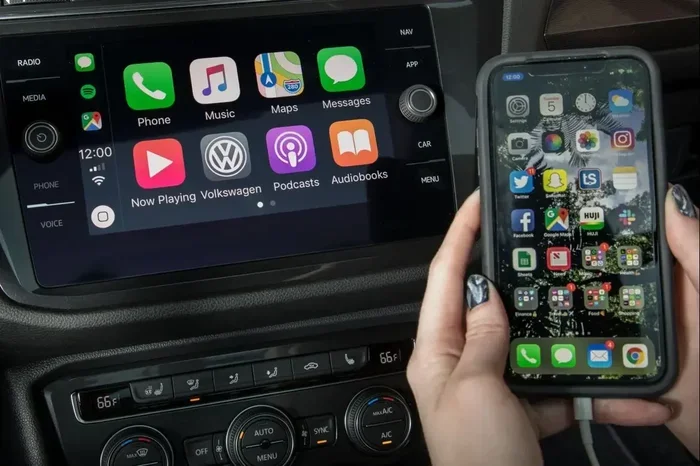
Why Is My Car Not Playing Apple CarPlay Try These Fixes
Apple CarPlay not showing on your screen? You are not alone, and the fix is usually simpler than you think. This guide walks you through the most common reasons your Apple CarPlay will not connect and gives you clear, step-by-step solutions. From cable problems to software updates, we cover every angle so you can get back to using CarPlay in minutes.
You are on the road, ready to use your favorite apps, and then it happens. Your Apple CarPlay just will not show up on the screen. Maybe it worked yesterday, but today your CarPlay is completely blank or frozen. It is frustrating, especially when you rely on it every single day for navigation and music.
The good news is that this problem is very common, and it is almost always fixable. You do not need to be a tech expert to solve it. In this article, we will walk you through every reason your CarPlay might not be working and give you the exact steps to fix it. Whether you are dealing with a CarPlay black screen, a CarPlay frozen screen, or your iPhone not recognized by car, we have you covered.
We will look at USB cable problems, software updates, wireless connection issues, and more. By the end of this guide, you will know exactly what to do to get Apple CarPlay back up and running. Let us dive right in and solve this together.
Key Takeaways
- A loose or damaged USB cable is the number one cause of CarPlay not connecting.
- Outdated software on your iPhone or car infotainment system often triggers connection problems.
- Wireless CarPlay issues are usually tied to Bluetooth or Wi-Fi settings that need a quick reset.
- Restarting both your phone and car system solves most minor glitches instantly.
- CarPlay compatibility depends on both your car model and iPhone version matching.
- Factory resetting CarPlay should be your last resort before visiting a mechanic.
📑 Table of Contents
- Why Apple CarPlay Keeps Refusing to Connect
- USB Cable and Port Issues
- Software and Settings Problems
- Wireless CarPlay Not Working
- When to Seek Professional Help
- Quick Fixes That Really Work
- Preventing CarPlay Problems in the Future
- Comparing Wired vs Wireless CarPlay
- Final Thoughts on Fixing CarPlay Connection Issues
Why Apple CarPlay Keeps Refusing to Connect
When your CarPlay will not connect, it can feel like your whole driving routine falls apart. The truth is, there are only a handful of reasons this happens. Most of them are easy to check and fix at home without any special tools.
Before you panic, take a deep breath. The first thing to understand is that CarPlay troubleshooting usually starts with the basics. Is your cable plugged in properly? Is your phone updated? Is your car system compatible? These simple questions answer most problems right away.
Common Connection Problems You Can Fix Right Now
The most common reason for CarPlay not connecting is a physical connection issue. Your iPhone talks to your car through a cable or a wireless signal. If either of those paths is blocked or damaged, CarPlay will not work.
Here are the top connection problems drivers face every day:
- Loose USB cable – The cable is not fully seated in the port.
- Dirty USB port – Dust or lint is blocking the connection.
- Damaged cable – The cord is frayed or bent inside.
- Wrong USB port – Some ports in your car only charge, they do not transfer data.
- Wireless signal interference – Other Bluetooth devices are causing conflicts.
Each of these issues has a simple fix. You do not need expensive parts or a visit to the dealership. A little patience and the right approach will get things working again.
Is Your Phone Compatible with Your Car?
Not every iPhone works with every car. CarPlay compatibility depends on both your phone and your vehicle. If your iPhone is too old or your car system is outdated, they might not talk to each other at all.
Here are the basic compatibility rules you should know:
- iPhone 5s and newer support CarPlay.
- Your car needs a compatible infotainment system.
- iOS 7.1 or later is required on your phone.
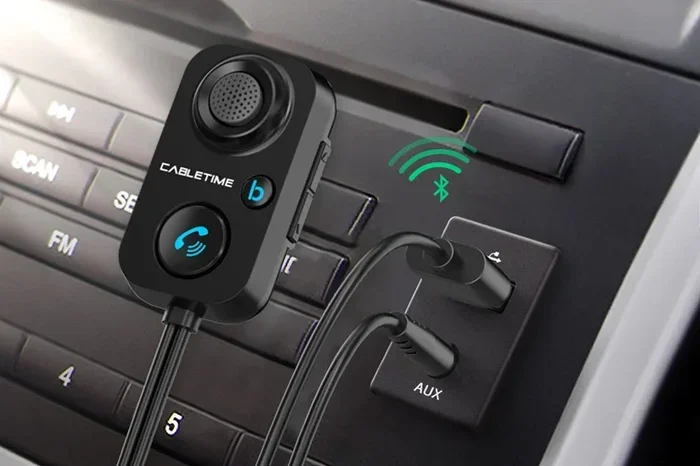
- Some older cars need a CarPlay adapter to work properly.
If you are unsure whether your car supports Apple CarPlay, check your car manual or look up your car model online. You can also visit the Apple CarPlay support page for a full list of compatible vehicles. This one simple check can save you a lot of guesswork.
USB Cable and Port Issues
The USB cable is the lifeline of your CarPlay connection. When you plug in your iPhone, that cable carries both power and data. If something is wrong with the cable or the port, your CarPlay will not load. This is the single most common reason people search for why is my CarPlay not working on their car.
Pick the Right Cable for CarPlay
Not all USB cables are created equal. A cable that charges your phone might not transfer data to your car’s screen. This is a huge mistake many drivers make without even realizing it.
Here is what you need to look for in a CarPlay USB cable:
- Lightning to USB cable for most iPhones.
- USB-C to USB cable for iPhone 15 and newer models.
- Certified cables from Apple or trusted brands like Anker or Belkin.
- Cables that support data transfer, not just charging.
Quick Tip: If you have been using the same cable for years, it might be time to replace it. Cables wear out, and the internal wires break down even if the outside looks fine. Try a different cable first. It solves the problem more often than you would think.
Clean Your USB Port on Both Devices
Dust, lint, and tiny crumbs can build up inside your USB ports over time. Even a small amount of debris can block the connection and stop CarPlay from working. This is especially common if you keep your phone in your pocket and plug it in often.
To clean your ports safely:
- Turn off your car and unplug your phone.
- Use a wooden toothpick or a soft brush to gently remove debris.
- Never use metal objects like pins or paper clips. They can damage the pins inside.
- Blow gently into the port to clear out any loose particles.
- Plug your cable back in and check if CarPlay connects.
This simple step takes less than a minute and fixes more connection problems than most people realize. Do not skip it.
Software and Settings Problems
Sometimes the problem is not physical at all. It is software. Both your iPhone and your car’s infotainment system need to be up to date for Apple CarPlay to work smoothly. Outdated software is one of the top reasons for CarPlay not loading or showing a blank screen.
Update Your iPhone and Car System
Software updates fix bugs and improve compatibility. If you have not updated your iPhone in a while, that could be the reason your CarPlay is acting up. The same goes for your car’s system.
Here is how to update your iPhone:
- Go to Settings on your iPhone.
- Tap General and then Software Update.
- If an update is available, tap Download and Install.
- Wait for the update to finish and restart your phone.
For your car system, the process varies by brand. Most modern cars let you check for updates through the infotainment settings menu. Some cars even support over-the-air updates now. Check your car manual for specific steps.
CarPlay Settings You Might Have Missed
It sounds obvious, but sometimes the simplest settings get turned off by accident. A quick tap in the wrong place can disable CarPlay without you noticing. Before you try anything complicated, double-check these settings.
On your iPhone, go to Settings > General > CarPlay. Make sure your car is listed and selected. If you see your car but CarPlay still will not work, try removing it and setting it up again. This resets the connection from scratch.
Also check that Siri CarPlay is enabled. Siri helps CarPlay respond to your voice commands. If Siri is turned off, some CarPlay features will not work properly. Go to Settings > Siri & Search and make sure the relevant toggles are on.
Wireless CarPlay Not Working
More and more cars are offering wireless CarPlay, which means you do not need a cable at all. It uses Bluetooth and Wi-Fi to connect your iPhone to your car. While this is incredibly convenient, it can also cause its own set of problems.
Bluetooth and Wi-Fi Troubleshooting Steps
If your wireless CarPlay will not connect, the issue is almost always related to Bluetooth or Wi-Fi settings. Here are the steps that fix most wireless connection problems:
- Turn off Bluetooth on your iPhone and then turn it back on.
- Make sure Wi-Fi is turned on. Wireless CarPlay needs Wi-Fi even if you are not connected to a network.
- Restart your iPhone completely.
- Restart your car’s infotainment system.
- Go to Settings > General > CarPlay and remove your car, then pair it again.
These steps clear out old connection data and force your phone and car to create a fresh link. It works like a charm for most wireless CarPlay troubleshooting situations.
Quick Tip: If you are in a crowded area with many Bluetooth devices, interference can cause connection drops. Move your car to a quieter spot and try connecting again. This is especially common in parking lots or apartment complexes.
CarPlay Audio Issues and Other Quirks
Sometimes CarPlay connects but the audio is weird. Maybe your music sounds muffled, or Siri does not respond when you speak. These are separate issues from the main connection problem, but they are still annoying.
For CarPlay audio issues, try these fixes:
- Check your car’s audio source and make sure it is set to CarPlay or USB.
- Adjust the volume on both your phone and your car stereo.
- Go to Settings > CarPlay and make sure your car is set as the audio output.
- If Siri is not responding, check your Siri settings and make sure “Listen for Hey Siri” is enabled.
Most audio quirks are just settings that got changed by accident. A quick check in your CarPlay settings usually sorts them out right away.
When to Seek Professional Help
Most of the time, the fixes above will solve your CarPlay problems. But there are moments when the issue goes beyond what you can fix at home. Knowing when to ask for help saves you time and prevents you from making things worse.
You should consider visiting a mechanic or your car dealer if:
- Your infotainment system CarPlay option is completely missing from the settings menu.
- Your car’s software cannot be updated through normal methods.
- You have tried every fix and your iPhone not recognized by car problem persists.
- You notice physical damage to the USB port in your car.
- Your car is under warranty and you do not want to void it with DIY fixes.
A professional can run deeper diagnostics and check for hardware issues that are not visible to the naked eye. They also have access to specialized tools and software updates that regular users cannot access. There is no shame in asking for help when you need it.
Expert Insight: Many car dealerships offer free CarPlay check-ups, especially if your car is relatively new. It is always worth a quick phone call before booking an expensive repair. You might find the fix is simpler and cheaper than you expected.
Quick Fixes That Really Work
Sometimes you just need a fast solution and you need it now. Here are the quick fixes that solve CarPlay problems in under two minutes. Bookmark this section for the next time your CarPlay acts up.
Fix 1: The Classic Restart. Turn off your car, turn off your iPhone, wait 30 seconds, and turn both back on. This clears temporary glitches and resets connections. It works about 40 percent of the time.
Fix 2: Try a Different Cable and Port. Swap your cable for a new one and plug it into a different USB port in your car. This rules out both cable and port issues at the same time.
Fix 3: Reset CarPlay Settings. Go to Settings > General > CarPlay on your iPhone. Remove your car and then reconnect it. This forces a fresh pairing.
Fix 4: Update Everything. Check for iPhone updates and car system updates at the same time. Even a small update can fix connection bugs that have been bugging you for weeks.
Fix 5: Toggle Airplane Mode. Turn on Airplane Mode on your iPhone, wait 10 seconds, and turn it off again. This resets all wireless connections and often fixes wireless CarPlay issues instantly.
Keep these five fixes in mind. They are your first line of defense every time CarPlay misbehaves. Most drivers find that one of these steps solves the problem without any further effort.
Preventing CarPlay Problems in the Future
Once you get your Apple CarPlay working again, you probably want to keep it that way. The good news is that a little prevention goes a long way. A few simple habits can keep your CarPlay running smoothly for months and even years.
Here are the best habits to build:
- Use a high-quality cable every time. Cheap cables break down fast and cause connection issues.
- Keep your iPhone updated. Apple releases fixes for CarPlay bugs with every iOS update.
- Restart your car system once a month. This clears out cached data that can slow things down.
- Keep your USB ports clean. A quick wipe with a dry cloth once a week makes a big difference.
- Avoid extreme temperatures. Heat and cold can damage both your cable and your phone’s connection port.
These small habits take almost no time but they save you from a lot of frustration down the road. Think of them as routine maintenance, just like checking your tire pressure or getting an oil change.
Comparing Wired vs Wireless CarPlay
If you are still deciding between wired and wireless CarPlay, it helps to understand the pros and cons of each. Both options get the job done, but they work differently and come with different quirks.
| Feature | Wired CarPlay | Wireless CarPlay |
|---|---|---|
| Connection | USB cable | Bluetooth and Wi-Fi |
| Setup | Plug in and go | Pair once and auto-connect |
| Reliability | Very stable | Can be affected by interference |
| Cable Wear | Cable can degrade over time | No cable needed |
| Availability | Almost all cars | Newer car models only |
| Cost | No extra cost | May need a CarPlay adapter |
Most drivers find that wired CarPlay is more reliable because the cable connection is direct and consistent. However, wireless CarPlay offers more convenience since you do not have to plug in every time. If your car supports both, try them both and see which one fits your routine better.
Final Thoughts on Fixing CarPlay Connection Issues
Dealing with Apple CarPlay not playing on your car screen is frustrating, but it is almost always fixable. The most common culprits are a bad USB cable, outdated software, or a simple settings glitch. By working through the steps in this guide, you can solve the problem yourself and get back to using CarPlay without a hitch.
Remember to start with the basics. Check your cable, restart both devices, and update your software. If those do not work, move on to the more advanced steps like resetting CarPlay settings or checking for wireless interference. And if nothing works, do not hesitate to seek professional help.
The key takeaway is this: CarPlay connection problems are temporary and solvable. You do not need to live without your favorite apps and music while you drive. With the right approach and a little patience, your Apple CarPlay will be back to normal in no time. Now go out there and enjoy the drive.
Frequently Asked Questions
Why does my Apple CarPlay keep disconnecting while driving?
This is usually caused by a loose USB cable or a weak wireless signal. Try using a different cable or moving to an area with less Bluetooth interference. Restarting both your phone and car system also helps stop unexpected disconnections.
Can an outdated iPhone cause CarPlay not to work?
Yes, absolutely. Older iPhone models may not support the latest CarPlay features, and outdated iOS software can cause compatibility issues. Keeping your iPhone updated is one of the easiest ways to prevent CarPlay connection problems.
How do I factory reset Apple CarPlay?
Go to Settings on your iPhone, tap General, then CarPlay, and select your car. Choose “Forget This Car” and then reconnect it. This factory resets the CarPlay pairing and often fixes stubborn connection issues that other methods cannot solve.
Do I need a special cable for Apple CarPlay?
You need a cable that supports data transfer, not just charging. Most standard Lightning or USB-C cables work, but certified cables from Apple or trusted brands tend to be more reliable and less likely to cause CarPlay connection problems.
Why is my CarPlay showing a black screen?
A CarPlay black screen usually means the connection is there but the data is not displaying. This can happen due to a software glitch, a cable issue, or an overloaded infotainment system. Try restarting both devices and using a different cable to fix it.
Is wireless CarPlay less reliable than wired CarPlay?
Wireless CarPlay can be slightly less reliable because it depends on Bluetooth and Wi-Fi signals, which can be affected by interference. Wired CarPlay provides a direct and stable connection. However, wireless CarPlay has improved a lot in recent years and works well for most drivers.
=== CONCLUSION ===
Your Apple CarPlay not playing is a problem with a solution. Whether it is a simple cable swap, a software update, or a quick settings reset, you now have the tools to fix it yourself. The next time your CarPlay refuses to connect, you will know exactly what to do. Keep this guide saved for easy reference, and share it with a friend who might be struggling with the same issue. Happy driving!