What Is Bluetooth Pairing Mode and How to Get Started
Bluetooth Pairing Mode is the temporary wireless state that lets your phone find and connect to your car’s infotainment system. It enables hands-free calling and audio streaming without cables. This guide walks you through what it is, how to activate it, and how to troubleshoot any issues.
If you have ever wondered what Bluetooth Pairing Mode actually does, you are not alone. Many car owners see that term on their infotainment screen and simply tap it without understanding the process. Bluetooth Pairing Mode is the special state that allows your phone to find and connect to your car’s wireless system. Once activated, it opens the door to hands-free calling, music streaming, and even GPS voice directions through your car speakers. In this guide, we will break down exactly what this mode is, why it matters, and how to use it with confidence.
Connecting your phone to your car used to mean tangled cords and limited options. Today, wireless pairing has become the standard. Whether you drive a new sedan or a classic truck with an aftermarket stereo, understanding Bluetooth Pairing Mode helps you stay connected safely. You will learn the step-by-step process, common pitfalls, and expert tips that make the connection seamless every time. Let us dive in.
Key Takeaways
- Bluetooth Pairing Mode defined: A wireless discovery state that allows two devices to find each other and establish a connection.
- Essential for modern cars: It unlocks hands-free calling, GPS navigation audio, and music streaming through your car stereo.
- Activation is simple: You typically tap “Pair New Device” in your car’s Bluetooth settings or hold a button on the infotainment screen.
- Common issues have fixes: Interference, outdated software, or distance can cause problems, but a quick reset usually solves them.
- Security matters: Always use the pairing code displayed on-screen and never accept unknown connection requests in public.
- Pro tip: Delete old pairings regularly and keep your phone’s Bluetooth updated for the smoothest experience.
📑 Table of Contents
- What Is Bluetooth Pairing Mode?
- Why Bluetooth Pairing Mode Matters for Car Owners
- How to Activate Bluetooth Pairing Mode in Any Vehicle
- Troubleshooting Common Bluetooth Pairing Issues
- Expert Tips for a Reliable Car Bluetooth Connection
- Bluetooth Pairing Mode Safety and Best Practices
- Conclusion: Enjoy Seamless Bluetooth Pairing Mode Every Drive
What Is Bluetooth Pairing Mode?
Bluetooth Pairing Mode is a temporary setting on a device that makes it visible to other Bluetooth-enabled gadgets. When your phone or car stereo enters this mode, it starts broadcasting a signal. Other devices can then detect that signal and initiate a connection. Think of it like ringing a doorbell so the other side knows you are ready to talk.
How Bluetooth Pairing Mode Works
When you enable Bluetooth Pairing Mode, your device becomes discoverable. It shares a unique identifier, often called a UUID, with nearby devices. The car infotainment system scans for this identifier. Once it finds your phone, it prompts you to confirm a pairing code. This code ensures that only authorized devices connect. The process uses a short-range wireless protocol called Bluetooth, which operates on the 2.4 GHz frequency band. Most modern cars support Bluetooth 4.0 or higher, which offers better range and lower energy consumption.
The connection relies on a profile, which is a set of rules that defines what data can be shared. The two most common profiles in cars are Hands-Free Profile (HFP) for calls and Advanced Audio Distribution Profile (A2DP) for high-quality music streaming. When your phone pairs successfully, these profiles activate automatically. You can then make calls or play audio without touching your phone.
Quick Tip: Check Your Phone’s Bluetooth Settings
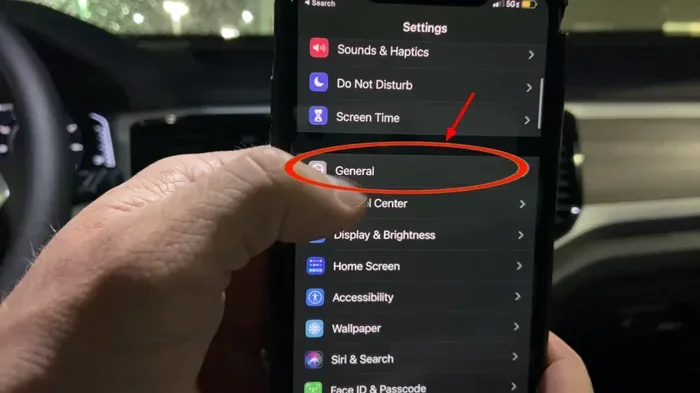
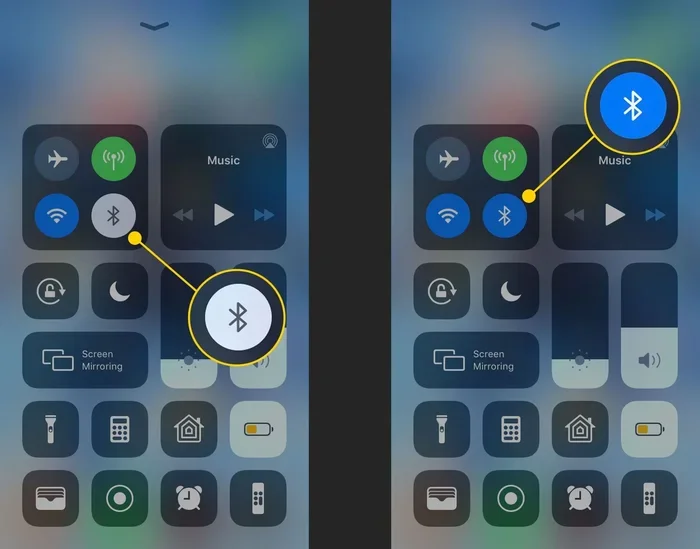
Before you start, make sure your phone’s Bluetooth is turned on and updated. On iPhone, go to Settings > Bluetooth. On Android, open Settings > Connected Devices > Connection Preferences > Bluetooth. If your phone is running an older Bluetooth version, it might not connect to newer car systems. Updating your phone’s software often fixes compatibility issues.
Why Bluetooth Pairing Mode Matters for Car Owners
Using Bluetooth Pairing Mode in your car is not just about convenience. It is a safety feature. Many states and countries now ban handheld phone use while driving. Hands-free calling lets you keep your eyes on the road and hands on the wheel. When your phone connects through Bluetooth Pairing Mode, your car’s microphone and speakers handle the call. You can answer calls with a button on the steering wheel.
Beyond calls, audio streaming transforms your car into a personal concert hall. You can play Spotify, podcasts, or audiobooks through your car stereo. The wireless connection eliminates cable clutter. You can also use navigation apps like Google Maps or Waze, and hear turn-by-turn directions through your car speakers. This seamless smartphone integration keeps your focus on driving.
The Safety Benefits of Hands-Free Calling
Studies show that hands-free calling reduces cognitive distraction compared to holding a phone. When you use Bluetooth Pairing Mode, your car’s built-in microphone picks up your voice clearly, even in noisy traffic. The system filters out background noise. You can stay connected without ever picking up your device. This small change can significantly lower your risk of an accident.
Common Mistakes Drivers Make
One common mistake is leaving Bluetooth Pairing Mode on after you finish connecting. This makes your phone visible to nearby devices, which can drain battery and pose a security risk. Another mistake is pairing in a crowded parking lot where strangers could attempt to connect. Always pair your device inside your garage or a private space. Also, never accept a pairing request from an unknown source. If your car asks for a code you did not initiate, decline it immediately.
How to Activate Bluetooth Pairing Mode in Any Vehicle
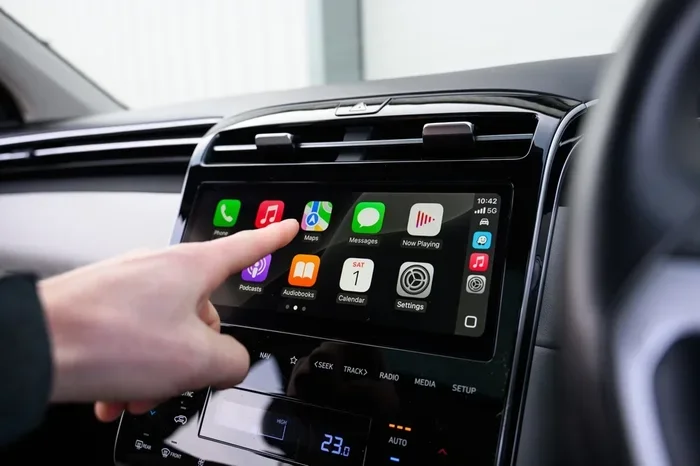
Activating Bluetooth Pairing Mode is different for every car brand, but the basic steps are similar. You usually access it through the car’s infotainment screen. Here is a general walkthrough that applies to most vehicles.
- Start your car and let the infotainment system boot up.
- Navigate to the Settings menu. Look for “Bluetooth,” “Phone,” or “Connections.”
- Select “Pair New Device” or “Add Device.”
- The system will now enter Bluetooth Pairing Mode and become discoverable.
- On your phone, go to Bluetooth settings and look for your car’s name in the list.
- Tap the car’s name. A pairing code will appear on both screens.
- Confirm the code matches, then tap “Pair” or “Connect.”
Once paired, your phone will automatically connect when you start the car. You can then access your contacts, make calls, and stream music right away.
Step-by-Step for Popular Car Brands
Toyota and Lexus: Press the “Setup” button on the steering wheel. Go to “Bluetooth” > “Add Device.” The screen will show “Searching…” which means Bluetooth Pairing Mode is active.
Ford: Use the SYNC system. Tap the phone icon on the home screen. Select “Add a Device.” Ford will search for nearby phones.
BMW: Press the “Setup” knob on the iDrive controller. Choose “Bluetooth” > “Pair New Device.” The iDrive screen will display a passkey.
Honda: Go to the Home screen, then “Settings” > “Bluetooth” > “Add New Device.” The system will enter discoverable mode.
What If Your Car Does Not Have a Touchscreen?
Many older cars or base models lack a touchscreen. In this case, you can still use Bluetooth Pairing Mode. Look for a “Phone” or “Bluetooth” button on the steering wheel or the radio face. Press it, and the system will prompt you to pair. Some cars require you to hold the “Phone” button for five seconds to enter Bluetooth Pairing Mode. Consult your owner’s manual for the exact button combination.
Expert Insight: The “Add New Device” Shortcut
Many drivers do not know that you can also start pairing from your phone. On your phone, go to Bluetooth settings and look for “Add Device” or “Scan.” When your car is in Bluetooth Pairing Mode, it will appear in the phone’s list. This method often works faster than using the car’s screen, especially if the infotainment system is slow.
Troubleshooting Common Bluetooth Pairing Issues
Even with the best setup, you might run into problems. Bluetooth troubleshooting is a normal part of owning a connected car. Most issues are easy to fix with a few simple steps.
Your Phone Won’t Find the Car Stereo
If your phone does not see the car, first check that the car is in Bluetooth Pairing Mode. The infotainment screen should say “Searching” or “Discoverable.” If it does not, restart the car’s infotainment system. On many cars, you can do this by holding the power button for 10 seconds. Also, move your phone closer to the car’s center console. Bluetooth range is typically 30 feet, but walls and metal can weaken the signal.
The Connection Keeps Dropping
A dropping connection can be frustrating. This often happens when your phone is in your pocket and the signal is blocked. Try placing your phone in a cup holder or on the passenger seat. Interference from other wireless devices can also cause drops. Turn off Wi-Fi and other Bluetooth devices in the car temporarily to see if the connection stabilizes. If you are using a phone case with a metal plate, it can block the signal. Remove the case during pairing.
Quick Fix: Delete and Re-Pair
When all else fails, delete the existing pairing from both devices. On your phone, go to Bluetooth settings, find your car’s name, and tap “Forget This Device” or “Unpair.” On the car’s infotainment system, go to the Bluetooth menu and delete the phone from the paired devices list. Then start fresh. Put the car back into Bluetooth Pairing Mode and let your phone find it again. This clears any corrupted data and often solves connection issues instantly.
Common Mistakes That Cause Pairing Failures
- Trying to pair in a crowded area with many Bluetooth signals.
- Having too many devices already connected to the car’s system.
- Using an old Bluetooth version on an outdated phone.
- Forgetting to turn off the phone’s Wi-Fi during pairing.
- Not restarting the car’s infotainment system before attempting a new connection.
Expert Tips for a Reliable Car Bluetooth Connection
A smooth wireless connection does not happen by accident. A few habits can keep your Bluetooth Pairing Mode experience flawless. These tips come from automotive tech experts and seasoned drivers.
Keep Your Devices Updated
Car infotainment systems receive software updates just like phones. These updates often include Bluetooth troubleshooting fixes and improvements to Bluetooth connectivity. Check your car manufacturer’s website or use a USB drive to download updates. On the phone side, always install the latest iOS or Android updates. New Bluetooth versions like 5.0 and 5.3 offer better range, faster pairing, and lower battery drain.
Manage Multiple Paired Devices
Most car stereos can remember several paired phones. If you share your car with a partner or teenager, you can pair multiple devices. However, only one device can stream audio at a time using the A2DP profile. When you enter the car, the system usually connects to the last phone that was used. You can manually switch between paired devices in the Bluetooth settings. This is handy if you want to stream music from your phone while a passenger takes a call on theirs.
Use a Bluetooth Adapter for Older Cars
If your car does not have built-in Bluetooth, you can still enjoy hands-free calling and music streaming. A Bluetooth adapter plugs into the car’s auxiliary input or cigarette lighter. These devices create a wireless bridge between your phone and the car stereo. Look for an adapter that supports the Hands-Free Profile and A2DP for the best results. Some adapters even support low-energy Bluetooth, which means they draw very little power from your car battery.
Common Mistakes to Avoid
One mistake is leaving your phone in the glove box while driving. Even though Bluetooth range is decent, metal and thick materials can block the signal. Keep your phone in a visible spot. Another mistake is ignoring the car’s battery health. A weak car battery can cause the infotainment system to reset, which drops the Bluetooth connection. If you notice frequent disconnects, have your battery tested. Finally, do not pair your phone in public places where strangers could see the discoverable name of your car. Use a generic name if possible.
Bluetooth Pairing Mode Safety and Best Practices
While Bluetooth Pairing Mode is incredibly useful, it is important to use it safely. The wireless connection transmits data between devices. You want to ensure that connection is secure and private.
Understanding Pairing Codes
When you pair a new device, the car and phone display a passkey or pairing code. This is usually a 4- to 6-digit number. Always verify that the codes match. This simple step prevents a stranger from connecting to your car’s system. If the codes do not match, do not complete the pairing. The pairing code acts as a handshake that confirms both devices trust each other.
Avoiding Unauthorized Connections
Set your car’s Bluetooth visibility to “Hidden” or “Non-Discoverable” after you finish pairing. This stops other devices from seeing your car’s infotainment system. If you frequently rent cars or use car-sharing services, always delete your phone from the rental’s Bluetooth memory before you leave. This protects your personal data and prevents the next driver from accidentally connecting to your phone.
Key Takeaway: Stay Secure
Treat Bluetooth Pairing Mode like a temporary open door. You open it to let a trusted device in, then you close it. Never accept a connection request from a device you do not recognize. If your car asks for a pairing code you did not initiate, cancel the request immediately. A little caution goes a long way in keeping your car’s digital system safe.
Conclusion: Enjoy Seamless Bluetooth Pairing Mode Every Drive
Understanding Bluetooth Pairing Mode transforms the way you interact with your car. It turns a simple wireless connection into a powerful tool for safety, entertainment, and convenience. You now know what it is, how to activate it, how to fix common problems, and how to keep your connection secure. With these steps, you can pair your phone confidently and enjoy hands-free calling and music streaming on every trip.
Take a few minutes to practice the process in your own garage. Try pairing your phone, streaming a song, and making a test call. Once you see how easy it is, you will never go back to tangled cables. Keep your devices updated, delete old pairings regularly, and always stay aware of your Bluetooth settings. The road ahead is connected, and Bluetooth Pairing Mode is your key to unlocking it.
Frequently Asked Questions
How do I know if my car is in Bluetooth Pairing Mode?
Your car’s infotainment screen will display a message like “Searching for devices” or “Discoverable.” The Bluetooth icon on the screen may also flash. If you see that, your car is ready to pair with your phone.
Can I pair more than one phone with my car’s Bluetooth Pairing Mode?
Yes, most car stereos can remember multiple paired devices. When you enter the car, it usually connects to the last phone used. You can manually switch between devices in the Bluetooth settings menu.
Why does my phone keep asking for a pairing code?
The pairing code is a security feature. It ensures that only your phone connects to your car. Always check that the code shown on your phone matches the code on the car’s screen before you confirm.
Is Bluetooth Pairing Mode the same as having Bluetooth turned on?
No. Having Bluetooth turned on simply makes your phone able to receive signals. Bluetooth Pairing Mode makes your phone actively search for and advertise to new devices. You only need it when you are first connecting or re-connecting a device.
What should I do if my car’s Bluetooth Pairing Mode is not working?
Start by restarting your car’s infotainment system. If that does not work, delete the old pairing from both your phone and the car. Then try again. If the problem persists, check for software updates for both your phone and your car’s system.
Does Bluetooth Pairing Mode drain my car battery?
Leaving Bluetooth Pairing Mode on continuously can slightly increase battery usage because the system is actively scanning for devices. Once you are paired, you can turn off discoverable mode. The car will still connect automatically when you start the engine.