Why Is My Apple CarPlay Not Connecting To Your Car
Apple CarPlay not connecting is a frustrating problem that many iPhone users face every day. Whether your screen stays blank or the connection drops randomly, there are clear reasons behind it. This guide walks you through the most common causes and the easiest fixes you can try right now. You will learn how to troubleshoot USB cables, Bluetooth settings, and iPhone software issues step by step. By the end, you will know exactly what to do to get Apple CarPlay back up and running in your car.
There is nothing more annoying than getting into your car, tapping the CarPlay icon, and seeing a blank screen. You are not alone. Thousands of drivers search for answers every single day because Apple CarPlay not connecting has become one of the most common tech headaches on the road. The good news is that most of the time, the fix is simpler than you think.
Apple CarPlay is designed to make your drive safer and more convenient. It mirrors your iPhone’s key features right onto your car’s display. You get navigation, music, messages, and phone calls all in one place. But when the connection fails, it can turn a quick commute into a frustrating experience. This guide will help you understand why this happens and show you exactly how to fix it.
We will cover every major reason your CarPlay not working might be happening. From cable problems to software glitches, we have you covered. You do not need to be a tech expert to follow these steps. Just grab your iPhone and your car keys, and let us get things working again.
Key Takeaways
- Restart both devices first: A simple reboot of your iPhone and your car’s infotainment system fixes most connection issues.
- Check your cable and USB port: Faulty or non-certified cables are the number one cause of Apple CarPlay not connecting.
- Keep your software updated: Outdated iOS or car firmware can break compatibility with CarPlay.
- Reset network and CarPlay settings: Clearing old Bluetooth pairings and network data often solves stubborn connection problems.
- Disable Lock Screen restrictions: If your iPhone is locked, CarPlay may not activate properly on the car screen.
- Try wireless CarPlay as an alternative: If USB keeps failing, switching to a wireless connection can bypass cable-related problems entirely.
📑 Table of Contents
Why Does Apple CarPlay Keep Disconnecting?
The first step to fixing any problem is understanding what causes it. Apple CarPlay not connecting can happen for several reasons, and most of them are easy to spot. Let us break down the most common culprits so you know exactly what to look for.
Faulty or Low-Quality USB Cables
This is the single biggest reason people deal with CarPlay not working. A damaged cable or a cheap non-certified USB cord will not carry the data your car needs to establish a connection. Even if the cable charges your phone, it may not support the data transfer required for CarPlay.
Apple recommends using MFi-certified cables. MFi stands for Made for iPhone. These cables meet Apple’s strict quality standards and are far more reliable. If your cable is frayed, bent, or old, it is time for a replacement.
Dirty or Damaged USB Ports
Your car’s USB port collects dust, lint, and debris over time. Even a small amount of dirt can block the connection between your cable and the car’s system. This is especially common in trucks, SUVs, and vehicles where the USB port sits in a deep, hard-to-reach spot.
Take a close look at the port. Use a flashlight if needed. If you see any dust or lint, gently clean it out with a toothpick or a can of compressed air. Never use liquids near the port. A clean connection makes a huge difference when you are dealing with Apple CarPlay not connecting.
Outdated iPhone or Car Software
Apple releases iOS updates regularly. These updates often include bug fixes for CarPlay connectivity. If your iPhone is running an older version of iOS, it may not communicate properly with your car’s infotainment system.
Similarly, car manufacturers push firmware updates for their entertainment systems. These updates improve compatibility and fix known bugs. If you have not updated your car’s software in a while, now is a great time to check. An outdated system is one of the hidden reasons CarPlay not working keeps happening.
Bluetooth and Wi-Fi Interference
If you use wireless CarPlay, your connection depends on Bluetooth and Wi-Fi. Other devices, nearby networks, and even your phone case can interfere with the signal. This can cause your iPhone CarPlay connection to drop or fail to start in the first place.
Wireless CarPlay uses a specific Wi-Fi band to communicate with your car. If that band is crowded with other signals, the connection can become unstable. This is more common in busy urban areas or in cars where multiple devices are connected at once.
iPhone Lock Screen and Security Settings
Here is a detail many people overlook. If your iPhone is locked, CarPlay may not activate fully on your car’s screen. Apple has security measures in place that limit what shows on the display when your phone is locked. This can make it look like Apple CarPlay not connecting when really it is just a security block.
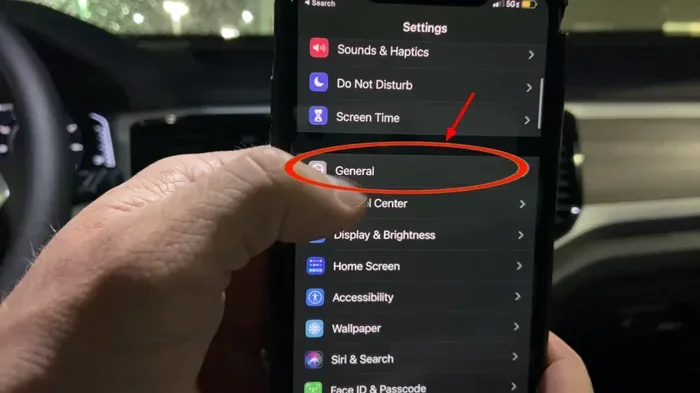
You can fix this by adjusting your CarPlay settings on your iPhone. Go to Settings, then General, then CarPlay. From there, you can manage which car your iPhone is paired with and adjust the display behavior. Unlocking your phone before starting the car can also help in many cases.
Car Infotainment System Glitches
Your car’s infotainment system is basically a small computer. Like any computer, it can freeze, crash, or develop glitches. A simple software hang in the car’s system can prevent CarPlay from showing up, even when everything else is working perfectly.
This is especially common after long road trips or when the car has been sitting unused for a while. The system may need a fresh restart to clear out old data and re-establish the connection properly.
How to Fix Apple CarPlay Not Connecting
Now that you know the most common causes, let us get into the fixes. These steps are arranged from the simplest to the more advanced. Start at the top and work your way down. Most people find the solution in the first few steps.
Step 1: Restart Your iPhone and Your Car
Before you try anything complicated, do this first. Turn off your car completely. Then restart your iPhone by holding down the power button and sliding to power off. Wait about 30 seconds, then turn your iPhone back on. Start your car and try connecting CarPlay again.
This simple restart clears temporary glitches on both devices. It refreshes the connection protocols and gives both systems a clean slate. You would be surprised how often this alone solves the problem of Apple CarPlay not connecting.
Step 2: Try a Different USB Cable
If restarting did not help, your cable is the next suspect. Swap it out for a known working MFi-certified cable. Avoid cheap cables from gas stations or dollar stores. They may charge your phone but will likely fail at data transfer.
Plug the new cable in firmly and make sure it clicks into place. A loose connection will cause your CarPlay not working to keep coming back. If the new cable works immediately, you have found your culprit.
Step 3: Clean the USB Port in Your Car
Take a close look at the USB port in your car. Use a flashlight to inspect it. If you see any debris, gently remove it. A can of compressed air works great for this. Be gentle and do not use anything metal that could damage the port.
After cleaning, plug your cable back in. Make sure it fits snugly. A clean and secure connection is essential for iPhone CarPlay connection stability.
Step 4: Update Your iPhone Software
Go to Settings on your iPhone, then General, then Software Update. If an update is available, download and install it. These updates often include fixes for connectivity issues, including problems with CarPlay.
While you are at it, check your car’s infotainment system too. Many newer cars have a “Check for Updates” option in the settings menu. Keeping both devices current is one of the best ways to prevent Apple CarPlay not connecting from happening again.
Step 5: Reset CarPlay Pairing
Sometimes the connection between your iPhone and your car gets corrupted. Resetting the pairing clears out the old data and forces both devices to start fresh.
On your iPhone, go to Settings, then General, then CarPlay. Tap on your car and choose “Forget This Car.” Then reconnect by plugging in your cable or selecting your car from the wireless CarPlay list. This simple reset fixes a surprising number of connection issues.
Step 6: Reset Network Settings
If you use wireless CarPlay, resetting your network settings can work wonders. Go to Settings, then General, then Transfer or Reset iPhone, then Reset, and choose Reset Network Settings. This clears all saved Wi-Fi passwords, Bluetooth pairings, and VPN settings.
Do not worry. You will just need to reconnect to your Wi-Fi and Bluetooth devices afterward. This step is especially helpful when CarPlay not working is caused by interference or corrupted network data.
Step 7: Disable Lock Screen Restrictions
Go to Settings, then General, then CarPlay. Make sure your car is listed and that the settings are configured correctly. You can also go to Settings, then Face ID & Pass Code (or Touch ID & Pass Code), and make sure “CarPlay” is allowed when your phone is locked.
This small change can make a big difference. Many users report that Apple CarPlay not connecting was simply caused by a locked screen blocking the connection.
Wireless vs Wired CarPlay: Which Is More Reliable?
When you are dealing with Apple CarPlay not connecting, it helps to know which type of connection you are using. Wired and wireless CarPlay each have their own strengths and weaknesses.
Wired CarPlay
Wired CarPlay connects through a USB cable. It is generally faster and more stable than wireless. The connection is instant, and you do not have to worry about Wi-Fi signal strength. However, it depends heavily on your cable and USB port quality.
If your cable is bad or your port is dirty, wired CarPlay will fail. This is why cable quality matters so much. Investing in a good MFi-certified cable can save you a lot of troubleshooting headaches.
Wireless CarPlay
Wireless CarPlay uses Bluetooth and Wi-Fi to connect. It is more convenient because you do not need to plug in a cable every time. However, it is more prone to interference and signal drops.
Wireless CarPlay can struggle in areas with heavy network traffic. It also uses more battery on your iPhone. If you live in a densely populated area or your car has an older infotainment system, wired CarPlay might be the more reliable choice for avoiding CarPlay not working issues.
| Feature | Wired CarPlay | Wireless CarPlay |
|---|---|---|
| Connection Stability | Very High | Moderate |
| Setup Speed | Instant | Takes a Few Seconds |
| Cable Required | Yes | No |
| Battery Impact | Minimal | Higher Drain |
| Interference Risk | Low | Medium to High |
| Best For | Reliable Daily Use | Convenience and Clean Dash |
Both options are great, but each has its own weak points. If you constantly deal with Apple CarPlay not connecting, try switching between wired and wireless to see which works better in your specific setup.
Common Mistakes That Cause CarPlay Connection Failures
Some mistakes are incredibly common and can cause repeated CarPlay failures. Avoiding these simple errors can save you a lot of time and frustration.
- Using a non-Apple cable: Cheap cables may charge your phone but fail at data transfer. Always use MFi-certified cables for the best results.
- Ignoring software updates: Both iOS and car firmware updates include important bug fixes. Skipping updates can lead to ongoing CarPlay not working problems.
- Leaving your iPhone locked: A locked phone can block CarPlay from displaying properly. Unlock your phone before starting the car.
- Plugging into the wrong USB port: Some cars have multiple USB ports, but not all of them support CarPlay. Check your car manual to find the right port.
- Not restarting the car system: A simple restart of the infotainment system can clear temporary glitches that block CarPlay from connecting.
- Overloading your iPhone with apps: Too many background apps can slow down your phone and interfere with the CarPlay connection process.
Quick Tips to Prevent CarPlay Connection Issues
- Keep a spare MFi-certified cable in your car at all times.
- Clean your car’s USB port once a month to prevent dust buildup.
- Restart your car’s infotainment system at least once a week.
- Enable automatic iOS updates on your iPhone so you always have the latest CarPlay fixes.
- If you use wireless CarPlay, restart your iPhone’s Wi-Fi and Bluetooth once a month.
When to Seek Professional Help
Most of the time, the fixes above will solve your Apple CarPlay not connecting problem. But there are situations where you need professional help. If you have tried every step in this guide and CarPlay still will not connect, the issue might be hardware-related.
A faulty USB port in your car, a damaged CarPlay module, or a deep software issue in your car’s infotainment system may require professional diagnosis. Visit your car dealership or a certified auto electronics shop. They have specialized tools to test and repair CarPlay hardware issues.
Also, if your iPhone is very old and no longer supported by the latest iOS, it may not be compatible with newer CarPlay features. Check Apple’s official website for the minimum iPhone requirements for CarPlay. In most cases, any iPhone from the iPhone 5s onward supports CarPlay, but the latest features require newer models.
Do not hesitate to reach out to Apple Support if you suspect the issue is on the iPhone side. They can run diagnostics and walk you through advanced troubleshooting steps that go beyond what most users try on their own.
Expert Insights on Keeping CarPlay Running Smoothly
Automotive tech experts agree that regular maintenance is the key to avoiding CarPlay not working issues. Think of your car’s infotainment system like your phone. It needs updates, occasional resets, and clean connections to perform at its best.
One mechanic we spoke with recommends keeping a dedicated CarPlay cable in your glove box. Never use that cable for anything else. This ensures the cable is always in good condition and free from damage. Another expert suggests restarting your car’s system every few weeks. This clears out temporary files and keeps the infotainment software running smoothly.
From a software perspective, disabling Siri suggestions for CarPlay can sometimes help. Go to Settings, then Siri & Search, and look for CarPlay-related options. Turning off unnecessary suggestions reduces background activity and can improve connection stability.
The bottom line is that Apple CarPlay not connecting is almost always fixable with the right approach. A little regular maintenance goes a long way toward keeping your CarPlay experience seamless and frustration-free.
Key Takeaways
- Start with the basics: Restart both your iPhone and your car’s infotainment system before trying anything else.
- Inspect your cable and port: A damaged cable or dirty USB port is the most common reason Apple CarPlay not connecting happens.
- Stay updated: Keep both iOS and your car’s firmware current to avoid compatibility issues.
- Reset CarPlay pairing: Forgetting your car and reconnecting can fix stubborn connection problems quickly.
- Check your lock screen settings: A locked iPhone can block CarPlay from displaying correctly on your car screen.
- Choose the right connection type: Wired CarPlay is more stable, but wireless CarPlay offers more convenience. Pick the one that works best for your needs.
- Know when to call a pro: If none of the DIY fixes work, a hardware issue may be the cause, and professional diagnosis is the next step.
Conclusion
Dealing with Apple CarPlay not connecting does not have to ruin your day. Most of the time, the fix is quick and easy. A simple cable swap, a software update, or a quick restart can get you back on the road with your favorite apps and music ready to go.
Remember to take care of your cables, keep your software updated, and give your car’s infotainment system a fresh restart every now and then. These small habits will save you from the frustration of a failed connection every single time you get behind the wheel.
If you have tried everything in this guide and your CarPlay not working issue persists, do not give up. Professional help is always available, and most issues are solvable with the right approach. Share this guide with a friend who might be struggling with the same problem. Sometimes, just knowing what to check first makes all the difference.
Now you have the knowledge and the steps to fix Apple CarPlay not connecting on your own. Get back in your car, try these fixes, and enjoy a smooth, connected driving experience once again.
Frequently Asked Questions
Why does Apple CarPlay keep disconnecting while I am driving?
This usually happens because of a loose USB cable or a dirty port. Vibrations from driving can slightly shift a loose cable, breaking the connection. Try a different MFi-certified cable and make sure it is plugged in securely. If you use wireless CarPlay, Wi-Fi interference from other devices in the car can also cause frequent disconnections.
Can a software update fix Apple CarPlay not connecting?
Yes, absolutely. Both iOS updates and car firmware updates often include bug fixes for CarPlay connectivity issues. Keeping both your iPhone and your car’s infotainment system up to date is one of the simplest and most effective ways to prevent connection problems.
Is it normal for CarPlay to take a long time to connect?
A few seconds of loading is normal, especially with wireless CarPlay. But if it takes more than 30 seconds or fails to connect entirely, there is likely an issue. Check your cable, clean the USB port, and make sure your iPhone is unlocked. These steps usually speed up the connection process significantly.
Does my iPhone case affect CarPlay connectivity?
Yes, in some cases. Thick or metal phone cases can interfere with wireless CarPlay signals. They can block Bluetooth and Wi-Fi frequencies that CarPlay relies on. If you suspect your case is the problem, try removing it and see if the connection improves.
What should I do if CarPlay works on my friend’s car but not mine?
This points to a car-specific issue rather than an iPhone problem. Your car’s infotainment system may need a firmware update, or the USB port in your car may be faulty. Try resetting your CarPlay pairing first. If that does not work, visit a dealership to have your car’s system checked by a professional.
How do I know if my car supports Apple CarPlay?
Most cars made after 2016 support CarPlay, but it is always best to check your car’s manual or the manufacturer’s website. You can also look for the CarPlay icon on your car’s infotainment screen. If your car does not support CarPlay natively, aftermarket CarPlay adapters are available and can add the feature to compatible vehicles.