How to Add BMW Digital Key to iPhone in Simple Steps
Adding a BMW Digital Key to your iPhone is one of the most convenient upgrades you can make for your daily drive. With just a few taps, you can unlock, start, and even share access to your BMW without ever touching a key fob. This guide walks you through every step in plain, simple language so anyone can follow along.
Have you ever stood by your car, fumbling for your key fob in the dark? Or maybe you dropped it somewhere in the house and couldn’t find it? If you drive a BMW, there is a much better way. The BMW Digital Key lets you use your iPhone as your car key. It sounds like something from the future, but it is real, available today, and incredibly easy to set up.
In this guide, we will walk you through every single step to add BMW Digital Key to iPhone. We will cover what you need, how to pair your phone, what to do if something goes wrong, and some great tips to get the most out of this feature. Whether you just bought a new BMW or you are exploring digital car keys for the first time, this article has you covered.
The BMW Digital Key uses NFC technology, which stands for Near Field Communication. This is the same tech that lets you tap your phone to pay at checkout. Your iPhone talks to your car’s lock system wirelessly and securely. No cables, no complicated setups, just a smooth experience every time you approach your vehicle.
Key Takeaways
- Easy Setup: Adding the BMW Digital Key to iPhone takes only minutes and requires no special tools.
- Keyless Convenience: Unlock and start your BMW with your phone alone, no key fob needed.
- Secure Pairing: The digital key uses encrypted NFC technology for safe, reliable access.
- Share Access: You can grant digital key access to friends and family through your iPhone.
- Wide Compatibility: Works with supported BMW models and iPhone devices running iOS 14 or later.
- Backup Options: You can still use your physical key fob if your phone battery dies.
📑 Table of Contents
- What Is the BMW Digital Key and How Does It Work?
- What You Need Before You Start
- Step-by-Step Guide: How to Add BMW Digital Key to iPhone
- How to Share Your BMW Digital Key with Others
- Troubleshooting Common BMW Digital Key Issues
- Expert Tips to Get the Most Out of Your BMW Digital Key
- BMW Digital Key vs. Traditional Key Fob: Which Is Better?
- Final Thoughts on Adding BMW Digital Key to iPhone
What Is the BMW Digital Key and How Does It Work?
Before we dive into the setup, let us understand what the BMW Digital Key actually is. It is a digital version of your car key that lives inside your iPhone. You can use it to unlock your doors, start the engine, and even let someone else drive your car temporarily.
How the Digital Key Connects to Your Car
The BMW Digital Key relies on a technology called NFC, which stands for Near Field Communication. When your iPhone is near your BMW, the two devices communicate instantly. You do not need to pull out your phone or open an app. Just hold your iPhone near the door handle, and the car unlocks.
To start the engine, you place your iPhone on the wireless charging pad inside the car. The car recognizes your phone and allows you to press the start button. It works just like a regular key fob, but without the fob.
BMW Digital Key Plus vs. Standard Digital Key
BMW offers two versions of the digital key. The standard BMW Digital Key works with NFC. The BMW Digital Key Plus uses Ultra Wideband technology, which gives you more precise location awareness. With Digital Key Plus, your car can detect exactly where your phone is, even if it is inside a bag or pocket.
The Digital Key Plus also supports features like Remote Unlock and Remote Start through the BMW Connected Drive app. This means you can cool down your car on a hot day before you even step inside.
What You Need Before You Start
Setting up the BMW Digital Key on your iPhone is simple, but you do need a few things in place first. Let us go through the requirements so you are fully prepared.
iPhone Compatibility
Not every iPhone can use the BMW Digital Key. You need an iPhone that supports NFC car key functionality. Here is a quick list of compatible devices:
- iPhone 13 and later models
- iPhone 12 series (select models)
- iPhone 11 Pro and Pro Max
- iPhone XS and XS Max (with limitations)
Your iPhone also needs to be running iOS 14 or a newer version. You can check your software version by going to Settings, then General, then Software Update. If an update is available, install it before you begin.
BMW Model Compatibility
The BMW Digital Key works with many newer BMW models. Most vehicles from 2020 onward support this feature. Popular compatible models include the BMW 3 Series, BMW 5 Series, BMW X3, BMW X5, BMW 7 Series, and BMW iX. You can check your specific model on the BMW website or by asking your dealer.
Your BMW must also have the BMW Connected Drive system with digital key capability. This is usually found in vehicles equipped with the latest iDrive infotainment system.
BMW Connected Drive App
You will need the BMW Connected Drive app installed on your iPhone. This app is free to download from the Apple App Store. It acts as the bridge between your iPhone and your BMW. Through this app, you can create, manage, and share your digital key.
Make sure you have a stable internet connection during setup. The app needs to communicate with BMW servers to activate your digital key. A Wi-Fi connection works best, but cellular data will also do the job.
Step-by-Step Guide: How to Add BMW Digital Key to iPhone
Now for the fun part. Let us walk through the entire process of adding BMW Digital Key to iPhone. Follow these steps carefully, and you will be driving hands-free in no time.
Step 1: Open the BMW Connected Drive App
Launch the BMW Connected Drive app on your iPhone. If you have not created an account yet, sign up now. You will need your BMW vehicle identification number, which you can find on your dashboard or your registration papers.
Once logged in, tap on the vehicle you want to pair. The app will show you all available features for that car. Look for the Digital Key section and tap on it.
Step 2: Add a New Digital Key
Inside the Digital Key section, you will see an option to Add a New Key. Tap on it. The app will guide you through a short pairing process. You may be asked to confirm your identity using your Apple ID or a passcode.
The app will then generate a secure digital key profile. This profile is stored in the secure element of your iPhone, which is a dedicated chip designed for sensitive data like keys and payment information.
Step 3: Pair Your iPhone with Your BMW
Hold your iPhone near the BMW’s NFC reader. On most BMW models, the NFC reader is located near the interior door handle or on the center console. When your iPhone detects the car, you will feel a gentle vibration and hear a confirmation sound.
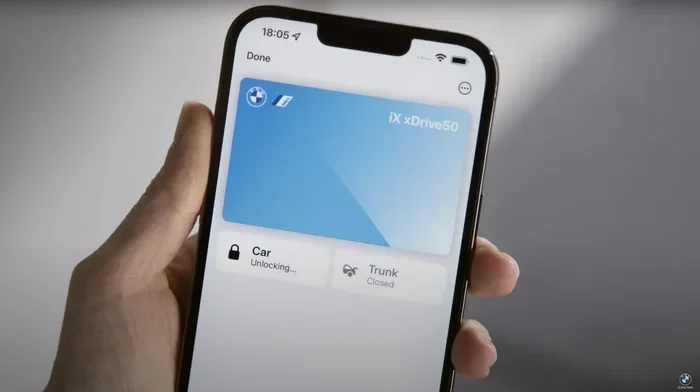
The app will display a success message once pairing is complete. Your BMW Digital Key is now active. Try unlocking your car by holding your iPhone near the door handle. The doors should unlock automatically.
Step 4: Test the Digital Key
Before you rely on the digital key full-time, test it thoroughly. Try unlocking the car, starting the engine, and locking the car again. Make sure your iPhone is fully charged and that nothing is blocking the NFC signal.
Place your iPhone on the wireless charging pad inside the car and press the start button. The engine should start without any issues. If everything works, you are good to go!
How to Share Your BMW Digital Key with Others
One of the coolest features of the BMW Digital Key is the ability to share it. You can grant temporary or permanent access to friends, family members, or even your mechanic.
Sharing Through the BMW Connected Drive App
Open the BMW Connected Drive app and go to the Digital Key section. Tap on Share Key. You can choose to share the key through iMessage, email, or other messaging apps.
The person you share with must also have an iPhone that supports the BMW Digital Key. Once they accept the invitation, their phone will be paired with your car. You can set a time limit for the shared access, so the key automatically expires after a certain period.
Managing Shared Access
You can manage all shared keys from the app at any time. Want to revoke access? Just tap on the shared key and remove it. You can also set different permission levels. For example, you might allow someone to unlock the car but not start the engine.
This feature is incredibly useful when a friend borrows your car or when a family member needs temporary access. It adds a layer of control and security that a physical key fob simply cannot offer.
Troubleshooting Common BMW Digital Key Issues
Sometimes things do not go as smoothly as we hope. Here are the most common problems people face when using the BMW Digital Key and how to fix them.
iPhone Not Recognizing the Car
If your iPhone does not detect your BMW, the first thing to check is your NFC setting. Go to Settings, then Wallet & Apple Pay, and make sure Car Keys are enabled. Also, ensure your iPhone is not in Low Power Mode, as this can disable NFC.
Try restarting both your iPhone and your BMW’s infotainment system. Sometimes a simple reboot fixes the connection issue. If the problem persists, remove the digital key from the app and add it again.
Digital Key Not Working After a Software Update
After updating your iPhone or your BMW’s iDrive system, the digital key might stop working temporarily. This is normal. Simply re-pair the key by following the steps in the BMW Connected Drive app.
Make sure both devices are fully updated before attempting to re-pair. Sometimes the issue is caused by a minor software glitch that a restart resolves.
Phone Battery Dies
What happens if your iPhone battery dies? Do not worry. You can still use your physical BMW key fob as a backup. The digital key does not replace the physical key entirely.
For extra peace of mind, you can also enable the Power Reserve feature on your iPhone. This allows the digital key to work for up to five hours even after your phone dies. Keep your iPhone charged, and you will always have access to your car.
Digital Key Not Working in Cold Weather
Cold weather can sometimes affect NFC performance. If you are wearing thick gloves, try removing them when unlocking your car. Placing your iPhone directly against the NFC reader helps improve the connection in low temperatures.
Also, make sure your iPhone battery is not too low in extreme cold. Lithium-ion batteries perform less efficiently in freezing temperatures. Keep your phone warm by storing it in an inner pocket close to your body.
Expert Tips to Get the Most Out of Your BMW Digital Key
Once you have your BMW Digital Key set up, there are a few tips and tricks that will make your experience even better. These are small things that make a big difference in day-to-day use.
Use Apple Wallet for Quick Access
Your BMW Digital Key is stored in the Apple Wallet app. You can access it quickly by swiping up from the bottom of your lock screen. This means you do not even need to open the BMW app to unlock your car.
You can also add the digital key to your Apple Watch. This gives you another way to access your BMW without reaching for your iPhone. Just double-click the side button on your watch and hold it near the door handle.
Keep Your Digital Key Secure
The BMW Digital Key uses advanced encryption to keep your car safe. The digital key profile is stored in the secure element of your iPhone, which is protected by your Face ID or Touch ID.
Do not share your Apple ID password with anyone. If your iPhone is lost or stolen, you can use the Find My app to remove the digital key remotely. This prevents unauthorized access to your BMW.
Update Regularly for Best Performance
Keep both your iPhone and your BMW’s software up to date. BMW regularly releases updates that improve digital key performance and add new features. Check for updates in your BMW’s iDrive settings at least once a month.
Similarly, install the latest iOS updates on your iPhone. These updates often include improvements to NFC functionality and car key compatibility.
Use the Digital Key in Parking Garages
One of the best uses of the BMW Digital Key is in parking garages. You can unlock your car quickly without digging through your pockets for a key fob. Some garages even support digital payment systems, so you can unlock, pay, and drive all from your iPhone.
The BMW Digital Key Plus model also supports Remote Park, which lets you park your car using your phone. This is incredibly helpful in tight parking spaces where you do not have room to step out and use the physical key.
BMW Digital Key vs. Traditional Key Fob: Which Is Better?
Both the BMW Digital Key and the traditional key fob have their strengths. Let us compare them so you can decide which works best for your lifestyle.
| Feature | BMW Digital Key | Traditional Key Fob |
|---|---|---|
| Convenience | Unlock and start with your phone | Requires carrying a separate device |
| Security | Encrypted NFC with Face ID protection | Standard rolling code encryption |
| Sharing Access | Easy digital sharing through the app | Must physically hand over the fob |
| Backup | Physical key fob still works | No digital backup available |
| Range | Works within a few feet of the car | Works up to 30 feet away |
| Setup | Requires iPhone and app setup | Comes pre-paired with the car |
For most people, the BMW Digital Key offers a superior daily experience. It is faster, more secure, and more convenient than carrying a separate key fob. However, the traditional key fob still serves as an excellent backup, especially when your phone battery is low.
The best approach is to use both together. Rely on the digital key for everyday use, and keep the physical fob in your glove box as a reliable backup. This gives you the best of both worlds.
Final Thoughts on Adding BMW Digital Key to iPhone
Adding the BMW Digital Key to your iPhone transforms how you interact with your car. It brings a level of convenience that once felt like a luxury but is now a standard feature on many new BMWs. From unlocking your doors to starting the engine, everything happens with a simple tap of your phone.
The setup process is straightforward, and the troubleshooting tips we covered should help you handle any hiccups along the way. Remember to keep your iPhone updated, your battery charged, and your digital key secure. With these habits in place, the BMW Digital Key will make your driving experience smoother and more enjoyable every single day.
Give it a try today. Once you experience the freedom of a keyless BMW, you will wonder how you ever drove without it.
Frequently Asked Questions
Can I use the BMW Digital Key on more than one iPhone?
Yes, you can add the BMW Digital Key to multiple iPhones. Each person needs their own Apple ID and a compatible iPhone. You can manage all paired devices through the BMW Connected Drive app and set different access levels for each user.
Does the BMW Digital Key work if my iPhone is in a thick case?
In most cases, yes. The NFC signal can pass through thin phone cases. However, very thick or metal cases may interfere with the connection. If you experience issues, try removing your case and placing the phone directly against the NFC reader on your BMW.
Can I use the BMW Digital Key with Apple Watch?
Yes, BMW Digital Key works with Apple Watch on supported models. You can add the key to your Apple Watch through the BMW Connected Drive app. Once added, you can unlock and start your BMW by double-clicking the side button on your watch and holding it near the door handle.
Is the BMW Digital Key secure?
Absolutely. The BMW Digital Key uses advanced encryption and is stored in the secure element of your iPhone. It requires Face ID or Touch ID to activate. If your phone is lost or stolen, you can remotely remove the digital key using the Find My app, keeping your car safe from unauthorized access.
What happens if my iPhone battery dies completely?
Your BMW Digital Key has a Power Reserve feature that keeps it working for up to five hours after your phone dies. Additionally, you can always fall back on your physical BMW key fob. It is a good idea to keep a charged power bank in your car as an extra precaution.
Can I use the BMW Digital Key in older BMW models?
The BMW Digital Key is available on BMW models from approximately 2020 onward. Older models may not support this feature. Check with your BMW dealer or visit the BMW website to confirm whether your specific model and year are compatible with the digital key technology.
=== CONCLUSION ===
The BMW Digital Key is a game-changer for anyone who drives a BMW and owns an iPhone. It brings keyless entry, seamless ignition, and easy key sharing right to your pocket. We have covered everything from setup to troubleshooting, sharing access to expert tips, and even how it compares to a traditional key fob.
Adding BMW Digital Key to iPhone is simple, secure, and incredibly convenient. Once you set it up, you will not want to go back to carrying a bulky key fob. Follow the steps in this guide, and you will be enjoying hands-free access to your BMW in just a few minutes.
Start today. Open the BMW Connected Drive app, follow the pairing steps, and experience the future of car access right on your iPhone.