How Do I Delete the Bluetooth From My Toyota Camry 2019
Deleting a Bluetooth device from your Toyota Camry 2019 is quick and easy once you know the right steps. Whether you want to remove an old phone, clear the paired device list, or fix a connection issue, this guide walks you through the entire process. You will learn how to access Bluetooth settings, delete devices, and troubleshoot common problems. Our simple instructions make it easy for anyone to follow along.
Have you ever wondered how do I delete the Bluetooth from my Toyota Camry 2019? Maybe you sold an old phone, switched carriers, or just want a clean slate for your audio connections. Whatever the reason, removing a Bluetooth device from your Toyota Camry 2019 is something every owner should know how to do. It is not as complicated as it might seem. In fact, the process is straightforward once you find the right menu on your infotainment system.
This guide will walk you through every step with clear instructions. You will learn where to find the Bluetooth settings, how to delete paired devices, and what to do if something goes wrong. We also share tips to help you manage your Bluetooth connections like a pro. By the end of this article, you will feel confident handling any Bluetooth task on your Toyota Camry 2019.
Your Toyota Camry 2019 comes loaded with modern tech features. The Toyota Entune infotainment system makes it easy to connect your phone, stream music, and use hands-free calling. But sometimes you need to remove a device. Perhaps you bought a new phone and want to start fresh. Or maybe the old Bluetooth connection is causing audio problems. No matter the reason, knowing how to manage your Toyota Bluetooth settings is an essential skill for every Camry owner.
Key Takeaways
- Easy Access: You can reach Bluetooth settings through the touchscreen or audio controls on your Toyota Camry 2019.
- Simple Steps: Deleting a paired device takes just a few taps on the infotainment screen.
- Multiple Methods: There are different ways to remove Bluetooth devices depending on your system version.
- Common Issues: Frozen screens or unresponsive settings can be fixed with a simple reset.
- Best Practices: Regularly managing your paired devices keeps your Toyota Bluetooth system running smoothly.
- Expert Help Available: Toyota dealers can assist if you run into persistent Bluetooth problems.
📑 Table of Contents
- Why You Might Need to Delete a Bluetooth Device From Your Toyota Camry 2019
- How to Access Bluetooth Settings on Your Toyota Camry 2019
- Step-by-Step: How to Delete the Bluetooth Device From My Toyota Camry 2019
- Common Problems When Deleting Bluetooth on Toyota Camry 2019
- Tips for Managing Bluetooth Devices on Your Toyota Camry 2019
- When to Contact Toyota Support for Bluetooth Issues
- Comparison: Deleting Bluetooth on Toyota Camry 2019 vs. Other Toyota Models
- Quick Tips for a Smooth Bluetooth Experience
- Common Mistakes to Avoid When Deleting Bluetooth Devices
- Frequently Asked Questions
- Conclusion
Why You Might Need to Delete a Bluetooth Device From Your Toyota Camry 2019
Switching to a New Phone
One of the most common reasons people ask how do I delete the Bluetooth from my Toyota Camry 2019 is because they got a new phone. When you upgrade your device, the old one may still show up in your paired list. Leaving old devices connected can cause confusion. Your Camry might try to auto-connect to the wrong phone. This can lead to missed calls or music playing from the wrong device.
Deleting the old phone ensures your Toyota Camry 2019 connects to the right one every time. It also frees up space in your paired device list. Most Toyota systems allow a limited number of paired devices. Clearing out old ones keeps things organized and running smoothly.
Fixing Connection Problems
Sometimes Bluetooth issues are not about the phone at all. They are about the connection stored in your Toyota system. A corrupted pairing can cause static, dropouts, or no sound at all. Deleting and re-pairing the device often fixes these problems. Think of it like restarting your connection from scratch.
If your Toyota Camry Bluetooth not working properly, removing the device and pairing it again is a great first troubleshooting step. This simple fix solves many common audio issues without needing a visit to the dealer.
Selling or Giving Away Your Car
Planning to sell your Toyota Camry 2019? You will want to delete all paired Bluetooth devices. This protects your privacy. Personal contacts and call history may sync with your car’s system. Clearing everything ensures the next owner starts with a clean setup. It is a simple step that makes a big difference.
How to Access Bluetooth Settings on Your Toyota Camry 2019
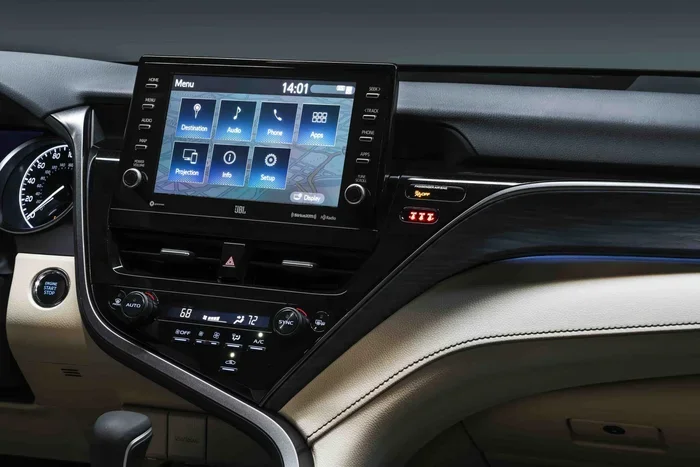
Before you can delete a device, you need to find the Bluetooth settings. The Toyota Camry 2019 uses a touchscreen infotainment system. The layout is intuitive, but the exact path may vary slightly depending on your trim level and audio system. Here is how to get there.
Using the Touchscreen Display
Start your Toyota Camry and press the Bluetooth button on the touchscreen home screen. If you do not see it right away, look for the Settings icon. It usually looks like a gear symbol. Tap on Settings, then select Bluetooth Settings or Phone Settings. You should see a list of all paired devices.
From this menu, you can view connected devices, add new ones, or remove existing ones. The Toyota multimedia system makes navigation simple with large icons and clear labels. Take a moment to explore the menu so you feel comfortable finding your way around.
Using the Audio Controls
Some Toyota Camry 2019 models also let you access Bluetooth through the audio controls on the steering wheel or the console. Press the Phone button on the steering wheel to bring up the phone menu. Use the dial pad or touchscreen to navigate to Bluetooth Settings. This method works well if you prefer using physical buttons over the touchscreen.
Understanding Your Toyota Entune System
The Toyota Entune system is the brain behind your Camry’s tech features. It handles audio, navigation, phone connectivity, and more. Understanding how Entune works helps you manage your Bluetooth devices more effectively. The system stores pairing information even when you turn off the engine. This is why deleted devices sometimes reappear until you fully remove them from the system memory.
Step-by-Step: How to Delete the Bluetooth Device From My Toyota Camry 2019
Now that you know where to find the settings, let us walk through the actual deletion process. Follow these steps carefully, and you will have that unwanted device removed in no time.
Step 1: Turn on Your Toyota Camry
Start your engine or put the car in accessory mode. The touchscreen display needs to be active. You cannot access Bluetooth settings when the system is completely off. Wait for the home screen to fully load before proceeding.
Step 2: Navigate to Bluetooth Settings
Tap the Settings icon on the home screen. Scroll through the menu until you find Bluetooth Settings or Phone Settings. Tap on it. You will see a list of all devices that have ever been paired with your Toyota Camry 2019.
Step 3: Find the Device You Want to Delete
Look through the list of paired Bluetooth devices. The device you want to remove should be clearly labeled, usually by the phone name or model. If you have many devices saved, use the scroll function to find the right one.
Quick Tip: If you are not sure which device is which, check the name against your phone. Most phones display their model name when they appear in a Bluetooth list.
Step 4: Select the Device
Tap on the device name to open its options menu. You should see choices like Connect, Disconnect, Rename, and Delete. Do not tap Connect or Disconnect. You need the Delete option.
Step 5: Confirm the Deletion
A confirmation prompt will appear. It will ask if you are sure you want to remove the device. Tap Yes or Delete to confirm. The device will disappear from the list immediately.
Step 6: Repeat if Needed
If you need to delete multiple devices, repeat steps 3 through 5 for each one. Take your time and make sure you are deleting the correct device each time. There is no undo button, so double-check before confirming.
Step 7: Restart the System
After deleting all the devices you want to remove, restart your infotainment system. Turn the car off and back on. This clears any residual data and ensures the changes take full effect. When the system restarts, your deleted devices should no longer appear.
Common Problems When Deleting Bluetooth on Toyota Camry 2019
Sometimes things do not go as smoothly as we hope. Here are the most common issues people face when trying to remove Bluetooth devices from their Toyota Camry 2019, along with simple solutions.
The Delete Option Is Grayed Out
If the Delete button is not clickable, the device might currently be connected. You need to disconnect it first. Go to the device options menu and tap Disconnect. Once it is disconnected, the Delete option should become available.
The Device Keeps Reappearing
This is a known issue with some Toyota Entune systems. If a device keeps showing up after you delete it, try resetting the entire Bluetooth system. Go to Settings, then Bluetooth Settings, and look for a Reset All or Clear All Devices option. This wipes the entire paired list and starts fresh.
The Screen Freezes During Deletion
If the touchscreen freezes while you are trying to delete a device, do not panic. Simply turn the car off, wait 30 seconds, and turn it back on. This soft reset usually resolves the issue. If freezing happens often, a full system reset may be needed.
Bluetooth Still Connected After Deletion
In rare cases, the device may still show as connected even after you delete it. This happens because the phone itself is still broadcasting a Bluetooth signal. Turn off Bluetooth on your phone completely. Then check your Toyota Camry 2019 again. The device should no longer appear.
Tips for Managing Bluetooth Devices on Your Toyota Camry 2019
Keep Your Paired List Clean
Think of your Bluetooth paired list like a contacts list. You would not want a phone full of old, unused numbers. The same applies to your Toyota Camry 2019. Periodically review your paired devices and remove any you no longer use. A clean list means faster connections and fewer mix-ups.
Here are some simple habits to keep your Bluetooth management smooth:
- Delete old devices as soon as you switch phones or sell a device.
- Name your devices clearly so you can identify them easily.
- Check for updates to your Toyota Entune system regularly.
- Restart your system once a month to clear temporary glitches.
Re-Pairing After Deletion
After you delete a device, you will need to pair it again if you want to use it. The re-pairing process is simple. Go to Bluetooth Settings, tap Add New Device, and follow the prompts on both your phone and your Toyota Camry 2019. Make sure Bluetooth is turned on in both devices. Keep them within a few feet of each other during pairing.
Use the Right Bluetooth Profile
Your Toyota Camry 2019 supports multiple Bluetooth profiles. The most common ones are Hands-Free Profile (HFP) for calls and Advanced Audio Distribution Profile (A2DP) for music. When you pair a new device, both profiles should connect automatically. If only one works, go back to your Bluetooth settings and check the profile settings for that device.
Expert Insight: How Toyota Bluetooth Compares to Other Brands
Toyota’s Bluetooth system is reliable and user-friendly, but it is not the only option on the market. Brands like Honda, Ford, and Chevrolet have their own infotainment systems with Bluetooth features. Toyota’s system stands out for its simplicity and consistency across model years. The 2019 Camry, in particular, offers a smooth and responsive touchscreen that makes managing Bluetooth devices a breeze. Compared to older Toyota models, the 2019 system is faster and more intuitive.
When to Contact Toyota Support for Bluetooth Issues
Most Bluetooth problems can be solved at home with the steps in this guide. But sometimes, you need professional help. Here are signs that it is time to contact Toyota support or visit your local dealer.
- Bluetooth settings are completely unresponsive even after a system restart.
- Your Toyota Camry 2019 will not pair with any new devices despite multiple attempts.
- Audio cuts out repeatedly during calls or music playback, even with a freshly paired device.
- Error messages appear on the screen that you cannot resolve on your own.
- Bluetooth works intermittently and you have tried all troubleshooting steps.
Toyota dealers have access to specialized diagnostic tools. They can check for software issues, update your Toyota Entune firmware, or replace faulty hardware if needed. Many Bluetooth problems are resolved with a simple software update. So do not hesitate to reach out to Toyota support if you are stuck.
Comparison: Deleting Bluetooth on Toyota Camry 2019 vs. Other Toyota Models
While this guide focuses on the 2019 Camry, it helps to know how the process compares across other Toyota models. The basic steps are similar, but the menu layout may differ slightly.
| Toyota Model | Bluetooth Deletion Steps | Touchscreen? | Ease of Use |
|---|---|---|---|
| Toyota Camry 2019 | Settings > Bluetooth Settings > Select Device > Delete | Yes | Very Easy |
| Toyota Corolla 2019 | Settings > Bluetooth > Paired Devices > Remove | Yes | Very Easy |
| Toyota RAV4 2019 | Settings > Bluetooth > Manage Devices > Delete | Yes | Easy |
| Toyota Highlander 2019 | Settings > Phone/Bluetooth > Select Device > Remove | Yes | Easy |
| Toyota Camry 2015 (Older) | Phone Button > Setup > Delete Device | No (Button) | Moderate |
As you can see, the Toyota Camry 2019 makes Bluetooth management simple. The touchscreen interface is consistent with other 2019 Toyota models. If you have driven older Toyotas, you will notice the 2019 system is much more intuitive.
Quick Tips for a Smooth Bluetooth Experience
- Always delete from the car first before removing Bluetooth from your phone. This prevents sync conflicts.
- Keep your phone software updated. Outdated phone software can cause pairing issues with your Toyota Camry 2019.
- Restart both devices if pairing fails. A simple reboot often solves the problem.
- Do not pair too many devices. Stick to 2-3 regularly used devices for the best performance.
- Turn off Bluetooth on unused phones. This prevents your Toyota Camry from trying to connect to the wrong device.
Common Mistakes to Avoid When Deleting Bluetooth Devices
Deleting the Wrong Device
It sounds obvious, but this happens more often than you think. Always double-check the device name before tapping Delete. If you have multiple phones with similar names, rename them in your Bluetooth settings to avoid confusion.
Skipping the Disconnect Step
Do not try to delete a device while it is still connected. Always disconnect it first. Skipping this step can lead to errors or the device not being fully removed from your Toyota Camry 2019 system.
Forgetting to Restart
After deleting devices, always restart your infotainment system. This ensures all changes are properly saved. Skipping this step can leave ghost devices in your system memory.
Ignoring System Updates
Toyota releases software updates for the Entune system. These updates often include Bluetooth improvements and bug fixes. Ignoring updates can lead to Bluetooth problems that are easily preventable. Check for updates at least once every few months.
Frequently Asked Questions
Can I delete all Bluetooth devices at once on my Toyota Camry 2019?
Yes, you can. In the Bluetooth Settings menu, look for an option like Clear All Devices or Reset Bluetooth. This removes every paired device at once. It is a great option if you want to start completely fresh. Just be aware that you will need to re-pair any devices you want to use afterward.
Will deleting a Bluetooth device also delete contacts from my Toyota Camry 2019?
No, deleting a Bluetooth device does not delete your contacts. Contacts are stored separately on your phone and may be synced through the Toyota Entune system. However, if you want to remove synced contacts, you need to go into the phone book or contacts section of your infotainment system and delete them from there.
How many Bluetooth devices can my Toyota Camry 2019 remember?
The Toyota Camry 2019 can typically store around 5 to 10 paired Bluetooth devices, depending on your specific trim and system version. If you reach the limit, you will need to delete an old device before pairing a new one. Keeping your paired list trimmed helps maintain the best performance.
What should I do if my Toyota Camry 2019 Bluetooth still will not connect after deleting and re-pairing?
First, make sure Bluetooth is turned on in both your phone and your car. Restart both devices and try pairing again. If the problem persists, check for any available Toyota Entune software updates. You can also reset the entire Bluetooth system from the settings menu. If none of these steps work, visit a Toyota dealer for professional diagnostics.
Is it safe to delete Bluetooth devices myself, or do I need a Toyota dealer?
It is completely safe to delete Bluetooth devices yourself. The process does not require any special tools or technical knowledge. You will not damage your Toyota Camry 2019 by removing paired devices. The dealer is only needed if you experience persistent technical issues that home troubleshooting cannot resolve.
Can I use Apple CarPlay or Android Auto instead of Bluetooth on my Toyota Camry 2019?
Yes, the Toyota Camry 2019 supports both Apple CarPlay and Android Auto in many trims. These features offer an alternative to standard Bluetooth connectivity. They provide a more integrated smartphone experience with larger icons, Siri or Google Assistant access, and better navigation support. However, you still need Bluetooth enabled for initial pairing, even when using CarPlay or Android Auto.
Conclusion
Knowing how do I delete the Bluetooth from my Toyota Camry 2019 is a valuable skill for every Camry owner. Whether you are switching phones, fixing connection issues, or preparing to sell your car, the steps in this guide will help you get it done quickly and correctly. Deleting a Bluetooth device is simple, safe, and takes just a few minutes.
Remember to always disconnect the device first, confirm the deletion, and restart your system afterward. Keep your paired device list clean and up to date for the best Bluetooth experience. If you run into problems, the troubleshooting tips in this article should help you resolve them.
Your Toyota Camry 2019 is a great car with excellent tech features. Taking a few minutes to manage your Bluetooth settings goes a long way in keeping everything running smoothly. Now you have all the knowledge you need to handle any Bluetooth task with confidence. Go ahead and try it out — your Toyota Camry 2019 will thank you for it.