How Do I Add My Wife to the Toyota App Step by Step
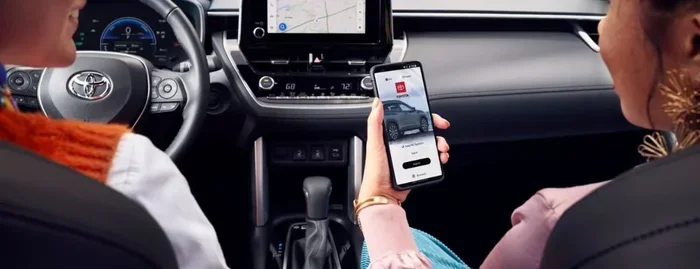
Adding your wife to the Toyota App is quick and easy when you follow the right steps. You can share vehicle features, remote start, and location tracking through the MyToyota platform. This guide walks you through every step so both of you stay connected to your Toyota.
The Toyota App has changed how owners interact with their vehicles. You can lock doors, start the engine, and check fuel levels right from your phone. But what happens when you want to share all of that with your wife? Adding her to the Toyota App opens up a world of convenience for both of you.
Whether you just bought a new Toyota or you have been driving one for years, the setup process is straightforward. This guide shows you exactly how to add your wife to the Toyota App step by step. You will learn about the features she can access, how to manage permissions, and what to do if something goes wrong.
Sharing your Toyota connected services means both of you can use the app without sharing a single device. She gets her own login, her own dashboard, and her own set of controls. Let us walk through the entire process together.
Key Takeaways
- Simple Setup: You can add your wife to the Toyota App in just a few minutes using the MyToyota platform.
- Shared Features: Once added, your wife can access remote start, lock/unlock, and vehicle location tools.
- Multiple Methods: You can add a user through the mobile app or the Toyota website.
- Privacy Control: You decide what features and data your wife can access on the Toyota App.
- Easy Troubleshooting: Common issues like login errors or sync problems have simple fixes.
- Family Benefits: Sharing your Toyota App improves convenience for both drivers in the household.
📑 Table of Contents
- Why Add Your Wife to the Toyota App
- How Do I Add My Wife to the Toyota App Step by Step
- Common Issues When Adding a User to the Toyota App
- Tips for a Smooth Experience with the Toyota App
- Comparison: Adding a User vs Sharing a Single Login
- Expert Tips from Toyota Owners
- Frequently Asked Questions
- Final Thoughts
Why Add Your Wife to the Toyota App
Before you dive into the steps, it helps to understand why this feature matters. The Toyota App is not just a remote control tool. It is a full connected car platform that lets you manage many aspects of your vehicle. When you add your wife, you both get access to these tools.
Here are some real reasons this setup makes sense:
- Shared Driving Duties: If both of you drive the same Toyota, she can check the vehicle status from her phone.
- Remote Convenience: She can start the engine, adjust the temperature, or locate the car without being near it.
- Safety Features: You can share location tracking so both of you feel more secure.
- Maintenance Alerts: Both of you receive service reminders and notifications about your Toyota.
- No Shared Device Needed: Each person logs in with their own credentials on their own phone.
The Toyota App supports multiple user profiles under one Toyota account. This design makes family sharing simple and natural. You do not need to create a brand new vehicle or buy extra hardware. It is all built into the MyToyota platform.
Key Features Your Wife Can Access
Once you add your wife to the Toyota App, here is what she can do:
- Lock and unlock the doors remotely
- Start or stop the engine using the remote start function
- Check the current fuel level and range
- View the vehicle location on a map
- Receive maintenance alerts and service reminders
- Access trip history and driving stats
- Control climate settings before she gets in the car
These features work through the Toyota connected services system. The exact tools available may vary depending on your Toyota model and the trim level you own. Newer models like the RAV4, Camry, and Highlander tend to have the fullest set of features.
How Do I Add My Wife to the Toyota App Step by Step
Now let us get into the actual process. Adding your wife to the Toyota App is a simple procedure. You can do it from the mobile app or the Toyota website. Both methods lead to the same result. Here is the full walkthrough.
Step 1: Open the Toyota App on Your Phone
First, make sure you have the Toyota App installed on your phone. If you do not have it yet, download it from the Apple App Store or Google Play Store. Open the app and log in with your existing Toyota account credentials.
If you do not have an account yet, you will need to create one. Tap the sign-up option and follow the prompts. You will need your Toyota vehicle information, including the VIN number. You can usually find the VIN on the driver side dashboard or on your registration paperwork.
Once you are logged in, you should see your vehicle listed on the main dashboard. This is your home base for all Toyota connected services.
Step 2: Go to Account Settings
Next, look for the settings or account menu. In most versions of the Toyota App, you can find this by tapping your profile icon. It is usually in the top corner of the screen. This takes you to the Account Settings page.
On this page, you will see options related to your profile, your vehicle, and connected users. Look for a section called “Users,” “Family,” or “Manage Users.” The exact label may differ slightly depending on your app version.
Tap on that section to proceed. You are now in the area where you can add a new user to your Toyota account.
Step 3: Select Add User or Invite
Once you are in the user management section, look for the “Add User” or “Invite” button. Tap it. The app will give you a few options for how to send the invitation.
You can typically invite your wife through:
- Email: Enter her email address and send the invite.
- Text Message: Send a direct link to her phone number.
- QR Code: Some versions of the app let you generate a QR code she can scan.
Choose the method that works best for both of you. Email is usually the most reliable option. After you send the invite, your wife will receive a notification with a link to accept.
Step 4: Your Wife Accepts the Invitation
Your wife should check her email or text message for the invitation link. She needs to tap on it to accept the invitation. If she does not have a Toyota account yet, the link will guide her through creating one.
During the account creation process, she will need to provide some basic information. This includes her name, email address, and a password she wants to use. She should also link the Toyota vehicle to her new profile.
Once the account is set up and the invitation is accepted, she will see the vehicle appear on her Toyota App dashboard. The whole process usually takes less than five minutes.
Step 5: Set Permissions and Preferences
After your wife is added, you can manage what she can access. Go back to the user management section on your account. Here, you will see a list of all connected users, including your wife.
You can adjust permissions for each user. For example, you might want her to have full access to all features, or you might want to limit certain controls. The Toyota App gives you flexibility in how you share access.
Common permission settings include:
- Full access to all vehicle controls
- Remote start and lock/unlock permissions
- Location tracking on or off
- Maintenance alert notifications
- Trip history viewing rights
Take a moment to review these settings together. Make sure both of you are comfortable with the level of access. You can always change these settings later from the same menu.
Step 6: Test the Setup
Now it is time to make sure everything works. Have your wife open the Toyota App on her phone and log in with her new credentials. She should see the vehicle and all the available features.
Try a few simple actions together:
- Have her lock and unlock the car remotely
- Test the remote start function
- Check the fuel level on her screen
- View the vehicle location on the map
If all of these work correctly, you are all set. If something does not work, do not worry. The next section covers common troubleshooting steps.
Common Issues When Adding a User to the Toyota App
Even though the process is straightforward, you might run into a few hiccups along the way. Here are the most common problems people face and how to fix them.
Invitation Link Not Working
If your wife cannot open the invitation link, try resending it. Sometimes emails end up in the spam or junk folder. Check there first. You can also try sending the invite through a different method, like a text message instead of email.
Make sure she is using a stable internet connection when opening the link. A weak Wi-Fi signal or poor cellular data can cause the page to fail to load.
Login Issues After Account Creation
If your wife created her account but cannot log in, double check the email and password she used. Passwords are case sensitive, so make sure caps lock is off. If she forgot the password, use the “Forgot Password” link on the login screen to reset it.
Sometimes logging out and logging back in fixes the issue. Encourage her to fully close the app and reopen it before trying again.
Vehicle Not Showing Up on Her Dashboard
This is a common issue, especially if the vehicle was recently registered. Try refreshing the app by pulling down on the screen. If that does not work, log out and log back in on both phones.
You can also try removing the vehicle from her profile and adding it again. Go to the vehicle settings on her app, select the vehicle, and choose “Remove.” Then have her accept the invitation again from your account.
Features Not Responding Remotely
If some features like remote start or lock/unlock do not respond, check your Toyota connected services subscription. Some features require an active subscription plan. You can verify this in the app under your account or by contacting Toyota customer service.
Also make sure both phones have a good internet connection. The Toyota App relies on a stable data connection to communicate with your vehicle.
Tips for a Smooth Experience with the Toyota App
A few simple tips can make the whole experience much better for both of you. Here is what works well for most Toyota owners.
Keep the App Updated
Toyota regularly releases updates to improve the app and add new features. Make sure both you and your wife have the latest version installed. Go to your phone’s app store and check for updates to the Toyota App.
Updates often fix bugs and improve performance. They can also add new features that make sharing your Toyota even easier.
Use Strong, Unique Passwords
Since you are sharing access to your vehicle, security matters. Use strong passwords for both accounts. A mix of letters, numbers, and symbols works best. Avoid using the same password for both accounts if possible.
Enable Notifications for Both Users
Turn on push notifications so both of you receive alerts about your Toyota. You can get notified about low fuel, maintenance reminders, and security alerts. This keeps both of you in the loop.
Explore the MyToyota Portal on the Web
Beyond the mobile app, Toyota offers a web portal called MyToyota. You and your wife can both log in to this portal from any computer. It provides the same features as the app and is handy when you are away from your phone.
The web portal is especially useful for checking trip history or reviewing maintenance schedules on a larger screen. It is a great companion to the mobile app.
Comparison: Adding a User vs Sharing a Single Login
Some people wonder if it is better to just share a single login instead of adding a separate user. Here is a quick comparison to help you decide.
| Feature | Separate User Account | Shared Single Login |
|---|---|---|
| Individual Dashboard | Yes | No |
| Custom Permissions | Yes | No |
| Privacy Control | High | Low |
| Separate Login Credentials | Yes | No |
| Activity Tracking Per User | Yes | No |
| Security Level | High | Medium |
| Ease of Setup | Slightly More Steps | Quick |
As you can see, adding a separate user account is the better choice for most couples. It gives both of you your own space and better control over what each person can do. Sharing a single login might seem easier at first, but it creates privacy and security issues down the road.
Expert Tips from Toyota Owners
Here are some real tips shared by experienced Toyota owners who have set up the app for their spouses:
- Do it together: Sit down with both phones and set it up at the same time. This way, both of you learn the app together.
- Walk through each feature: Take a few minutes to go over every tool in the app so your wife feels confident using it.
- Set a reminder: Check the app settings once a month to make sure everything is still working properly.
- Use the Toyota dealer for help: If you get stuck, your local Toyota dealer can walk you through the setup in person.
Frequently Asked Questions
Can I add more than one person to my Toyota App account?
Yes, the Toyota App allows you to add multiple users to a single vehicle. You can invite family members or trusted friends. Each person gets their own login and dashboard. You can manage permissions for each user separately from your account settings.
Does adding my wife to the Toyota App cost extra money?
No, adding a user to the Toyota App is free. However, some connected features may require an active Toyota connected services subscription. Check your current plan to see which features are included. You can upgrade your plan through the app if needed.
Can my wife control the Toyota App from both her iPhone and Android tablet?
Yes, the Toyota App works on both iOS and Android devices. Your wife can download the app on any compatible device and log in with her account. She can manage the vehicle from as many devices as she wants, as long as she is logged into her own account.
What should I do if my wife cannot see the vehicle after accepting the invite?
First, have her try logging out and logging back in. If that does not work, refresh the app by pulling down on the dashboard. You can also try removing her as a user and re-sending the invitation. If the problem continues, contact Toyota customer support for help.
Will my wife be able to use all the same features I can?
It depends on the permissions you set. By default, added users usually get full access to most features like remote start, lock/unlock, and location tracking. However, you can customize these permissions in the user management section. Some features may also depend on your Toyota model and connected services plan.
Can I remove my wife from the Toyota App later if needed?
Yes, you can remove any user from your Toyota App account at any time. Go to the user management section in your account settings. Find your wife’s name and select the option to remove her access. This revokes her ability to control the vehicle through the app.
Final Thoughts
Adding your wife to the Toyota App is one of the best things you can do to make your daily routine smoother. It takes just a few minutes and opens up a lot of convenience for both of you. From remote start to location tracking, the shared features make owning a Toyota even better.
Follow the steps in this guide and you will have her set up in no time. Remember to review the permissions together, keep the app updated, and reach out to Toyota support if you ever need help. The Toyota App is designed to make your life easier, and sharing it with your wife is a big part of that.
Now that you know how to add your wife to the Toyota App, go ahead and give it a try. Once she is set up, you will both wonder how you ever managed without it.