Can You Use Apple CarPlay Without USB on Your Toyota
Apple CarPlay Without USB is absolutely possible on many Toyota models, and it is simpler than you think. Wireless smartphone integration lets you ditch the cable and enjoy hands-free calling, navigation apps, and audio streaming straight from your iPhone. This guide covers compatible Toyota models, setup steps, and expert tips for the best experience.
Have you ever wished you could use Apple CarPlay on your Toyota without dealing with a messy USB cable? You are not alone. Thousands of Toyota owners want to know if they can go wireless and still enjoy all the features they love. The answer is yes, and it is easier than you might think.
Apple CarPlay Without USB on a Toyota is not just a dream anymore. Toyota has been adding wireless Apple CarPlay support to many of its newer models. This means you can mirror your iPhone on your Toyota touchscreen without plugging in a single cable. In this article, we will show you exactly how it works, which Toyotas support it, and how to get it set up in minutes.
Whether you drive a Toyota Camry, a Toyota RAV4, or a Toyota Highlander, there is a good chance your vehicle can handle wireless CarPlay. Smartphone integration has come a long way, and Toyota has kept up with the latest technology. Let us dive into everything you need to know about using Apple CarPlay Without USB on your Toyota.
Key Takeaways
- Wireless Apple CarPlay is available on many newer Toyota models without needing a USB cable.
- Toyota infotainment systems have evolved to support Bluetooth connectivity and Wi-Fi mirroring.
- Setting up CarPlay Without USB takes just a few minutes and requires no extra hardware on supported models.
- Older Toyota models may need a wireless CarPlay adapter to go cable-free.
- Firmware updates from Toyota can unlock wireless Apple CarPlay features on eligible vehicles.
- Siri voice commands work seamlessly with wireless CarPlay for safer driving.
- USB still has advantages in stability and charging speed, so both options have their place.
📑 Table of Contents
- What Is Apple CarPlay and Why Is It So Popular?
- Can You Use Apple CarPlay Without USB on Toyota?
- Which Toyota Models Support Wireless Apple CarPlay?
- How to Set Up Apple CarPlay Without USB on Your Toyota
- Wireless CarPlay vs USB Connection: What You Need to Know
- Troubleshooting Common Apple CarPlay Issues on Toyota
- Tips for Getting the Most Out of Wireless CarPlay on Your Toyota
- Conclusion
What Is Apple CarPlay and Why Is It So Popular?
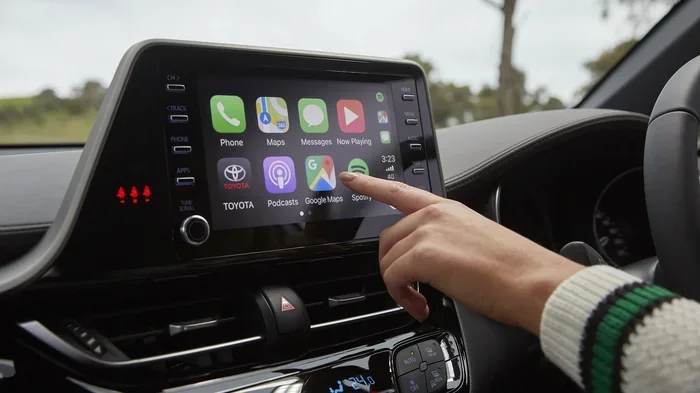
Apple CarPlay is a system that mirrors your iPhone onto your car’s Toyota touchscreen. It lets you access your favorite apps, make calls, send messages, and get directions without taking your eyes off the road. Think of it as a safe bridge between your phone and your vehicle.
How Apple CarPlay Works on Toyota Vehicles
When you connect your iPhone to a Toyota with CarPlay, the car’s display becomes an extension of your phone. You see your apps, your music, and your navigation right on the dashboard. Toyota’s multimedia system was designed to work smoothly with Apple iOS, making the experience feel natural and responsive.
The system uses either a wired USB cable or a wireless connection through Bluetooth and Wi-Fi. Wireless car connectivity has become the preferred choice for most drivers because it eliminates cable clutter and makes the daily CarPlay setup effortless.
Key Features of Apple CarPlay
- Navigation apps like Google Maps, Apple Maps, and Waze
- Hands-free calling and message replies using Siri voice commands
- Audio streaming from Spotify, Apple Music, Podcasts, and more
- Touchscreen controls that are large and easy to read while driving
- Voice dictation so you never have to type while on the road
These features make Apple CarPlay one of the most popular smartphone integration tools for drivers today. And the best part? You can now enjoy many of them without a USB connection on supported Toyota models.
Can You Use Apple CarPlay Without USB on Toyota?
The short answer is yes. Many Toyota models now come with wireless Apple CarPlay built right into the factory infotainment system. This means you can pair your iPhone using Bluetooth and Wi-Fi, and your Toyota touchscreen will display Apple CarPlay just like it would with a cable.
Understanding Wireless Apple CarPlay
Wireless CarPlay uses your Toyota’s Wi-Fi module to communicate with your iPhone. Once paired, the connection is automatic. You get in your car, turn on the ignition, and Apple CarPlay appears on the screen without you lifting a finger. No fumbling with cables. No unplugging and replugging every time you get in.
This is called wireless mirroring, and it works beautifully on Toyota models that support it. The Toyota multimedia system handles the wireless connection seamlessly, giving you a clean and cable-free dashboard.
What You Need for Wireless CarPlay on Toyota
To use Apple CarPlay Without USB, you need a few things:
- A Toyota model that supports wireless CarPlay natively
- An iPhone running iOS 12 or later (iOS 17 or newer is recommended)
- A Toyota infotainment system that is updated to the latest firmware
- A Wi-Fi connection between your iPhone and the Toyota’s system
Common Mistakes to avoid: Some drivers assume all Toyotas support wireless CarPlay. This is not true. Always check your specific model year and trim level before assuming. Also, make sure your iPhone’s Bluetooth and Wi-Fi are turned on before trying to pair.
Which Toyota Models Support Wireless Apple CarPlay?
Not every Toyota comes with wireless CarPlay. Toyota has been rolling out this feature across its lineup, but it depends on the model year and trim level. Here is what you need to know about Toyota model compatibility.
Toyota Models With Built-in Wireless CarPlay
Many newer Toyota models come factory-equipped with wireless Apple CarPlay. These include:
- Toyota Camry (2020 and newer, especially XLE and XSE trims)
- Toyota RAV4 (2019 and newer, with the upgraded infotainment system)
- Toyota Highlander (2020 and newer)
- Toyota Corolla (2020 and newer, with the 8-inch touchscreen)
- Toyota Tacoma (2024 and newer models)
- Toyota Tundra (2022 and newer)
- Toyota Sienna (2021 and newer)
These models use Toyota’s latest infotainment system that includes native wireless mirroring support. If your Toyota is on this list, you are in luck. You can enjoy Apple CarPlay Without USB right out of the box.
Toyota Models That Need a Wireless Adapter
If you own an older Toyota model or a trim level that does not include wireless CarPlay, do not worry. You have options:
- Wireless CarPlay adapters from brands like AAWireless, Carlinkit, and Belkin
- Toyota dealer firmware updates that may add wireless support to eligible models
- Aftermarket head units that replace the factory Toyota touchscreen with a modern unit
Quick Tip: Check your Toyota’s owner manual or visit the Toyota website and enter your VIN. This will tell you exactly which features your specific vehicle supports, including whether wireless Apple CarPlay is available.
How to Set Up Apple CarPlay Without USB on Your Toyota
Setting up Apple CarPlay Without USB on your Toyota is straightforward. Here is a step-by-step guide that works for most Toyota models with wireless support.
Step-by-Step CarPlay Setup Guide
- Make sure your iPhone is updated to the latest version of Apple iOS. Go to Settings, then General, then Software Update.
- Turn on Bluetooth and Wi-Fi on your iPhone. You can do this from the Control Center by swiping down from the top right corner.
- Start your Toyota and make sure the infotainment system is on.
- Go to Settings on the Toyota touchscreen and look for the Apple CarPlay or Connected Services option.
- Select Wireless CarPlay if prompted. Your Toyota will start searching for your iPhone.
- Accept the pairing request on both your iPhone and the Toyota display.
- Wait a few seconds for the connection to establish. You should see your Apple CarPlay home screen on the Toyota touchscreen.
Once paired, your Toyota will remember your iPhone. The next time you get in the car, Apple CarPlay should connect automatically. No cables needed.
Quick Tips for a Smooth Setup
- Restart both devices before pairing if you run into issues. A simple reboot fixes most connection problems.
- Make sure your iPhone screen is unlocked during the initial pairing process.
- Delete old CarPlay pairings from your Toyota’s system if you are having trouble connecting to a new phone.
- Keep your iPhone close to the Toyota’s dashboard during setup for the strongest Wi-Fi signal.
Wireless CarPlay vs USB Connection: What You Need to Know
Both wireless and wired Apple CarPlay have their strengths. Let us compare them so you can decide which option works best for your Toyota.
| Feature | Wireless CarPlay | USB CarPlay |
|---|---|---|
| Connection Method | Bluetooth and Wi-Fi | USB cable |
| Setup Speed | Automatic after first pairing | Manual plug-in required each time |
| Cable Clutter | None | Cable on dashboard or center console |
| Charging | May not charge your iPhone | Charges your iPhone while driving |
| Connection Stability | Very good on newer Toyotas | Most stable connection |
| Audio Quality | Excellent | Excellent |
| Compatibility | Newer Toyota models only | Almost all Toyota models |
| Cost | Free (built-in) | Free (cable included) |
When to Use Wireless CarPlay
Wireless CarPlay is ideal for daily driving. It is convenient, clean, and automatic. If you just want to get in your car and go, wireless is the way to go. Most drivers find that wireless mirroring is more than fast enough for navigation, music, and calls.
When to Stick With USB
There are times when a USB cable still makes sense. If you need your iPhone to charge while driving, USB is the better choice. Wireless CarPlay may not provide enough power to keep your iPhone charged, especially if you use navigation apps heavily. USB also offers a slightly more stable connection in areas with weak Wi-Fi signals.
Troubleshooting Common Apple CarPlay Issues on Toyota
Even with the best technology, you may run into occasional issues with Apple CarPlay Without USB on your Toyota. Here are the most common problems and how to fix them.
Fixing Connection Problems
If your wireless CarPlay will not connect, try these steps:
- Restart your iPhone and your Toyota’s infotainment system
- Turn off Bluetooth and Wi-Fi on your iPhone, wait 10 seconds, then turn them back on
- Delete the existing CarPlay pairing from your Toyota’s settings and try pairing again
- Check for a Toyota firmware update at your local Toyota dealer
- Reset network settings on your iPhone if the problem persists
Most connection issues are caused by outdated software or a simple pairing glitch. A quick restart of both devices solves the problem about 80 percent of the time.
When to Visit Your Toyota Dealer
If you have tried all the troubleshooting steps and Apple CarPlay Without USB still does not work, it may be time to visit your Toyota dealer. They can check for firmware updates, inspect your Toyota infotainment system, and confirm whether your model supports wireless CarPlay.
Some older Toyota models may not be eligible for wireless CarPlay through a software update alone. In those cases, a wireless CarPlay adapter or an aftermarket head unit may be the best solution.
Tips for Getting the Most Out of Wireless CarPlay on Your Toyota
Once you have Apple CarPlay Without USB working on your Toyota, you can enhance your experience with a few simple tips.
Use Siri for Hands-Free Control
Siri voice commands are one of the best features of wireless CarPlay. You can ask Siri to make calls, send texts, play music, or start navigation without ever touching your phone. This keeps your hands on the wheel and your eyes on the road.
Just say “Hey Siri” and give your command. For example, say “Hey Siri, navigate to the nearest gas station” or “Hey Siri, play my road trip playlist.”
Keep Your iPhone Close to the Dashboard
Wireless car connectivity works best when your iPhone is close to the Toyota’s antenna, which is usually located near the dashboard. Keeping your phone in a mount on the dashboard or center console ensures a strong and stable connection.
Update Both Devices Regularly
Apple releases iOS updates regularly, and Toyota releases infotainment firmware updates too. Keeping both devices up to date ensures the best Apple CarPlay performance. Updates often include bug fixes and new features that improve your daily driving experience.
Explore Your Favorite Apps
With wireless CarPlay, you have easy access to all your favorite apps on the Toyota touchscreen. Try out different navigation apps like Google Maps or Waze to see which one you prefer. Explore podcast apps, audiobook services, and music streaming platforms to build the perfect driving soundtrack.
Conclusion
Apple CarPlay Without USB on a Toyota is not only possible but also incredibly convenient. Whether you have a new Toyota with built-in wireless support or an older model that needs a wireless adapter, going cable-free is within reach. The wireless mirroring experience is smooth, the Toyota touchscreen displays everything clearly, and Siri voice commands keep you safe and connected.
Remember to check your specific Toyota model for compatibility, keep your software updated, and enjoy the freedom of a cable-free dashboard. Smartphone integration has transformed the way we drive, and Toyota has embraced this technology fully. So go ahead, ditch the USB cable, and enjoy Apple CarPlay the wireless way.
With the right setup, your Toyota becomes more than just a car. It becomes a seamless extension of your digital life. And that is a drive worth taking.
Frequently Asked Questions
Can all Toyota models use Apple CarPlay Without USB?
No, not all Toyota models support wireless CarPlay. Newer Toyota models from around 2019 and 2020 onward often include built-in wireless Apple CarPlay. Older models or base trims may only support wired CarPlay through a USB cable. Check your specific model year and trim to confirm.
Do I need any extra equipment for wireless CarPlay on Toyota?
If your Toyota has built-in wireless CarPlay, you need no extra equipment. However, if your model does not support wireless natively, you can purchase a wireless CarPlay adapter that plugs into your existing USB port. These adapters are affordable and easy to install.
Is wireless CarPlay as fast as USB CarPlay on Toyota?
Wireless CarPlay is very close in speed to wired on most Toyota infotainment systems. You may notice slightly slower load times for large apps or maps, but for everyday use like navigation, music, and calls, the difference is minimal. Most drivers do not notice any lag.
Will wireless CarPlay drain my Toyota battery?
Wireless CarPlay uses a small amount of power from both your iPhone and the Toyota’s battery. However, the drain is minimal and should not cause any noticeable battery issues. If you park your car for extended periods, it is a good idea to turn off wireless CarPlay in your settings.
Can I use Apple CarPlay Without USB on older Toyota models?
Older Toyota models that do not have native wireless support can still enjoy CarPlay Without USB by using a wireless adapter. These adapters work with most Toyota multimedia systems and are a great budget-friendly option. You can also ask your Toyota dealer about firmware updates that might enable wireless features.
Does wireless CarPlay work with Siri on Toyota?
Yes, wireless Apple CarPlay works fully with Siri voice commands on Toyota vehicles. You can use Siri to make calls, send messages, get directions, and control your music without touching your phone. Just say “Hey Siri” and your command will be handled safely and quickly.