How Do I Set Favorite Radio Stations in My Car Now
Setting favorite radio stations in your car is simple once you know the steps. Whether you drive a sedan, SUV, or truck, every modern vehicle lets you save your go-to channels. This guide walks you through preset buttons, infotainment screens, and Bluetooth pairing so you can enjoy your favorite radio stations without searching every time you start the engine.
There is something magical about finding the perfect radio station during a long drive. The right song, the right host, and the right vibe can turn a boring commute into an enjoyable experience. But here is the problem. Every time you turn off the engine and start the car again, you have to search for that station all over again.
The good news is that you do not have to do that anymore. Setting favorite radio stations in your car is a quick and easy process. Once you save your preferred channels, they are just a button press away. In this guide, we will show you exactly how to do it on any vehicle, any year, and any audio system.
Whether you are new to driving or have been behind the wheel for years, this guide has something for you. We will cover preset buttons, touchscreen systems, Bluetooth options, and even online radio apps. By the end, you will know how to set favorite radio stations in your car like a pro. Let us get started.
Key Takeaways
- Preset buttons make it easy: Most cars let you save stations with a single long press.
- Infotainment systems vary: Touchscreen and knob-based systems both work well for saving stations.
- Bluetooth and apps add options: You can stream online radio through your car’s audio system.
- Steering wheel controls help: Quick access lets you switch stations safely while driving.
- HD and satellite radio expand choices: These formats offer more stations and better sound quality.
- Common mistakes slow you down: Avoid skipping the memory save step or ignoring firmware updates.
📑 Table of Contents
- Why Setting Favorite Radio Stations Matters
- How to Set Favorite Radio Stations Using Preset Buttons
- Setting Favorite Radio Stations on Touchscreen Infotainment Systems
- Using Bluetooth and Smartphone Apps for Radio
- Steering Wheel Controls for Quick Station Access
- HD Radio and Satellite Radio: Expanding Your Options
- Common Mistakes When Setting Radio Presets
- Expert Tips for Getting the Most Out of Your Car Radio
- Frequently Asked Questions
- Conclusion
Why Setting Favorite Radio Stations Matters
You might wonder why this even matters. Can you not just scan for stations each time? Sure, you can. But that takes time and attention away from the road. Saving your favorite radio stations means fewer distractions and a better driving experience.
Think about it. You already know what you like. You know the stations that play your kind of music, the talk shows that keep you informed, or the sports channels that keep you updated. Why waste time searching for them every single trip?
Time Savings on Every Drive
When you save stations as presets, you skip the tuning process entirely. Instead of scrolling through the FM or AM dial, you just press one button. This might sound like a small thing, but it adds up fast. Over weeks and months of driving, you save yourself a lot of frustration.
Safer Driving Experience
Distracted driving is a serious issue. Fiddling with the radio while on the road takes your eyes off the highway. When your car radio presets are already set, you do not need to hunt for stations. You keep your eyes on the road and your hands on the wheel. Safety always comes first.
Personalized Listening
Everyone has different tastes. Some people love classic rock. Others prefer country, pop, or jazz. By setting favorite radio stations, you create a listening experience that fits your personality. Your car becomes your personal audio space.
How to Set Favorite Radio Stations Using Preset Buttons
The most common way to save stations is through preset buttons. Almost every car made in the last twenty years has them. They are usually located on the radio face or the steering wheel. The process is simple and works on both FM and AM bands.
Step-by-Step Guide for Preset Buttons
Follow these steps to save your first preset station:
- Turn on your car and the radio system.
- Tune to the station you want to save.
- Press and hold the preset button where you want to store the station. Buttons are usually numbered 1 through 6.
- Wait for a beep or a flash on the display. This confirms the station is saved.
- Release the button and test it by pressing the number once.
That is it. You have just saved your first car radio preset. Repeat this process for as many stations as you want. Most systems allow six to twelve presets depending on your vehicle.
What If the Preset Button Does Not Work?
Sometimes things do not go as planned. If the button does not save the station, try these fixes:
- Make sure the radio is on and tuned to the station before pressing the button.
- Hold the button longer. Some systems require a two-second press.
- Check your owner manual. Every car model has slight differences in how presets work.
- Restart the infotainment system and try again.
Tips for Organizing Your Presets
You do not have to save stations randomly. Here are some ideas for organizing them:
- Button 1: Your go-to morning music station.
- Button 2: A news or talk radio channel.
- Button 3: A sports station for game days.
- Button 4: A station for your commute route.
- Button 5: A fun or variety station for long drives.
- Button 6: A local station for traffic and weather updates.
Having a system makes it easy to switch between stations without thinking. You just press a number and keep driving.
Setting Favorite Radio Stations on Touchscreen Infotainment Systems
Modern cars come with fancy touchscreen systems. These infotainment systems do a lot more than play radio. They also let you save stations with just a few taps. The process varies slightly depending on the brand, but the basics are the same.
How It Works on Popular Car Brands
Let us look at how different brands handle radio station presets:
- Toyota and Lexus: Tune to the station, then press and hold the preset number on the screen. A save icon will appear.
- Honda and Acura: Use the tuning knob or touchscreen to find your station. Press and hold the preset button to save.
- Ford and Lincoln: Access the radio app, find your station, and select the star icon to add it to favorites.
- Chevrolet and GMC: Use the MyLink or Infotainment system. Tap the heart icon next to the station name to save it.
- BMW and Mercedes: The iDrive or MBUX system lets you save stations through the radio menu. Look for the star or heart symbol.
Using the Favorites or Star Feature
Many touchscreen systems have a dedicated “Favorites” or “Starred Stations” section. This feature groups all your saved channels in one place. To access it:
- Open the radio app on your infotainment screen.
- Look for a tab labeled “Favorites,” “Stars,” or “Saved Stations.”
- Tap on any saved station to tune in instantly.
This is one of the easiest ways to manage your favorite radio stations. You can add or remove stations anytime you want.
Using Bluetooth and Smartphone Apps for Radio
Not all radio comes through traditional FM or AM signals. Today, you can also stream online radio through your car using Bluetooth or apps. This opens up a whole new world of listening options.
Connecting Your Phone via Bluetooth
To stream online radio through your car audio system:
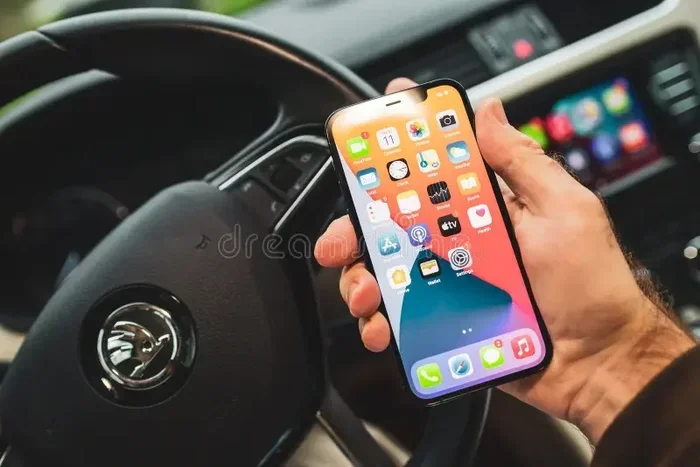
- Pair your phone with the car’s Bluetooth system.
- Open your preferred radio app on your phone. Popular choices include iHeartRadio, TuneIn, Spotify, and SiriusXM.
- Select the car’s Bluetooth audio as the output device.
- Choose your favorite station and start streaming.
Once connected, you can control everything from your phone. You can also save stations within the app for quick access later.
Top Radio Apps for Car Streaming
Here are some apps that work great for streaming favorite radio stations:
- iHeartRadio: Free and offers thousands of live stations and podcasts.
- TuneIn: Great for international stations and sports coverage.
- Spotify: Not traditional radio, but has curated stations and playlists.
- SiriusXM: Offers satellite radio with no ads on most channels.
- Pandora: Creates personalized stations based on your music taste.
Saving Stations Within Apps
Most radio apps let you save your preferred channels. Look for a heart icon, a star, or a “Save” button within the app. Once saved, these stations appear in your library for easy access. This works just like saving car radio presets but through your phone instead.
Steering Wheel Controls for Quick Station Access
One of the best ways to enjoy your favorite radio stations is through steering wheel controls. These buttons let you change stations without taking your hands off the wheel.
What Steering Wheel Controls Can Do
Most modern vehicles have buttons on the steering wheel for audio control. Common functions include:
- Volume up/down: Adjust the sound level quickly.
- Next/Previous track or station: Jump between saved presets.
- Seek/Scan: Automatically find the next available station.
- Source or Mode: Switch between radio, Bluetooth, and aux input.
Setting Up Steering Wheel Preset Buttons
Some cars let you customize steering wheel buttons to access specific presets. Check your owner manual for instructions on how to assign buttons. This feature is especially useful if you listen to a lot of different stations throughout the day.
Safety Benefits of Steering Wheel Controls
Using steering wheel controls keeps your eyes on the road and your hands on the wheel. It is the safest way to switch between favorite radio stations while driving. If your car has this feature, use it every time.
HD Radio and Satellite Radio: Expanding Your Options
Traditional FM and AM radio is great, but it is not the only option. HD Radio and satellite radio offer more stations and better sound quality.
What Is HD Radio?
HD Radio is a digital broadcast technology that works alongside traditional FM and AM signals. It offers multiple channels on a single frequency. Many new cars come with HD Radio built in. To save HD radio stations as presets, the process is the same as regular FM radio.
What Is Satellite Radio?
Satellite radio, like SiriusXM, broadcasts from space instead of local towers. This means you get clear signal anywhere, even in remote areas. Satellite radio requires a subscription, but it offers hundreds of channels with no commercials on most stations.
To save satellite radio stations, you use the same preset method. Just tune to the channel you want and hold down the preset button. The station will be saved to your memory.
Comparison: FM/AM vs. HD vs. Satellite Radio
| Feature | FM/AM Radio | HD Radio | Satellite Radio |
|---|---|---|---|
| Signal Source | Local towers | Digital broadcast | Satellites |
| Number of Stations | Limited by area | More than FM/AM | Hundreds available |
| Sound Quality | Standard | Clear and digital | Very high quality |
| Cost | Free | Free | Monthly subscription |
| Coverage | Local only | Local with digital boost | Nationwide |
| Preset Saving | Yes | Yes | Yes |
Each format has its strengths. Many drivers enjoy a mix of all three. Save presets from each type to get the best of everything.
Common Mistakes When Setting Radio Presets
Even though saving radio presets is simple, people still make mistakes. Here are the most common ones and how to avoid them.
Mistake 1: Forgetting to Save After Tuning
The most common mistake is tuning to a great station and then driving off without saving it. Always press and hold the preset button right after finding a station you like. If you do not save it, the station will disappear when you turn off the radio.
Mistake 2: Not Updating the Infotainment System
Older cars may have outdated software that causes preset issues. Check for updates from your dealer or the manufacturer. A simple firmware update can fix many problems with car radio presets and station memory.
Mistake 3: Saving Too Many Similar Stations
It is tempting to save every station you like, but too many presets create clutter. Be selective. Save only the stations you actually listen to on a regular basis. This keeps your presets organized and easy to use.
Mistake 4: Ignoring the Favorites Folder
Many infotainment systems have a dedicated Favorites folder. If you do not use it, you might end up scrolling through a long list of stations every time. Use the Favorites folder to keep your most-played channels front and center.
Mistake 5: Not Testing Presets After Saving
Always test your presets after saving them. Press each button to make sure the correct station comes up. If a preset is wrong, delete it and save the correct station. This small step saves a lot of confusion later.
Expert Tips for Getting the Most Out of Your Car Radio
Want to take your radio experience to the next level? Here are some expert tips that make a big difference.
Use the Scan or Auto-Tune Feature
If you are in a new area or want to discover new stations, use the scan feature. The radio automatically tunes to each available station for a few seconds. When you hear something you like, stop the scan and save it as a preset.
Check for Local Station Databases Online
Before you start saving presets, look up local stations online. Websites and apps like Radio-Locator.com let you find all available FM and AM stations in your area. This helps you discover stations you might have missed.
Reset Presets When You Change Vehicles
If you switch cars or sell your vehicle, reset the presets. The old stations may not work in a different car or location. Start fresh and save new favorite radio stations that match your new driving environment.
Keep a Written List of Your Presets
It sounds old-fashioned, but keeping a small note in your glove box with your preset list can be very helpful. If you ever need to reset your system, you will know exactly which stations to save again.
Adjust Audio Settings for Better Sound
Once your presets are set, take a few minutes to adjust the audio settings. Tune the bass, treble, and balance to match your car’s acoustics. A well-tuned system makes every station sound better, whether it is FM, AM, HD, or satellite.
Frequently Asked Questions
Can I set favorite radio stations in any car?
Yes, almost every car made in the last two decades supports saving radio presets. Whether you have a basic radio or a high-tech infotainment system, you can save your favorite radio stations for quick access. Check your owner manual for specific instructions.
How many radio presets can I save in my car?
Most car audio systems allow you to save between six and twelve presets. Some higher-end vehicles with advanced infotainment systems may offer even more. The exact number depends on your car’s make and model.
Do my saved radio presets stay after I turn off the car?
Yes, saved presets are stored in the car’s memory. They remain even after you turn off the engine. However, a dead battery or a system reset may clear your presets. If that happens, you can easily save them again.
Can I save online radio stations from apps as presets?
You can save stations within radio apps like iHeartRadio or TuneIn on your phone. While these are not stored as car presets, you can access them quickly through your phone’s app after connecting via Bluetooth. Some cars also allow you to save app stations directly to the infotainment system.
What should I do if my presets keep disappearing?
If your car radio presets keep disappearing, the battery may be low or the system may need a reset. Try charging the battery or resetting the infotainment system. If the problem continues, visit a dealer to check for software updates.
Is it possible to set the same preset on multiple cars?
Yes, you can save the same stations on different cars. Each vehicle has its own memory, so your presets in one car do not affect another. This is helpful if you drive multiple vehicles or share a car with family members.
Conclusion
Setting favorite radio stations in your car is one of the simplest ways to improve your daily driving experience. It saves time, reduces distractions, and makes every trip more enjoyable. Whether you use preset buttons, a touchscreen, Bluetooth, or steering wheel controls, the process is quick and easy.
Take a few minutes today to save your go-to stations. Organize them in a way that makes sense for your routine. Use the tips and tricks from this guide to get the most out of your car audio system. Once your presets are set, you will wonder how you ever drove without them.
Your perfect radio setup is just a few button presses away. Start now and enjoy the drive.