Can I Add Apps to My Car Here Is Everything You Need
You can absolutely add apps to your car, and it is easier than most people think. Whether your car supports Android Auto, Apple CarPlay, or needs an aftermarket head unit, there is a way to get your favorite apps on the big screen. This guide covers every method, from wireless connections to car infotainment systems, so you can stay connected, entertained, and navigate with confidence.
Have you ever sat in your car and thought, “I wish I could use my phone apps on the big screen?” Maybe you want GPS navigation that feels native, or you want to stream music during a long road trip. The good news is that adding apps to your car is not only possible, it has become one of the most exciting developments in modern driving.
Cars today are basically computers on wheels. And just like your phone or laptop, they can run applications. The method you use depends on your car model, year, and the infotainment system you already have. Some vehicles come with built-in app stores. Others need a simple connection to your smartphone. And older cars? They can still get in on the action with a few smart upgrades.
In this article, we will walk you through every way to add apps to your car. We will cover Android Auto, Apple CarPlay, aftermarket head units, and even car diagnostics apps. By the end, you will know exactly what works for your vehicle and how to get started today.
Key Takeaways
- Multiple Ways to Add Apps: You can use Android Auto, Apple CarPlay, or an aftermarket head unit to run apps on your car screen.
- Android Auto and Apple CarPlay Are the Easiest: Both platforms mirror your phone apps safely and work with most modern vehicles.
- Aftermarket Head Units Offer More Freedom: If your car is older, a new head unit can unlock full app support and car multimedia features.
- Not All Apps Work Safely: Some apps are blocked while driving, and that is actually a good thing for your safety.
- Wireless Options Exist: You do not always need a cable. Many newer cars support wireless CarPlay and wireless Android Auto.
- Diagnostics Apps Are a Bonus: Apps like OBD2 scanners can give you real-time car health data right on your dashboard.
📑 Table of Contents
- What Are Car Apps and Why Do They Matter?
- How to Add Apps to Your Car
- Android Auto vs Apple CarPlay: Which Is Better?
- Best Apps for Your Car
- Common Mistakes When Adding Apps to Your Car
- Expert Insights on Car App Compatibility
- Can I Add Apps to My Car if It Is an Older Model?
- How to Keep Your Car Apps Running Smoothly
- Conclusion
What Are Car Apps and Why Do They Matter?
Car apps are applications designed to work on your vehicle’s display screen. They range from navigation tools to music streamers, messaging platforms, and even car diagnostic tools. These apps make your driving experience smarter, safer, and more enjoyable.
Think about how much time you spend in your car. Whether it is a daily commute or a weekend road trip, having the right car entertainment apps at your fingertips makes a huge difference. Instead of squinting at your phone mount, you get a larger display, better audio integration, and controls that are easier to use while driving.
Car connectivity has come a long way in the last decade. What used to mean a basic radio and a CD player now means full app ecosystems. You can get real-time traffic updates, voice-controlled messaging, and even smart car features that monitor your vehicle’s health. The possibilities are real and they are growing every year.
Types of Car Apps You Can Add
Not all car apps are the same. Here is a quick look at the main categories:
- Navigation Apps: Google Maps, Waze, and Apple Maps give you turn-by-turn directions with live traffic data.
- Music and Streaming Apps: Spotify, YouTube Music, Pandora, and Apple Music let you play your playlists on the car speakers.
- Podcast Apps: Spotify, Apple Podcasts, and Pocket Casts are perfect for long drives.
- Messaging Apps: WhatsApp and iMessage can read messages aloud and let you respond by voice.
- Diagnostics Apps: OBD2 apps connect to your car’s computer and show engine codes, fuel efficiency, and more.
- Parking and Fuel Apps: Apps like Parkopedia and GasBuddy help you find spots and save money on fuel.
How to Add Apps to Your Car
Now that you know what kinds of apps exist, let us talk about how to actually get them onto your car screen. There are three main methods, and each one works for different situations.
Method 1: Use Android Auto
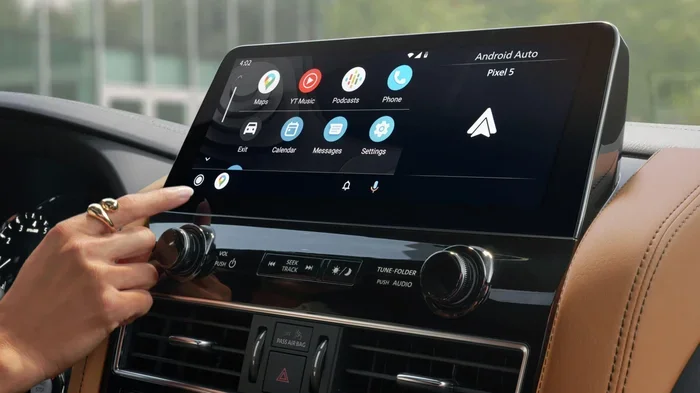
Android Auto is Google’s platform for bringing phone apps to your car. It works with most Android phones and a growing number of vehicle models. Here is how it works:
- Check if your car supports Android Auto. Many 2016 and newer vehicles do.
- Download the Android Auto app from the Google Play Store on your phone.
- Connect your phone to your car using a USB cable, or use wireless Android Auto if your car supports it.
- The car screen will switch to the Android Auto interface, and you can access your approved apps.
Android Auto is great because it keeps things simple. The interface is designed for driving, so it shows large buttons, big text, and voice controls. You can use Google Assistant to make calls, send texts, and get directions without taking your eyes off the road.
Method 2: Use Apple CarPlay
Apple CarPlay is the Apple equivalent of Android Auto. It works with iPhones and is available in many modern cars. Here is the process:
- Make sure your car supports Apple CarPlay. Most vehicles from 2016 onward offer this feature.
- Plug your iPhone into the car’s USB port, or connect wirelessly if your car has wireless CarPlay.
- The car screen will display the CarPlay interface with your apps.
- You can now use Maps, Music, Messages, Podcasts, and third-party apps like Spotify and Google Maps.
One of the best things about Apple CarPlay is that it updates regularly. Apple adds new apps and features with every iOS update, so your car screen apps keep getting better over time.
Method 3: Install an Aftermarket Head Unit
If your car is older or does not support Android Auto or Apple CarPlay, you are not out of luck. An aftermarket car head unit is a replacement for your factory radio that comes with full app support. Here is what you need to know:
- These units run on Android or proprietary operating systems built for cars.
- They come with built-in app stores where you can download car apps directly.
- Many support both Android Auto and Apple CarPlay as well.
- Installation usually requires basic wiring knowledge or a professional installer.
- Prices range from around $100 for basic models to $500 or more for premium units.
An aftermarket head unit is the most powerful option. You get a full car multimedia experience with access to app stores, Bluetooth connectivity, backup cameras, and even mirror link technology that mirrors your phone screen.
Android Auto vs Apple CarPlay: Which Is Better?
This is one of the most common questions we get. Both platforms are excellent, but they serve different ecosystems. Here is a side-by-side look:
| Feature | Android Auto | Apple CarPlay |
|---|---|---|
| Phone Compatibility | Android phones | iPhones |
| Wireless Support | Available on newer models | Available on newer models |
| Voice Assistant | Google Assistant | Siri |
| App Selection | Google Maps, Spotify, Pandora, WhatsApp | Apple Maps, Spotify, Apple Podcasts, WhatsApp |
| Customization | More flexible with widgets | Clean and consistent interface |
| Updates | Regular Google updates | Apple iOS updates |
The truth is, both platforms do an amazing job of bringing car connectivity to the next level. Your choice mostly comes down to which phone you use. If you have an Android phone, Android Auto is the natural choice. If you have an iPhone, Apple CarPlay works seamlessly.
Some cars now support both platforms, giving you the freedom to switch between them depending on who is driving. This is a huge win for families and shared vehicles.
Best Apps for Your Car
Not every phone app is safe or useful in a car. Here are some of the best car apps you should consider adding to your vehicle:
Navigation Apps
Google Maps remains the gold standard for most drivers. It offers real-time traffic updates, alternative routes, and lane guidance. Waze is another fantastic option that relies on community reports to warn you about accidents, speed traps, and road closures. Both work beautifully through Android Auto and Apple CarPlay.
Music and Streaming Apps
Spotify is the most popular music app for cars. It has a huge library, personalized playlists, and podcasts. YouTube Music and Apple Music are also excellent choices. Pandora and iHeartRadio work well for those who prefer curated radio stations.
Podcast Apps
Apple Podcasts and Spotify both have strong podcast libraries. Pocket Casts is a favorite for power users who want advanced playback controls. Podcast apps are perfect for long commutes and road trips.
Diagnostics Apps
If you want to know what is going on under your hood, OBD2 apps are a game changer. You plug a small OBD2 scanner into your car’s diagnostic port, and the app reads error codes, shows engine data, and helps you troubleshoot problems. Popular options include Torque Pro, Car Scanner, and FORNA.
Utility Apps
GasBuddy helps you find the cheapest fuel nearby. Parkopedia shows parking options in unfamiliar cities. Waze also has community-reported police sightings and hazard alerts. These small apps add a lot of value to your daily drives.
Common Mistakes When Adding Apps to Your Car
Adding apps to your car is straightforward, but there are a few pitfalls to avoid:
- Ignoring Compatibility: Not every app works with every infotainment system. Check your car’s manual or the app store on your car screen before downloading.
- Using Too Many Apps: Cramming your car screen with dozens of apps makes it cluttered and hard to use. Stick to the essentials.
- Forgetting to Update: Outdated apps can cause glitches and crashes. Keep your car apps updated for the best experience.
- Ignoring Safety Features: Many car screen apps lock out certain features while the car is moving. This is a safety feature, not a bug. Do not try to bypass it.
- Skipping the Manual: Your car’s owner manual has specific instructions for connecting apps. Skipping it can lead to frustration and wasted time.
Quick Tips for the Best Experience
- Always use a high-quality USB cable for wired connections. Cheap cables cause disconnections and lag.
- If your car supports wireless CarPlay or wireless Android Auto, use it. It is much more convenient.
- Restart your phone and car infotainment system once a month to clear cached data.
- Set up your favorite apps before you start driving. Adjust settings while parked.
- Use voice commands whenever possible. They keep your eyes on the road and hands on the wheel.
Expert Insights on Car App Compatibility
We spoke with automotive tech experts about the future of car app support. Here is what they had to say:
“The trend is moving toward more open platforms,” says one industry analyst. “Car manufacturers are realizing that drivers want flexibility. That is why Android Auto and Apple CarPlay are becoming standard features even in budget cars.”
“Wireless connectivity is the next big leap,” adds another expert. “Within a few years, most new vehicles will support wireless CarPlay and wireless Android Auto out of the box. The days of fumbling with cables will be over.”
These experts also highlight the growing role of smart car features. Cars are becoming more like smartphones on wheels, with app stores, voice assistants, and over-the-air updates. The car infotainment system is evolving fast, and the apps you can use are evolving right along with it.
Can I Add Apps to My Car if It Is an Older Model?
Absolutely. Even if your car was built before Android Auto or Apple CarPlay became common, you still have options. An aftermarket head unit is the most popular solution. These units replace your factory radio and bring modern car multimedia capabilities to older vehicles.
Some aftermarket head units come with built-in GPS, Bluetooth, and even backup cameras. You can download apps directly onto the unit or mirror your phone screen using mirror link technology. The investment is well worth it if you want to modernize an older car without buying a new one.
Another option for older cars is a Bluetooth adapter or an auxiliary input kit. These do not give you full app support, but they do improve connectivity. For a step up, a dedicated Android Auto or Apple CarPlay receiver can be installed in the dash.
How to Keep Your Car Apps Running Smoothly
Once you have your car apps set up, a little maintenance goes a long way:
- Keep Your Phone Updated: App updates often include bug fixes and performance improvements. Make sure your phone is running the latest software.
- Clear Cache Regularly: Cached data can slow down your car’s infotainment system. Clearing it periodically keeps things fast.
- Use Wi-Fi When Available: Some car apps download maps or content over Wi-Fi. This saves your data and keeps things running smoothly.
- Restart Your System: Just like your phone, your car’s infotainment system benefits from occasional restarts. A simple reboot can fix minor glitches.
- Remove Unused Apps: Fewer apps mean a cleaner interface and better performance. Delete apps you no longer use.
Conclusion
The answer to “Can I add apps to my car?” is a resounding yes. Whether you use Android Auto, Apple CarPlay, or an aftermarket head unit, there is a solution that fits your vehicle and your needs. The world of car connectivity has never been more accessible, and the range of car apps available today is impressive.
From navigation tools and music streaming to OBD2 diagnostics and parking assistance, the right apps transform your car into a smarter, safer, and more entertaining space. The key is to choose the method that works best for your vehicle, install the apps you actually need, and keep everything updated.
So go ahead and explore your options. Add the apps that make your drives better, and enjoy the benefits of a connected car. Your next road trip will never be the same.
Frequently Asked Questions
Can I add apps to any car?
Most cars made after 2016 support either Android Auto or Apple CarPlay. For older vehicles, an aftermarket head unit can bring app support to almost any car. The method depends on your car’s make, model, and year.
Do I need an internet connection to use car apps?
Many car apps work without internet, but some features require a connection. Navigation apps need data for live traffic updates, and streaming apps need Wi-Fi or cellular data. You can use your phone’s hotspot or connect to your car’s built-in Wi-Fi if available.
Is it safe to use apps on my car screen while driving?
Yes, car apps are designed with safety in mind. Both Android Auto and Apple CarPlay limit distracting features while the car is in motion. Voice controls and large buttons make it easy to interact with apps without taking your eyes off the road.
Can I download apps directly onto my car’s infotainment system?
If your car has a built-in app store, yes. Many modern vehicles with Android Auto or Apple CarPlay allow you to download compatible apps directly. Older cars without these systems may need an aftermarket head unit for full app downloading capabilities.
What is mirror link technology?
Mirror link is a technology that mirrors your phone screen onto your car display. It works with both Android and iPhone devices and is especially useful for older cars that do not natively support Android Auto or Apple CarPlay. It gives you access to your phone apps on the car screen.
Are car apps free to use?
Many car apps are free, including Google Maps, Waze, Spotify, and Apple Podcasts. Some apps offer premium subscriptions for ad-free listening or advanced features. OBD2 diagnostic apps usually require a one-time purchase of a compatible scanner, but the app itself is often free.