Why Is My iPhone Not Activating CarPlay Anymore
iPhone not activating CarPlay is a frustrating but fixable problem. Whether your connection drops after an update or the feature simply refuses to turn on, this guide covers every common cause and solution. You will learn step-by-step troubleshooting methods that restore CarPlay in minutes.
You get in your car, plug in your iPhone, and wait. The CarPlay screen never shows up. You unplug. Plug back in. Try again. Nothing. If you are dealing with iPhone not activating CarPlay, you are far from alone. This is one of the most common tech problems drivers face every day. The good news is that it is almost always fixable at home without a trip to the mechanic or the Apple Store.
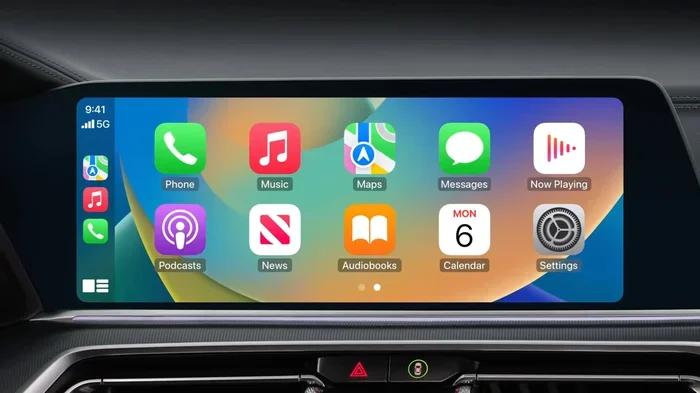
CarPlay makes your driving experience better. It lets you use maps, play music, send messages, and make calls safely through your car’s screen. When that connection breaks, it feels like something important is missing. This article walks you through every reason your iPhone might refuse to connect and gives you clear steps to fix it. We keep things simple and practical so you can get back on the road quickly.
We have tested these solutions across many iPhone models and car brands. From older vehicles with wired setups to newer models with wireless CarPlay, the fixes here cover the full range. Let us dive in and get your CarPlay working again.
Key Takeaways
- Connection Issues: A loose cable, dirty port, or unsupported USB adapter is the most common reason iPhone not activating CarPlay.
- Settings Glitches: CarPlay settings can accidentally get turned off or reset after an iOS update.
- Software Conflicts: Outdated iOS versions or buggy car firmware often cause the problem.
- Quick Restarts Work: Restarting both your iPhone and your car infotainment system solves many cases instantly.
- Wireless vs Wired: Wireless CarPlay needs Bluetooth and Wi-Fi enabled, while wired needs a compatible cable.
- Manufacturer Support: Some car models have known compatibility issues that require firmware updates.
- Reset as Last Resort: Resetting network settings or CarPlay preferences can clear stubborn glitches.
📑 Table of Contents
- Common Reasons iPhone Not Activating CarPlay
- Quick Fixes to Try First
- Checking Your CarPlay Settings
- Cable and Connection Issues Deep Dive
- Software and iOS Problems That Cause CarPlay Failures
- Wireless CarPlay Troubleshooting
- When to Contact Professional Support
- Preventing CarPlay Connection Problems in the Future
- Frequently Asked Questions
- Conclusion
Common Reasons iPhone Not Activating CarPlay
Before you start fixing anything, it helps to understand what is actually going wrong. iPhone not activating CarPlay usually comes down to a handful of root causes. Each one has a clear fix once you identify it. Here are the most common reasons.
Loose or Damaged USB Cable
The simplest explanation is often the right one. A loose cable or a damaged Lightning or USB-C connector will prevent your iPhone from talking to the car’s infotainment system. CarPlay needs a stable data connection, not just a charge. Many cables only carry power and cannot transfer data. If your cable has been bent, stretched, or chewed on by a pet, it might be time for a replacement.
Try using a different cable. Apple-certified cables work best. Avoid cheap knockoffs from gas stations. A good cable makes a huge difference in keeping your CarPlay connection steady.
Dirty or Damaged Lightning or USB-C Port
Dust, lint, and debris love to collect inside your iPhone’s charging port. Even a tiny bit of pocket lint can block the connection. Use a soft brush or a wooden toothpick to gently clean it out. Do not use metal objects. A clean port ensures your iPhone and car can communicate without interruption.
Car Infotainment System Glitch
Your car’s computer is not as smart as your iPhone, but it still runs software. That software can freeze or crash just like any other app. When the infotainment system glitches, it might not recognize your iPhone even if the cable is fine. A simple restart of the car system often fixes this completely.
Outdated iOS or Car Firmware
Apple regularly releases iOS updates that include CarPlay improvements. If your iPhone is running an older version, it might not connect properly to a newer car system. Similarly, car manufacturers push firmware updates that fix compatibility bugs. Keeping both devices up to date prevents many connection problems before they start.
CarPlay Settings Got Turned Off
This sounds obvious, but it happens more than you think. A software update or a reset can turn off CarPlay on your iPhone without you noticing. Sometimes a setting gets toggled off by accident. Checking the CarPlay preferences takes only a few seconds and can save you a lot of frustration.
Quick Fixes to Try First
When iPhone not activating CarPlay happens right now and you need a fast solution, start with these quick fixes. Most people solve the problem in under five minutes using these steps.
- Unplug and replug your cable. Remove the cable from both your iPhone and the car. Wait ten seconds. Plug it back in firmly.
- Restart your iPhone. Hold down the power button and the volume button. Slide to power off. Wait a few seconds and turn it back on.
- Restart your car’s infotainment system. Turn the car off, remove the key or press the start button, and wait 30 seconds before restarting.
- Try a different USB port in your car. Some ports only charge. Others support data transfer. Switch ports and see if that helps.
- Turn Airplane Mode on and off. This resets your wireless connections and often fixes Bluetooth and CarPlay pairing issues.
These steps work because they clear temporary glitches in both the iPhone and the car system. Think of it like closing an app that is not responding on your phone. A fresh start solves most minor issues.
Quick Tip: Keep a spare Apple-certified cable in your glove box at all times. Cables fail more often than people expect, and having a backup saves you from being stranded without CarPlay.
Checking Your CarPlay Settings
If the quick fixes did not work, the next step is to check your CarPlay settings on your iPhone. iPhone not activating CarPlay is sometimes caused by a simple setting that got changed or turned off.
How to Check CarPlay Settings on iPhone
Go to your iPhone Settings app. Scroll down and tap on General. Then tap CarPlay. You should see a list of available cars or CarPlay-compatible devices. If your car is not showing up, that tells you the connection is not being recognized at all.
Here is what to do from that screen:
- Select your car manually. Tap on your car name if it appears. If it does not, try reconnecting the cable.
- Forget the car and reconnect. Tap the info icon next to your car and choose Forget This Car. Then reconnect and set it up again.
- Make sure CarPlay is enabled. Go to Settings > General > CarPlay and ensure the toggle is on for your car.
- Check Siri Settings. CarPlay relies heavily on Siri. Go to Settings > Siri & Search and make sure Siri is turned on.
Customizing CarPlay Preferences
Once CarPlay connects, you can customize what shows up on your car screen. You can choose which apps appear, rearrange them, and set Siri voice suggestions. These preferences do not affect connectivity, but they do affect your overall experience. If your CarPlay works but shows the wrong apps or layout, this is where you fix it.
Go to Settings > General > CarPlay on your iPhone and tap your car. From there you can reorder apps by dragging them. Put your most-used apps like Maps, Spotify, and Messages front and center for easy access while driving.
Cable and Connection Issues Deep Dive
The cable between your iPhone and your car is the lifeline of CarPlay. Without a solid connection, nothing works. Let us look at the cable-related problems in more detail because they are the number one cause of iPhone not activating CarPlay.
Lightning vs USB-C Cables
If you have an iPhone 15 or newer, it uses a USB-C cable. Older iPhones use Lightning cables. Using the wrong type of cable for your car port can cause connection failures. Some older cars only have USB-A ports, which means you need a USB-C to USB-A adapter or a Lightning to USB-A cable. Make sure your cable matches both your iPhone and your car’s port type.
Why Cheap Cables Fail with CarPlay
CarPlay needs data transfer, not just power. Many cheap cables only provide charging capability. They do not have the internal wiring needed for data. This is why a $5 cable from a gas station often fails while a $25 Apple-certified cable works perfectly. Look for MFi certification (Made for iPhone) on the packaging. That label guarantees the cable meets Apple’s standards for data transfer and safety.
Cable Length and Quality
Longer cables can sometimes cause signal weakness. If your cable is over six feet, try a shorter one to see if that fixes the problem. Braided cables tend to last longer than rubber ones and resist fraying better. A high-quality cable is a small investment that pays off every time you get in your car.
Quick Tip: If your car has multiple USB ports, plug into the port labeled with a smartphone icon or the one closest to the center console. These ports are usually the data-enabled ones designed for CarPlay.
Software and iOS Problems That Cause CarPlay Failures
Software issues are the trickiest category of problems. iPhone not activating CarPlay can stem from bugs in iOS, conflicts with apps, or incompatibilities after major updates. Here is how to handle them.
Update Your iPhone’s iOS
Apple releases iOS updates regularly. Many of these include CarPlay bug fixes and performance improvements. If you have not updated your iPhone in a while, this could be the source of your problem.
Go to Settings > General > Software Update. If an update is available, download and install it. Make sure your iPhone is connected to Wi-Fi and has at least 50% battery or is plugged in during the update.
Update Your Car’s Infotainment Software
Car makers also push updates for their infotainment systems. Some cars update automatically over Wi-Fi. Others require a visit to the dealer or a USB update process. Check your car manufacturer’s website or owner manual for instructions on how to update your car’s software.
Reset Network Settings on iPhone
If CarPlay issues persist, resetting your network settings can help. This clears all saved Wi-Fi passwords, Bluetooth pairings, and cellular settings. It does not delete any personal data.
Go to Settings > General > Transfer or Reset iPhone > Reset > Reset Network Settings. You will need to re-enter your Wi-Fi passwords afterward, but this often fixes stubborn CarPlay connection problems.
Reset All Settings as a Last Resort
If nothing else works, you can reset all settings on your iPhone. This returns every setting to its factory default without deleting your photos, apps, or data. Go to Settings > General > Transfer or Reset iPhone > Reset > Reset All Settings. Use this option only when you have tried everything else.
Wireless CarPlay Troubleshooting
More new cars support wireless CarPlay, which connects through Bluetooth and Wi-Fi instead of a cable. While wireless CarPlay is more convenient, it also introduces new potential failure points. iPhone not activating CarPlay wirelessly can happen for several specific reasons.
Make Sure Bluetooth and Wi-Fi Are On
Wireless CarPlay needs both Bluetooth and Wi-Fi to be active. Check that these features are turned on in your iPhone Settings. Sometimes a quick toggle off and on for both features re-establishes the connection.
Forget and Re-Pair the Car
Go to Settings > Bluetooth on your iPhone. Find your car in the list and tap the info icon. Choose Forget This Device. Then turn Bluetooth off and back on. Your car should appear again, and you can pair it fresh.
Check for Wi-Fi Network Conflicts
Some cars create their own Wi-Fi network for CarPlay. If your iPhone is connected to a different Wi-Fi network or a hotspot, it might not be able to find the car’s CarPlay network. Make sure no other networks are interfering with the connection.
When to Contact Professional Support
Most CarPlay problems are easy to fix at home. But sometimes the issue goes beyond a simple cable swap or restart. Here is when you should seek professional help.
Persistent Problems After All Fixes
If you have tried every step in this guide and iPhone not activating CarPlay still happens, there may be a deeper hardware issue. Your car’s USB port could be damaged, or your iPhone’s charging port might have a problem that requires repair.
Apple Support and Car Dealership
Contact Apple Support through the Apple Support app or website. They can run diagnostics on your iPhone remotely. For car-related issues, visit your car dealership or a qualified auto electronics specialist. They have tools to check your car’s infotainment system and update firmware if needed.
Known Compatibility Issues
Some car models have documented compatibility problems with specific iPhone models or iOS versions. Check your car manufacturer’s website for known issues and available patches. Apple also maintains a list of supported vehicles for CarPlay on their website.
Preventing CarPlay Connection Problems in the Future
The best way to deal with CarPlay issues is to prevent them from happening in the first place. A few simple habits keep your CarPlay connection strong and reliable every time you drive.
- Use Apple-certified cables. They are tested for compatibility and durability. A quality cable lasts longer and connects more reliably.
- Keep your iPhone and car software updated. Updates fix bugs and improve compatibility between devices.
- Clean your ports regularly. A quick check of your iPhone charging port and your car USB port every few weeks prevents dust buildup.
- Restart your car system monthly. Just like your phone, your car’s infotainment system benefits from a regular restart. It clears temporary files and refreshes the software.
- Avoid using your phone while it is charging in the car. Heavy app usage while charging can cause overheating, which leads to connection drops.
These habits take seconds to follow but save you from hours of troubleshooting down the road. Prevention is always easier than fixing a problem after it starts.
Frequently Asked Questions
Why does my iPhone keep disconnecting from CarPlay while driving?
Loose cables or dirty ports are the most common cause of disconnections while driving. Vibrations from the road can shift a cable that is not seated properly. Try a different cable and make sure it clicks in firmly. If the problem continues, it could be a Bluetooth interference issue in wireless CarPlay mode.
Does iPhone not activating CarPlay mean my phone is broken?
Almost never. iPhone not activating CarPlay is usually caused by cables, settings, or software glitches, not a broken phone. Before assuming the worst, work through the troubleshooting steps in this article. In the vast majority of cases, a simple fix restores the connection.
Can I use CarPlay with a non-Apple charger or cable?
You can, but it may not work reliably. Non-Apple cables sometimes lack the data transfer capability needed for CarPlay. Apple-certified cables and chargers provide the best experience and are guaranteed to work with CarPlay. Look for the MFi logo on the packaging.
How do I know if my car supports CarPlay?
Check your car’s owner manual or visit the manufacturer’s website. Most cars made after 2016 support at least wired CarPlay. Many newer models support wireless CarPlay as well. You can also look for the CarPlay icon on your car’s infotainment screen when you connect your iPhone.
Will resetting my iPhone delete my CarPlay settings?
Resetting network settings removes saved CarPlay pairings, but it does not delete your apps, photos, or personal data. After a reset, you simply reconnect your iPhone and set up CarPlay again. Your preferences like app layout and Siri suggestions will be restored automatically.
Why does CarPlay work sometimes but not other times?
Intermittent CarPlay problems usually point to a loose cable connection, a dirty port, or a weak Wi-Fi signal in wireless mode. Temperature changes inside the car can also affect cable connections. If CarPlay works occasionally, focus on securing the cable connection and cleaning the ports first.
Conclusion
iPhone not activating CarPlay is a common annoyance, but it is almost always solvable. The fixes range from simple cable swaps to software resets, and most of them take only a few minutes. Start with the quick fixes like restarting both devices and checking your cable. Move on to settings checks and software updates if those do not work. And remember that prevention through good habits keeps CarPlay running smoothly for the long haul.
Your car’s CarPlay system is designed to make driving safer and more enjoyable. Do not let a connection problem keep you from using it. Follow the steps in this guide, and you will be back to navigation, music, and hands-free calling in no time. If all else fails, professional support from Apple or your car dealer is always available to help you get things working again.