How to Put a Device in Pairing Mode Step by Step Guide
Putting a device in pairing mode is the first step to connecting your phone, speaker, or car audio system wirelessly. Whether you are syncing Bluetooth in your car or connecting a new headset, the process is simple once you know where to look. This guide walks you through every pairing mode step for phones, car infotainment systems, and wireless devices. You will learn how to make your device discoverable, fix common issues, and enjoy hands free calling and audio streaming on the road.
Have you ever tried to connect your phone to your car and felt completely lost? You are not alone. Millions of drivers struggle with Bluetooth pairing every single day. The good news is that putting a device in pairing mode is much easier than it looks. Once you understand the basic idea, you can connect almost any device in just a few minutes.
This guide gives you clear device pairing steps for phones, car systems, speakers, and headsets. We will walk through each method so you can get your wireless connection up and running fast. Whether you are setting up car Bluetooth for the first time or fixing a stubborn connection, you will find exactly what you need here.
Let us start with the basics. Understanding what pairing mode actually does will make everything else much simpler. Think of it like opening the door so another device can come inside. Without it, your phone and car cannot talk to each other.
Key Takeaways
- Pairing mode makes your device visible: It lets other Bluetooth devices find and connect to it within range.
- Every device has a unique method: Phones, car systems, speakers, and headsets each use slightly different steps to enter pairing mode.
- Bluetooth settings are your control center: You can manage all wireless connections from the Bluetooth settings menu on your phone or car display.
- Common problems have simple fixes: Most Bluetooth pairing issues come from distance, outdated software, or incorrect settings.
- Hands free calling works after pairing: Once connected, you can make calls and stream audio without touching your phone.
- Resetting solves stubborn issues: A simple reset of both devices often fixes pairing problems that nothing else can.
- Keep devices close during setup: Staying within 3 to 5 feet ensures a strong initial connection during the pairing process.
📑 Table of Contents
- What Does It Mean to Put a Device in Pairing Mode?
- How to Put a Phone in Pairing Mode
- How to Put a Car Infotainment System in Pairing Mode
- How to Put a Bluetooth Speaker or Headset in Pairing Mode
- Common Bluetooth Pairing Problems and How to Fix Them
- Expert Tips for a Smooth Pairing Experience
- How to Unpair and Re Pair a Device
- Quick Tips for Faster Pairing
- Common Mistakes to Avoid
- Conclusion
What Does It Mean to Put a Device in Pairing Mode?
Pairing mode is a special state that makes your device visible to other Bluetooth devices nearby. When a device is in this mode, it broadcasts a signal saying, “Hey, I am here and ready to connect.” This is how Bluetooth visibility works behind the scenes.
Normal Bluetooth operation keeps your device hidden most of the time. This is a security feature. But when you want to connect two devices, you need to turn on that visibility temporarily. That is exactly what pairing mode does.
Most devices stay in pairing mode for a few minutes. If you do not complete the connection in time, the device exits this mode and hides again. That is why it helps to have both devices ready before you start.
Why Is Pairing Mode Important for Car Connectivity?
In the automotive world, car connectivity depends heavily on Bluetooth pairing. When you pair your phone to your car, you unlock hands free calling, music streaming, and voice commands. Without entering pairing mode, none of this works.
Your car infotainment system needs to find your phone. Your phone needs to find the car system. Both devices must be in pairing mode at the same time for this to happen. It is like two people trying to find each other in a crowded room. They both need to raise their hands.
Once paired, your devices remember each other. Future connections happen automatically when you get in the car. You do not need to repeat the pairing process every time. This is the beauty of a successful wireless connection setup.
How to Put a Phone in Pairing Mode
Your phone is probably the most common device you will pair with your car. The steps vary slightly depending on whether you use an iPhone or an Android phone. Let us cover both.
Pairing Mode on iPhone
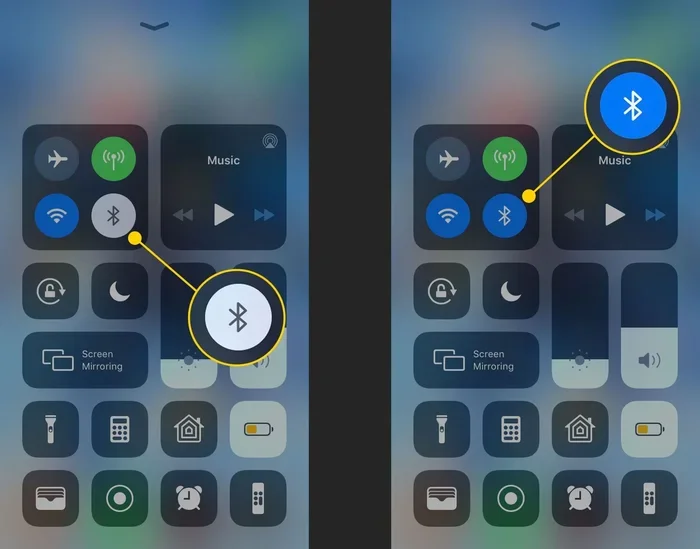
Apple makes the process very straightforward. Open your Settings app and tap on Bluetooth. If Bluetooth is off, toggle it on. Your iPhone will automatically start searching for nearby devices. To make it visible, it stays in pairing mode once Bluetooth is turned on.
On your car system, start the Bluetooth search process. Your iPhone should appear in the list of available devices. Tap on your car name on the iPhone screen. You may see a code on both displays. Confirm that the codes match and tap pair. That is it. Your phone is now connected.
Pairing Mode on Android
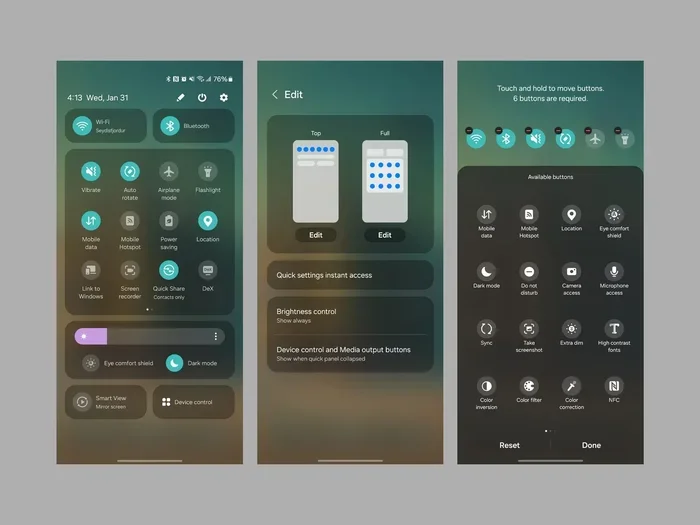
Android phones work similarly but with a few extra options. Go to Settings and tap on Connected Devices or Bluetooth, depending on your phone model. Turn on Bluetooth. Your phone will start scanning for devices.
Some Android phones have a toggle for Bluetooth visibility. Look for a setting called “Visible to all nearby Bluetooth devices” or something similar. Turn this on. This puts your phone into active Bluetooth visibility mode.
Now go to your car infotainment system and start the device search. Your Android phone should appear in the list. Select it and follow any on-screen prompts. You may need to enter a PIN or confirm a pairing request on both devices.
Quick Tips for Phone Pairing
- Turn off other Bluetooth devices nearby that are not part of the setup. This reduces confusion.
- Keep your phone screen awake during the pairing process. Some phones dim the screen too quickly.
- Restart Bluetooth if the search fails. Toggle it off and back on to refresh the connection scan.
- Make sure your phone is charged. Low battery can sometimes interfere with Bluetooth signals.
How to Put a Car Infotainment System in Pairing Mode
Every car brand handles Bluetooth setup a little differently. But the general process follows a similar pattern. Let us look at the most common methods.
General Steps for Most Car Systems
Start by turning on your car or setting it to accessory mode. Navigate to the Settings menu on your infotainment display. Look for a Bluetooth or Phone option. Tap on it and select the option to add a new device or search for devices.
Your car system will now enter pairing mode and start scanning. On your phone, make sure Bluetooth is on and your phone is visible. The car system should appear in your phone’s list of available devices. Tap on it to begin the connection.
Some car systems display a numeric code. You may need to confirm this code on your phone. This is a security step to prevent unauthorized connections. Once confirmed, the pairing is complete.
Brand Specific Pairing Steps
Different car brands have slightly different paths. Here are some common examples:
- Toyota: Press the Setup button on the steering wheel. Go to Bluetooth Settings and select Add Device. Your system enters Bluetooth pairing mode automatically.
- Ford: Press the Phone button on the steering wheel. Select Bluetooth Settings and then Add New Device. Follow the prompts on the screen.
- Honda: Press the Setup button. Navigate to Bluetooth. Select Register Device. The system becomes discoverable for other devices.
- Chevrolet: Press the Phone button on the MyLink or Infotainment system. Select Bluetooth Settings and then Add a Device.
Check your car owner manual if you cannot find the right menu. The exact wording and menu paths can vary by model year and trim level.
How to Make Your Car System Discoverable
Making your car system discoverable is the key step. Most car systems default to hidden mode after the first pairing. This means they will not show up on your phone’s Bluetooth list until you make them discoverable again.
To do this, go into your car Bluetooth settings and look for an option like “Search for devices” or “Make discoverable.” Some systems stay discoverable for a set time, usually around three minutes. Others require you to manually re-enter pairing mode each time.
If your car has a touchscreen, the option is usually right on the main Bluetooth settings screen. If your car uses physical buttons, you may need to hold down the Phone or Setup button for a few seconds to enter pairing mode.
How to Put a Bluetooth Speaker or Headset in Pairing Mode
Wireless speakers and headsets also need to be put in pairing mode before they can connect. The process is different from car systems but follows the same basic idea.
Speaker Pairing Mode
Most Bluetooth speakers have a dedicated Bluetooth button or a power button that doubles as a pairing button. Press and hold this button for about three to five seconds. You will usually see a flashing LED light or hear a voice prompt saying the speaker is ready to pair.
Some speakers enter pairing mode automatically the first time you turn them on. After the initial connection, you may need to hold the Bluetooth button to re-enter pairing mode for additional devices.
Headset Pairing Mode
Wireless headsets typically use a similar method. Press and hold the power button or a dedicated Bluetooth button until you see a flashing light. The light pattern often tells you the status. A flashing blue light usually means the headset is in pairing mode.
For headsets that support multipoint connection, you may need to hold the button longer to switch between devices. Check the headset manual for specific instructions.
Common Speaker and Headset Pairing Tips
- Charge your device fully before pairing. Low battery can cause connection drops during setup.
- Reset the speaker or headset if it will not enter pairing mode. Most devices have a reset button or a specific button combination.
- Keep the device within 3 feet of your phone during the initial pairing. This ensures a strong signal.
- Delete old pairings if the device connects to a previous phone. This clears any conflicting connections.
Common Bluetooth Pairing Problems and How to Fix Them
Even when you follow all the steps correctly, things can go wrong. Bluetooth troubleshooting is a normal part of the process. Here are the most common issues and their solutions.
Device Not Showing Up in the List
If your phone does not see your car or speaker, the first thing to check is distance. Move both devices closer together. Bluetooth range is typically about 30 feet, but walls and metal can reduce this significantly.
Next, make sure both devices are in pairing mode. It sounds obvious, but it is easy to forget. Some devices exit pairing mode after a short time. Try turning Bluetooth off and back on both devices to refresh the scan.
Also check if the device is already connected to another phone. Many Bluetooth devices can only be paired with one device at a time. Disconnect it from the other device first.
Connection Drops Frequently
If your connection keeps dropping, interference might be the cause. Wi-Fi routers, USB cables, and even other Bluetooth devices can create interference. Move away from these sources and see if the connection stabilizes.
Distance also plays a role here. Stay within the Bluetooth range of your device. For car systems, this usually means keeping your phone in a reasonable location near the center console.
Outdated software can also cause connection drops. Check for software updates on both your phone and your car infotainment system. Manufacturers often release updates that fix Bluetooth connectivity issues.
Paired But No Audio
Sometimes devices connect but you cannot hear any sound. This is usually a media audio setting issue. Go to your Bluetooth settings on your phone and look for the connected device. Make sure the Media Audio toggle is turned on.
On your car system, check that the audio source is set to Bluetooth or Aux. Some car systems have multiple input options and you need to select the right one manually.
If you are using a hands free profile, calls should work even if media audio is off. But for music and podcasts, you need the media audio setting enabled.
Expert Tips for a Smooth Pairing Experience
After helping countless drivers with their car stereo pairing and mobile device pairing needs, here are some expert tips that make the process much smoother.
Always Start with a Clean Slate
Before pairing, remove any old or unused Bluetooth connections from both devices. Old pairings can cause conflicts and confusion. On your phone, go to Bluetooth settings and forget the device you are trying to pair with. On the car or speaker, check the paired devices list and remove any old entries too.
Keep Both Devices Updated
Software updates often include Bluetooth improvements and bug fixes. Make sure your phone is running the latest version of its operating system. For newer cars, check if there are any infotainment system updates available. Some dealerships can update your car system for free.
Be Patient During the First Connection
The first time you pair two devices, it can take a little longer than usual. Both devices are exchanging security keys and setting up the connection profile. Give it a full minute before trying again. Rushing the process often leads to errors.
Use the Right Bluetooth Profile
Bluetooth supports different profiles for different functions. The most common ones are the Hands Free Profile for calls and the Advanced Audio Distribution Profile for music. Make sure both profiles are enabled on your phone for the best experience.
Restart Before You Reset
A simple restart can fix most Bluetooth issues. Turn Bluetooth off and back on. Restart your phone. Turn your car off and back on. These small steps often solve problems that seem complicated at first.
How to Unpair and Re Pair a Device
Sometimes the best fix is to start fresh. Unpairing removes the connection between two devices and allows you to set it up again from scratch.
To unpair on your phone, go to Bluetooth settings. Find the device you want to remove. Tap on it and select Forget Device or Unpair. On your car system, go to the Bluetooth settings menu and look for the device in the paired list. Select it and choose Delete or Remove.
After unpairing, both devices should forget each other. Now you can start the pairing process fresh using the steps in this guide. This method works wonders for stubborn Bluetooth pairing problems that will not go away any other way.
Quick Tips for Faster Pairing
- Have both devices ready before you start. Know which device will search first.
- Stay within 5 feet of each other during the initial pairing process.
- Turn off other Bluetooth devices in the area to reduce interference.
- Use the same room if pairing devices that are not in the car. This eliminates distance issues.
- Check battery levels on both devices. Low power can weaken Bluetooth signals.
- Restart both devices if the pairing process stalls. A fresh start often works instantly.
Common Mistakes to Avoid
Even experienced users make mistakes when setting up Bluetooth connections. Here are the most common ones to watch out for.
- Not making the device discoverable: Both devices need to be in pairing mode. If one is hidden, the other cannot find it.
- Giving up too quickly: Some devices take 30 seconds or more to appear in the search list. Wait patiently.
- Pairing too many devices at once: Focus on one connection at a time. Multiple pairings can confuse the system.
- Ignoring software updates: Outdated software is one of the top causes of Bluetooth issues. Keep everything updated.
- Placing the phone in a Faraday pocket or bag: Metal and thick materials block Bluetooth signals. Keep the phone visible and close.
- Forgetting to enable media audio: After pairing, check that media audio is turned on if you want to stream music.
Conclusion
Putting a device in pairing mode is a simple process once you know the steps. Whether you are connecting your phone to your car, setting up a wireless speaker, or pairing a new headset, the basic principles remain the same. Make both devices visible, start the search, confirm the connection, and you are done.
Bluetooth pairing has become an essential part of modern driving. It keeps your hands on the wheel and your eyes on the road while still letting you enjoy your music and take calls. A little patience during setup pays off with a seamless wireless experience every time you get behind the wheel.
If you run into trouble, remember that most issues have simple fixes. Restart your devices, check your settings, and keep everything updated. With the device pairing steps in this guide, you should be able to connect any device in just a few minutes. Happy connecting.