How Do I Turn On My Highlander Screen Step By Step
Learning how to turn on your Highlander screen is simple once you know the right steps. This guide walks you through every method, from the power button to the ignition startup. Whether your screen is unresponsive or you just need display settings help, we cover it all. You will also find troubleshooting tips, customization options, and maintenance advice to keep your infotainment system running smoothly.
Have you ever climbed into your Toyota Highlander and wondered how to turn on the screen? Maybe you are new to the vehicle, or perhaps the display is acting up and you need a refresher. Either way, you are in the right place.
This guide will show you exactly how to turn on your Highlander screen, step by step. We will cover every method, from the basic power button to using the ignition and remote start. You will also learn how to troubleshoot common problems, customize your display, and keep your infotainment system in great shape. Let us get started.
Key Takeaways
- Multiple ways to power on: You can turn on your Highlander screen using the power button, the ignition, or the remote start feature.
- Troubleshooting is straightforward: Most screen issues can be fixed with a simple reset, battery check, or fuse inspection.
- Customization is easy: Toyota offers display settings that let you adjust brightness, themes, and audio preferences.
- Maintenance keeps it running: Regular care prevents common problems like screen flicker or touch unresponsiveness.
- Understanding your system helps: Knowing the difference between the head unit, infotainment display, and dashboard screen saves time.
- Expert tips add value: Small habits like avoiding extreme temperatures and keeping software updated extend screen life.
📑 Table of Contents
- Understanding Your Toyota Highlander Screen
- Step-by-Step Guide to Turning On Your Highlander Screen
- Troubleshooting Common Highlander Screen Issues
- Customizing Your Highlander Display Settings
- Tips for Maintaining Your Highlander Screen and Infotainment System
- Expert Tips for Getting the Most Out of Your Highlander Screen
- Common Mistakes People Make With Their Highlander Screen
- Frequently Asked Questions About Turning On Your Highlander Screen
- Conclusion
Understanding Your Toyota Highlander Screen
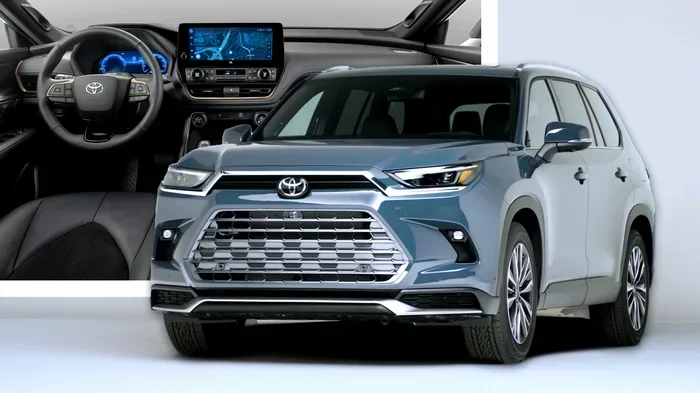
Before we dive into the steps, it helps to understand what you are working with. The Toyota Highlander comes with a built-in infotainment system that controls audio, navigation, and vehicle settings. The main display, often called the head unit, sits in the center of your dashboard. It is the touchscreen you interact with every time you want to play music, change navigation, or adjust climate controls.
The screen is connected to the vehicle’s electrical system. This means it powers on when you start the engine or activate certain features. Different Highlander model years may have slightly different screen layouts, but the basic operation remains the same across most generations.
What Types of Screens Does the Highlander Have?
Toyota offers several display options depending on your trim level and model year. Here is a quick breakdown:
- Standard touchscreen: Found on base and mid-level trims. It handles audio, phone pairing, and basic vehicle info.
- Upgraded infotainment: Higher trims come with larger displays, often with Apple CarPlay and Android Auto support.
- Digital cluster display: This is the screen behind your steering wheel that shows speed, fuel level, and trip data.
- Rear entertainment screens: Some models include additional screens for backseat passengers.
When we talk about turning on your Highlander screen, we are mostly referring to the center infotainment display. But the steps we cover apply to all display types in the vehicle.
Step-by-Step Guide to Turning On Your Highlander Screen
Now let us get to the main event. Here are the different ways you can power on your Highlander screen. Each method is simple and takes just a few seconds.
Method 1: Using the Power Button
The most direct way to turn on your screen is by pressing the power button. This button is usually located on the left side of the infotainment unit or near the top-right corner of the screen. Look for a small icon that looks like a circle with a vertical line at the top.
Here is how to do it:
- Make sure the vehicle is in Park or has the electrical system active.
- Locate the power button on the head unit.
- Press and hold the button for about two to three seconds.
- The screen will flicker and then light up with the Toyota logo.
- Wait a few seconds for the system to fully boot up.
This method works even if the engine is off, as long as the vehicle is in accessory mode. It is a great option if you just want to use the audio system or Bluetooth without starting the engine.
Method 2: Turning the Ignition to Accessory Mode
Most Toyota Highlanders use a key fob or push-button start. When you turn the ignition to accessory mode, the screen powers on automatically. This is the most common way drivers interact with the display.
Here is what to do:
- Press the brake pedal with your foot.
- Press the engine start/stop button once without holding it.
- The vehicle enters accessory mode, and the screen lights up.
- You can now navigate the display without starting the engine.
This method is perfect when you want to pair your phone, adjust the volume, or set a navigation destination before you drive. The screen stays on as long as the vehicle remains in accessory mode.
Method 3: Starting the Engine
When you start the engine, the screen powers on as part of the vehicle startup sequence. This is the default behavior for most Toyota Highlanders.
To start the engine:
- Press the brake pedal.
- Press the engine start/stop button.
- The engine turns over, and the infotainment screen boots up automatically.
- The display shows the home screen with audio, navigation, and vehicle info.
On some model years, the screen may take a few extra seconds to fully load after the engine starts. This is completely normal and is part of the vehicle’s boot sequence.
Method 4: Using Remote Start
If your Highlander has the remote start feature, you can power on the screen from a distance. The display will activate when the engine starts remotely.
Here is the process:
- Press the remote start button on your key fob.
- Wait for the engine to start and the dashboard lights to come on.
- The infotainment screen will power on automatically.
- Approach the vehicle and use the touchscreen as normal.
Remote start is especially useful during hot or cold weather when you want the cabin to be comfortable before you get in. The screen will be ready and waiting for you.
Troubleshooting Common Highlander Screen Issues
Sometimes the screen does not turn on when it should. This can be frustrating, but most problems have simple solutions. Let us look at the most common issues and how to fix them.
Screen Is Completely Black
If your screen stays dark after pressing the power button, try these steps:
- Check if the vehicle is in accessory or ON mode. The screen needs electrical power to light up.
- Press and hold the power button longer. A quick tap may not be enough to wake the display.
- Turn the vehicle off and back on. A full restart often fixes a frozen screen.
- Check the fuse box. A blown fuse can cut power to the infotainment system. Refer to your owner manual for fuse locations.
Screen Flickers or Goes Dim
A flickering or dim screen is often caused by a loose connection or low battery voltage. Here is what to try:
- Check your battery. A weak battery can cause the screen to behave erratically.
- Inspect the wiring behind the unit. If you are comfortable, look for loose connections at the back of the head unit.
- Adjust the brightness setting. Go to Display Settings and increase the screen brightness manually.
- Visit a Toyota dealer. If the flickering continues, a professional can diagnose electrical issues.
Touchscreen Is Unresponsive
When the screen lights up but does not respond to touch, try these fixes:
- Restart the system. Press and hold the power button for ten seconds to force a reboot.
- Clean the screen. Dirt, moisture, or screen protectors can interfere with touch responsiveness.
- Remove any USB devices. A faulty USB connection can sometimes cause the system to lag.
- Check for software updates. Toyota occasionally releases infotainment updates that fix bugs.
Screen Turns Off Too Quickly
If your display shuts off shortly after you turn off the engine, this is usually a normal feature. The Highlander has a screen timeout setting that conserves battery power. You can adjust this in the display settings if needed.
Customizing Your Highlander Display Settings
Once your screen is on, you can personalize how it looks and behaves. Toyota’s infotainment system offers a range of settings that let you tailor the experience to your preferences.
Adjusting Screen Brightness
Screen brightness can make a big difference in how easy it is to see the display. You can adjust it manually or set it to automatic mode.
- Manual brightness: Go to Settings, then Display, and use the slider to increase or decrease brightness.
- Auto-brightness: This feature adjusts the screen based on ambient light conditions. It is great for nighttime driving.
Changing Display Themes
Some Highlander models allow you to choose between light and dark themes. A dark theme reduces glare at night, while a light theme can be easier to read during the day. Check your owner manual or settings menu to see if this option is available for your model.
Setting Up Audio and Navigation
With the screen on, you can quickly access your audio sources, Bluetooth devices, and navigation apps. Here are a few quick tips:
- Pair your phone via Bluetooth. This lets you make calls and stream music hands-free.
- Connect a USB device. You can play music directly from a flash drive or charge your phone.
- Set up navigation. Enter your destination before you start driving for the safest experience.
- Adjust audio balance. Use the display to fine-tune speaker balance and fade for the best sound.
Tips for Maintaining Your Highlander Screen and Infotainment System
Taking care of your Highlander screen helps it last longer and perform better. Here are some simple habits that make a big difference.
Keep the Screen Clean
Dust, fingerprints, and smudges can build up on your touchscreen over time. Use a soft microfiber cloth to gently wipe the screen. Avoid harsh chemical cleaners, as they can damage the anti-glare coating. A slightly damp cloth works well for stubborn spots.
Update Your Software Regularly
Toyota releases software updates for the infotainment system from time to time. These updates can improve touch responsiveness, add new features, and fix known bugs. Check with your Toyota dealer or visit the Toyota website to see if updates are available for your model year.
Avoid Extreme Temperatures
Excessive heat or cold can affect your screen’s performance. In summer, try to park in the shade or use a windshield sunshade. In winter, let the vehicle warm up gradually before using the touchscreen aggressively. Extreme temperature swings can cause the display to malfunction temporarily.
Protect the Electrical System
The infotainment system depends on your vehicle’s electrical health. Keep your battery in good condition, and avoid leaving accessories on when the engine is off for extended periods. A healthy electrical system ensures your screen powers on reliably every time.
Use Genuine Toyota Accessories
If you need to replace any parts related to your screen, such as the head unit or wiring harness, opt for genuine Toyota accessories. Aftermarket parts may not be compatible and could void your warranty. A Toyota dealer can help you find the right components.
Expert Tips for Getting the Most Out of Your Highlander Screen
Here are some insider tips from experienced Toyota owners and automotive experts that will help you get more from your Highlander display.
Learn the Quick Menu
Most Highlander infotainment systems have a quick menu that appears when you swipe down from the top of the screen. This menu gives you fast access to Bluetooth, audio, climate, and vehicle settings. Learning this shortcut saves time and makes your daily drive more convenient.
Use Voice Commands
If your Highlander has voice recognition, you can control the screen without touching it. Say “Hey Toyota” followed by your command, such as “call home” or “navigate to nearest gas station.” This is especially useful when driving and you want to keep your eyes on the road.
Set Up Multiple User Profiles
Some Highlander models allow you to create multiple user profiles. Each profile can have different Bluetooth pairings, audio preferences, and seat positions. This means every driver in your family can have a personalized experience the moment they get in the car.
Explore the Toyota App
The Toyota app connects to your Highlander and lets you control certain features remotely. You can check your screen status, send destinations to navigation, and even start the engine from your phone. It is a great companion to your infotainment system.
Know When to Seek Professional Help
Most screen issues can be resolved with the troubleshooting steps above. However, if your screen consistently fails to turn on, shows distorted images, or produces unusual noises, it is time to visit a Toyota service center. A certified technician can diagnose hardware problems and perform repairs safely.
Common Mistakes People Make With Their Highlander Screen
Avoiding these common mistakes can save you time, money, and frustration.
- Ignoring software updates: Outdated software can cause bugs and poor performance.
- Using abrasive cleaners: These can scratch or damage the touchscreen surface.
- Forcing a reboot too often: While a restart is helpful, doing it repeatedly can strain the system.
- Leaving devices plugged in overnight: This can drain your battery and affect screen performance the next morning.
- Overloading the system: Running too many apps at once can slow down the display and make it unresponsive.
Frequently Asked Questions About Turning On Your Highlander Screen
Why won’t my Highlander screen turn on?
There are several reasons your Highlander screen might not turn on. The most common causes include the vehicle not being in accessory or ON mode, a dead 12-volt battery, or a blown fuse. Try holding the power button for a few seconds, restarting the system, and checking the battery voltage. If none of these steps work, visit a Toyota dealer for a professional diagnosis.
How long does it take for the Highlander screen to boot up?
On most Toyota Highlanders, the screen takes about five to fifteen seconds to fully boot up after you turn the ignition or press the power button. Newer models with updated software may boot slightly faster. If your screen takes longer than thirty seconds, it may indicate a software issue that needs attention.
Can I turn on the screen without starting the engine?
Yes, you can. Put the vehicle in accessory mode by pressing the engine start/stop button once while pressing the brake pedal. This powers the electrical system and turns on the infotainment screen without starting the engine. It is perfect for pairing devices or adjusting settings before you drive.
What should I do if my Highlander screen is frozen?
A frozen screen is usually temporary and easy to fix. Press and hold the power button for about ten seconds to force a reboot. The screen will go dark and then restart. If the freeze happens frequently, check for software updates or visit a service center to rule out hardware problems.
Does the Highlander screen have a timeout setting?
Yes, the Highlander infotainment system includes a screen timeout feature that turns off the display after a period of inactivity. This helps conserve battery power. You can adjust the timeout duration in the Display Settings menu. Some owners prefer a longer timeout for easier access to the screen while driving.
Is it normal for the screen to dim when I turn on the headlights?
Yes, this is normal and by design. The Highlander automatically dims the infotainment screen when the headlights are turned on or when ambient light is low. This reduces glare and improves nighttime visibility. You can override this behavior in the display settings if you prefer a brighter screen at all times.
Conclusion
Knowing how to turn on your Highlander screen is one of the simplest yet most useful things you can learn as a Toyota owner. Whether you use the power button, the ignition, or the remote start feature, the process is quick and intuitive. When problems do arise, the troubleshooting steps in this guide will help you get back on track fast.
Remember to keep your screen clean, update your software, and protect your vehicle’s electrical system. These small habits go a long way in ensuring your infotainment display stays reliable for years to come. The Toyota Highlander is a well-built vehicle, and with the right care, its screen will continue to serve you well on every drive.
Now that you have all the information you need, go ahead and put it into practice. Your Highlander screen will be ready to go whenever you are. Safe travels and enjoy the ride.