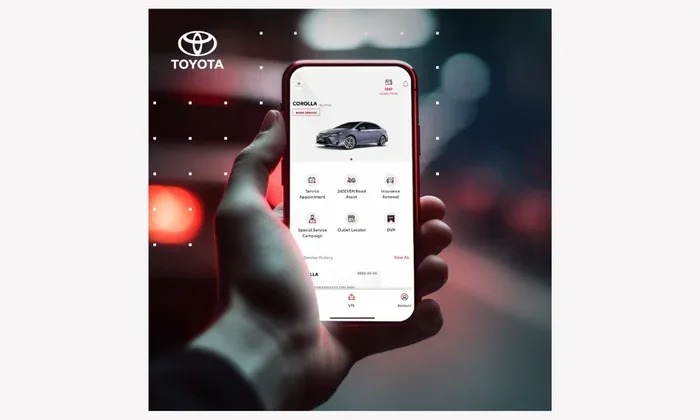
How Do I Add a Second Driver to My Toyota App Guide
Adding a second driver to your Toyota App is simple and gives more people access to your vehicle’s smart features. This guide walks you through the entire process, from setting up a new profile to managing permissions. You will learn what you need, how to invite a driver, and how to keep everything secure and organized.
Adding a second driver to your Toyota App opens up a lot of convenience for families and shared vehicles. Whether your spouse, partner, or adult child needs access, the process is straightforward and quick. This guide covers everything you need to know about how do I add a second driver to my Toyota App. You will find clear steps, helpful tips, and answers to common questions. Let us get started so you can share your Toyota connected experience with ease.
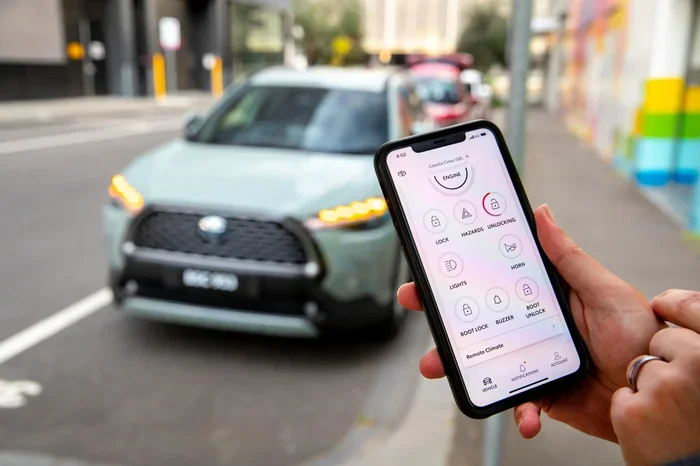
The Toyota App has become a must-have tool for modern Toyota owners. It connects your phone directly to your vehicle. You can lock doors, start the engine, check fuel levels, and more right from your smartphone. But what happens when more than one person drives the same car? That is where adding a second driver comes in.
Knowing how to add a second driver to your Toyota App ensures everyone in your household can use connected services safely. It also keeps your personal settings separate. The Toyota App supports multiple profiles, which means each driver can have their own experience. This is especially useful for families with more than one vehicle or couples who share a single car.
Before you dive in, it helps to understand what the Toyota App offers. The app works with Toyota connected services, which are available on many newer Toyota models. These services include remote start, GPS tracking, and vehicle health alerts. When you add a second driver, they can enjoy many of these same features. The setup process is designed to be user-friendly, so you do not need any technical skills.
Key Takeaways
- Quick Setup: Adding a second driver to your Toyota App takes just a few minutes and requires a compatible Toyota model.
- Smart Permissions: You can control what the second driver sees and accesses through the app’s built-in permission settings.
- No Extra Cost: Most Toyota connected services allow multiple driver profiles at no additional charge.
- Easy Switching: The app lets you switch between driver profiles with just a few taps.
- Security First: Each driver gets their own login, keeping your personal data and vehicle settings private.
- Works with MyT: The Toyota MyT app is the primary platform for managing multiple drivers on Toyota connected vehicles.
📑 Table of Contents
What You Need Before Adding a Second Driver
Check Your Toyota Model and App Version
Not every Toyota model supports the full range of connected services. Before you begin, confirm that your vehicle is compatible. Most Toyota models from 2018 onward come with Toyota connected services built in. You can check your specific model on the Toyota website or in your owner’s manual.
You also need the latest version of the Toyota App installed on your phone. Open your app store and search for the Toyota App. If an update is available, download it before proceeding. An outdated app can cause issues during the setup process.
Gather the Required Information
You will need a few things ready before you start. First, make sure you have your Toyota App login credentials. You should already be logged in as the primary owner. Second, the second driver needs their own email address or phone number. This is used to create their unique profile. Third, make sure both drivers have a stable internet connection during setup.
Here is a quick checklist of what you need:
- A compatible Toyota model with connected services
- The latest version of the Toyota App
- Your Toyota App login details
- An email address or phone number for the second driver
- A stable Wi-Fi or mobile data connection
Supported Toyota Models for Multi-Driver Setup
Most Toyota models equipped with the Toyota connected suite support multiple drivers. Popular models include the Toyota Camry, Toyota RAV4, Toyota Highlander, Toyota Corolla, and Toyota Tacoma. The Toyota App also works with the Toyota bZ4X for electric vehicle owners. If you are unsure, check the Toyota connected services page for a full list of compatible vehicles.
Step-by-Step Guide to Adding a Second Driver
Step One: Open the Toyota App and Go to Settings
Launch the Toyota App on your phone. Log in using your primary owner credentials. Once you are in, look for the settings icon. It usually appears as a gear symbol in the top corner of the screen. Tap on it to open the main settings menu.
From the settings menu, find the section labeled “Users” or “Driver Profiles.” This is where you manage everyone who has access to the app. The exact wording may vary slightly depending on your app version. But the general path is the same across all devices.
Step Two: Select “Add a New Driver”
Inside the driver profiles section, you will see an option to add a new driver. Tap on “Add Driver” or “Invite Driver.” The app will walk you through the next steps. You may be asked to confirm your identity again for security purposes.
The app will prompt you to enter the second driver’s email address or phone number. Type it in carefully and double-check for typos. A wrong email means the invitation will not reach the right person. Once you enter the details, tap “Send Invite.”
Step Three: The Second Driver Accepts the Invitation
The second driver will receive a notification via email or text message. They need to open the link in the notification to accept the invitation. If they do not already have the Toyota App, they will be prompted to download it first.
Once the app is installed, the second driver should create their own account using their email or phone number. They will then be asked to link the invitation to their new profile. After that, they are all set to access the vehicle’s connected features.
Step Four: Verify the Connection
Go back to the Toyota App on your phone and refresh the driver profiles page. You should now see the second driver listed. If the name does not appear right away, try closing and reopening the app. Sometimes it takes a few moments for the system to sync.
You can also ask the second driver to log in and check if they can see the vehicle details. If everything looks good, you are done. The setup process is that simple.
Features and Permissions for the Second Driver
What Can a Second Driver Access?
Once the second driver is added, they can access most of the Toyota App features. This includes remote start, lock and unlock doors, and locating the vehicle on a map. They can also check fuel levels, tire pressure, and service alerts.
However, some features may be restricted based on your settings. For example, you might want to limit the second driver from viewing your personal trip history. The app gives you control over these permissions.
Setting Boundaries and Restrictions
The Toyota App allows you to customize what each driver can do. Here are some common permission settings you can adjust:
- Remote Start: Allow or deny the second driver from starting the engine remotely.
- Vehicle Location: Control whether the driver can see where the vehicle is parked.
- Trip History: Decide if the driver can view past trips and routes.
- Digital Key Sharing: Enable or disable the ability to share a digital key with others.
- Service Scheduling: Let the driver book maintenance appointments or restrict this feature.
Setting these boundaries is important, especially if you are sharing the car with a teenager or a new driver. You want them to have enough access to use the car safely, but not so much that they can change your personal settings.
Understanding the MyT App vs. the Toyota App
Toyota offers two main apps: the Toyota App and the MyT app. The MyT app is the newer platform and is used on most current Toyota models. If you are using the MyT app, the process for adding a second driver is very similar. You go to settings, select “Users,” and invite a new driver. The interface may look slightly different, but the steps are the same.
Knowing how to add a second driver to my Toyota App works the same way whether you are on the Toyota App or the MyT app. Both platforms support multiple driver profiles and shared vehicle access.
Managing Multiple Driver Profiles
Switching Between Drivers
If more than two people use the same Toyota vehicle, you can add additional driver profiles. The Toyota App supports multiple users on a single vehicle. To switch between drivers, simply log out and log back in with the other driver’s credentials.
Some versions of the app also offer a quick-switch feature. This lets you tap on a driver’s name from the home screen without logging out completely. It saves time and makes the transition smooth for everyone.
Monitoring Driver Activity
One great benefit of the Toyota App is the ability to monitor driving activity. The app can show trip history, driving scores, and even hard braking events. As the primary owner, you can view this data for all connected drivers.
This feature is especially helpful for parents monitoring teenage drivers. You can see how safely they are driving and identify any patterns that need attention. Just make sure you communicate openly with the second driver about what is being tracked. Transparency builds trust and keeps everyone comfortable.
Removing a Driver Profile
If you ever need to remove a driver from the Toyota App, you can do so easily. Go to the driver profiles section in settings. Find the driver you want to remove and select “Remove” or “Delete.” The app will ask you to confirm your choice.
Keep in mind that removing a driver also revokes their access to all connected features. They will no longer be able to start the car remotely or view vehicle data. If you need to add them back later, you can simply repeat the invitation process.
Troubleshooting Common Issues When Adding a Second Driver
The Second Driver Does Not Receive the Invitation
This is one of the most common issues people face. If the second driver does not receive the invitation email or text, try resending it. Check the spam or junk folder in their email inbox. Sometimes invitations get filtered there by mistake.
Also, make sure the email address or phone number was entered correctly. Even a small typo can send the invitation to the wrong place. If the problem continues, try logging out of the Toyota App and logging back in. Then attempt the invitation again.
The App Does Not Recognize the Second Driver
If the second driver is listed but cannot access the vehicle, try these steps:
- Make sure the second driver has the latest version of the Toyota App
- Check that both the primary and second driver are logged into the same Toyota account or linked profiles
- Restart the app completely and try again
- Verify that the Toyota connected services plan is active on the vehicle
- Contact Toyota customer support if the issue persists
Most of these issues resolve quickly with a simple app restart or update. Do not worry if it does not work the first time. Patience and a few retries usually solve the problem.
Login Issues for the Second Driver
The second driver may have trouble logging in, especially if they are new to the Toyota ecosystem. Make sure they create a strong password and remember their login details. If they forget their password, the app offers a simple reset option through email or SMS.
If login issues continue, the second driver can try uninstalling and reinstalling the Toyota App. This clears any cached data that might be causing conflicts. After reinstalling, they can log in fresh and try again.
Expert Tips for a Smooth Multi-Driver Setup
Keep Your App Updated
Toyota regularly releases updates to improve app performance and security. Make sure both you and the second driver keep the app updated. Updates often include bug fixes that prevent common issues.
Use Strong, Unique Passwords
Since multiple people will have access to the same app, security is crucial. Each driver should use a strong, unique password. Avoid sharing passwords directly. Instead, use the app’s built-in invitation system to grant access.
Set Clear Expectations
Before handing over app access, have a conversation with the second driver. Discuss what they can and cannot do. Set boundaries around usage, especially for features like remote start and trip history. Clear communication prevents misunderstandings later on.
Take Advantage of Toyota Connected Services
Toyota connected services offer a lot of value beyond just adding a second driver. Features like roadside assistance, remote diagnostics, and stolen vehicle tracking work for all connected drivers. Make sure you understand what is included with your Toyota connected plan.
Adding a second driver to your Toyota App is one of the best ways to get the most out of your connected vehicle. It is fast, free, and gives everyone in your household more convenience and control. Follow the steps in this guide, and you will have your second driver set up in no time.
The process is designed to be simple and intuitive. Toyota has made sure that even people who are not tech-savvy can manage multiple driver profiles with ease. From the initial invitation to setting permissions, every step is clear and straightforward.
Remember to keep your app updated and your passwords secure. These small habits go a long way in ensuring a smooth experience for everyone. If you run into any issues, the troubleshooting tips above should help you resolve them quickly.
Now that you know how to add a second driver to your Toyota App, you can enjoy all the benefits of shared connected driving. Whether it is your spouse, your teenager, or a friend, the Toyota App makes it easy to keep everyone connected to your vehicle.
Frequently Asked Questions
Can I add more than one second driver to my Toyota App?
Yes, the Toyota App supports multiple driver profiles beyond the primary owner. You can add as many drivers as your Toyota connected plan allows. Each driver gets their own login and can access the app’s features based on the permissions you set.
Do I need a Toyota connected services plan to add a second driver?
Most Toyota models come with a trial period of connected services included. To add a second driver and keep all features active, you may need an active Toyota connected services plan. Check your vehicle’s eligibility on the Toyota website or contact your dealer for details.
Can the second driver use the Toyota digital key feature?
Yes, if the digital key feature is enabled on your Toyota model. You can control whether the second driver can use and share the digital key through the app’s permission settings. This is a great feature for letting someone borrow your car without handing over a physical key.
Is there any extra cost to add a second driver to the Toyota App?
Adding a second driver to the Toyota App is typically free. However, some Toyota connected services may require a subscription. The cost of the subscription covers the connected features, not the number of drivers. Always check your specific plan details for any limitations.
What should I do if the second driver’s phone is not compatible with the Toyota App?
The Toyota App works on most modern smartphones, including both Android and iOS devices. If the second driver’s phone is very old or outdated, it may not support the latest app version. In that case, they can still access some features through the Toyota website on a desktop browser.
Can I remove a second driver and add them back later?
Absolutely. You can remove a driver from the Toyota App at any time and add them back whenever you need to. Simply go to the driver profiles section, remove the driver, and send a new invitation when you are ready to reconnect them. The process is quick and easy.