How Do I Get CarPlay on My iPhone Easily and Quickly
Getting CarPlay on your iPhone is simpler than you think. This guide walks you through every step of the CarPlay setup process, from wired connections to wireless pairing. You will learn which iPhones and cars support Apple CarPlay, how to fix common issues, and the best apps to try.
You just got a new iPhone and want to bring your favorite apps to the road. Maybe you bought a used car and heard about this cool CarPlay feature but have no idea how to start. Either way, you are in the right place.
How do I get CarPlay on my iPhone? The answer is easier than most people think. Whether your car supports wireless CarPlay out of the box or you need a simple USB cable, this guide has you covered. We will walk you through every step, from checking compatibility to fixing common problems.
By the time you finish reading, you will know exactly how to set up iPhone CarPlay, what to do when things go wrong, and which apps make the experience better. Let us get started.
Key Takeaways
- CarPlay works on most iPhones: Any iPhone 5 or newer can use Apple CarPlay with the right car or adapter.
- Two ways to connect: You can set up wired CarPlay using a USB cable or wireless CarPlay through Bluetooth and Wi-Fi.
- Compatibility matters: Your car must have a CarPlay-compatible infotainment system for the feature to work.
- Quick fixes exist: Most CarPlay issues can be solved by restarting your iPhone, updating iOS, or checking your cable.
- Apps make it better: Apple Maps, Spotify, WhatsApp, and other CarPlay apps enhance your driving experience.
- Aftermarket options are available: Even older cars can get CarPlay with an aftermarket adapter or head unit.
📑 Table of Contents
- What Is Apple CarPlay and Why Should You Use It?
- Which iPhones and Cars Are CarPlay Compatible?
- How to Set Up CarPlay on Your iPhone Using a Wired Connection
- How to Set Up Wireless CarPlay on Your iPhone
- CarPlay Not Working? Quick Fixes and Troubleshooting Tips
- Best CarPlay Apps and Features You Should Try
- How to Know If Your Car Supports CarPlay
- Conclusion
What Is Apple CarPlay and Why Should You Use It?
Apple CarPlay is a smart system that mirrors key parts of your iPhone onto your car’s infotainment screen. It lets you make calls, send messages, listen to music, and get directions without taking your eyes off the road. Think of it as a safe, driver-friendly version of your phone built right into your dashboard.
The system works with Siri, Apple’s voice assistant, so you can keep your hands on the wheel. You can ask Siri to call someone, find a gas station, or play your favorite playlist. CarPlay activation takes just a few seconds once everything is set up correctly.
What Can You Do with CarPlay?
The CarPlay features go far beyond just navigation. Here are some things you can do:
- Get turn-by-turn directions with Apple Maps or Google Maps
- Make and receive phone calls hands-free
- Send and receive text messages using voice
- Stream music from Spotify, Apple Music, or Pandora
- Use WhatsApp, Telegram, and other messaging apps
- Control podcasts, audiobooks, and radio apps
Why Is CarPlay So Popular?
Millions of drivers use CarPlay screen mirroring every day because it makes driving safer and more convenient. Instead of fiddling with your phone, you use your car’s screen and voice commands. This reduces distractions and keeps your focus where it belongs: on the road ahead.
CarPlay also keeps your phone charged and connected. With a USB cable connection, your iPhone charges while you drive. This is a small but important benefit that many people overlook when they first ask, “How do I get CarPlay on my iPhone?”
Which iPhones and Cars Are CarPlay Compatible?
Before you dive into setup, it helps to know whether your devices support Apple CarPlay. The good news is that compatibility has expanded a lot over the years. Most modern iPhones and many cars work with CarPlay right out of the box.
iPhone Compatibility
Almost every iPhone from the last decade can run CarPlay. Here is a simple breakdown:
- iPhone 5 and newer: All models support wired CarPlay
- iPhone 6 and newer: Most models support wireless CarPlay
- iPhone 8 and newer: Full wireless CarPlay support with the latest iOS
- iOS requirement: You need iOS 12 or later for basic CarPlay, and iOS 13+ for wireless CarPlay
If you have an older iPhone, do not worry. Even an iPhone 5 can use CarPlay with a wired connection. The experience will be smoother on newer models, but the core features work across the board.
Car Compatibility
Not every car comes with CarPlay supported vehicles built in. Here is how to check:
- Check your car’s manual for “Apple CarPlay” or “smartphone integration”
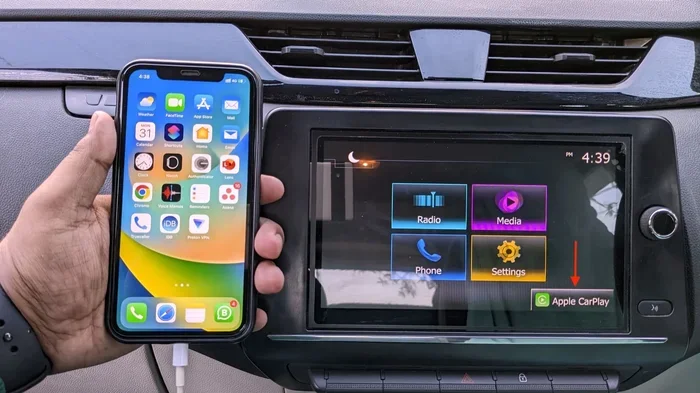
- Look for the CarPlay icon on your infotainment screen
- Visit the car manufacturer’s website and search for your model year
- Check online databases like Apple’s own CarPlay compatibility list
Many popular brands like Toyota, Honda, Ford, BMW, and Hyundai offer CarPlay on most models from 2016 onward. Even some older cars can be upgraded with a CarPlay aftermarket head unit.
| Connection Type | What You Need | Best For |
|---|---|---|
| Wired CarPlay | USB cable, CarPlay-compatible car | Older cars, reliable connection, charging |
| Wireless CarPlay | Bluetooth, Wi-Fi, CarPlay-compatible car | Newer cars, cable-free convenience |
| Aftermarket Adapter | CarPlay adapter, USB cable | Older cars without built-in CarPlay |
How to Set Up CarPlay on Your iPhone Using a Wired Connection
Setting up wired CarPlay is the most straightforward method. It works with almost every CarPlay-compatible car and requires nothing more than a USB cable. This is the go-to method for most people who are wondering how to get CarPlay on their iPhone.
Step-by-Step Wired Setup
Follow these simple steps to get wired CarPlay running:
- Plug one end of your USB cable into your iPhone
- Plug the other end into your car’s USB port (look for the CarPlay icon on the port)
- Start your car or turn on the infotainment system
- Your car screen should display the CarPlay home screen
- If it does not, tap the “CarPlay” or “Smartphone” icon on your car’s display
- Unlock your iPhone and tap “Trust” if prompted
That is it! You are now connected. The CarPlay setup process takes less than a minute with a wired connection.
Which USB Cable Should You Use?
Not all cables are created equal. For the best CarPlay experience, use a high-quality cable. Here are some tips:
- Use the original Apple USB cable that came with your iPhone
- Look for MFi-certified (Made for iPhone) cables
- Avoid cheap, no-name cables that may not transfer data properly
- If your car has a USB-A port, you may need a Lightning-to-USB-A cable
- For newer cars with USB-C, use a USB-C to Lightning cable
How to Set Up Wireless CarPlay on Your iPhone
Wireless CarPlay is a game-changer. It lets you connect without any cables at all. Your iPhone pairs with your car’s infotainment system through Bluetooth and Wi-Fi, giving you all the same features without the clutter of a cable on your dashboard.
Step-by-Step Wireless Setup
Here is how to set up wireless CarPlay on your iPhone:
- Make sure your car supports wireless CarPlay (check your manual)
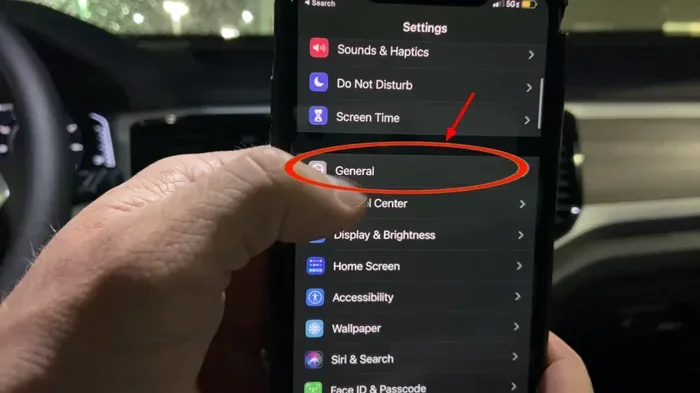
- On your iPhone, go to Settings > General > CarPlay
- Tap “Set Up CarPlay” or select your car from the list
- Follow the on-screen prompts to pair via Bluetooth
- Choose whether to enable Bluetooth CarPlay and Wi-Fi
- Once paired, CarPlay should launch automatically when you start your car
The CarPlay activation process for wireless is slightly different from wired, but it is just as easy. Once paired, your iPhone and car remember each other, so you do not need to set it up again.
Troubleshooting Wireless Connection Issues
Wireless CarPlay sometimes has hiccups. Here are common fixes:
- Turn Bluetooth and Wi-Fi off and back on your iPhone
- Restart your car’s infotainment system
- Make sure your iPhone is running the latest iOS version
- Remove the car from your Bluetooth list and re-pair it
- Check that your car’s firmware is up to date
CarPlay Not Working? Quick Fixes and Troubleshooting Tips
Sometimes CarPlay not working is frustrating, but the fix is usually simple. Most issues have a quick solution that does not require a trip to the mechanic or the Apple Store. Let us walk through the most common problems and how to solve them.
CarPlay Won’t Connect at All
If your iPhone CarPlay will not connect, try these steps in order:
- Restart your iPhone completely
- Restart your car’s infotainment system
- Try a different USB cable or port
- Make sure CarPlay is enabled in your iPhone settings
- Update your iPhone to the latest iOS version
About 80% of connection problems are solved by simply restarting both devices. It is the first thing you should try, and it works more often than any other fix.
CarPlay Connects but Freezes or Glitches
If your CarPlay screen mirroring freezes or acts up, here is what to do:
- Close CarPlay on your iPhone and reopen it
- Force restart your iPhone (hold volume up, then volume down, then hold the side button)
- Delete the CarPlay connection from your car and set it up again
- Clear your car’s infotainment cache (check your car manual for instructions)
- Reset your iPhone’s network settings (Settings > General > Transfer or Reset > Reset)
When to Seek Professional Help
Most CarPlay issues are software-related and easy to fix. However, if none of the above solutions work, the problem might be hardware-related. Here is when to seek help:
- Your USB port is physically damaged or loose
- Your car’s infotainment system needs a firmware update from the dealer
- You suspect a hardware issue with your iPhone’s Lightning port
- Your car is still under warranty and may need dealer service
Best CarPlay Apps and Features You Should Try
Once you have CarPlay set up, the real fun begins. The CarPlay apps ecosystem is huge, and choosing the right ones can transform your driving experience. Here are the best apps and features to explore.
Navigation Apps
Navigation is the core CarPlay experience. Here are the top options:
- Apple Maps: Built into CarPlay, optimized for driving, with Siri integration
- Google Maps: Great for real-time traffic and alternative routes
- Waze: Best for community-driven traffic alerts and hazard reports
- Citymapper: Excellent for urban navigation with public transit options
Music and Media Apps
Listening to music while driving is one of the best CarPlay features. Top apps include:
- Spotify: Stream millions of songs and podcasts
- Apple Music: Seamless integration with Siri and your library
- Pandora: Great for personalized radio stations
- Podcasts: Apple’s native podcast app works beautifully on CarPlay
- Audible: For audiobooks and spoken-word content
Messaging and Communication
Stay connected safely with these apps:
- WhatsApp: Voice messages and read receipts through CarPlay
- Telegram: Fast messaging with voice support
- Slack: For those who need to stay on top of work messages
- Phone: The built-in Phone app works perfectly with CarPlay and Siri
How to Customize Your CarPlay Home Screen
You can rearrange your CarPlay apps to put the ones you use most front and center. Here is how:
- Go to Settings > General > CarPlay on your iPhone
- Select your car
- Tap “Customize” next to your car’s name
- Drag apps to reorder them or toggle them on and off
- Tap “Done” to save your changes
Customizing your CarPlay settings takes just a couple of minutes, but it makes a big difference in how quickly you can access the apps you use most while driving.
How to Know If Your Car Supports CarPlay
Not sure whether your car has CarPlay compatible cars features? There are several easy ways to find out without digging through your owner’s manual.
Quick Ways to Check CarPlay Compatibility
- Look for the CarPlay icon: Check your car’s infotainment screen for a CarPlay or smartphone icon
- Check your car’s settings: Go to your car’s settings menu and look for “Phone” or “Connectivity” options
- Visit the manufacturer’s website: Search for your car model and year plus “Apple CarPlay”
- Ask your dealer: Call your car dealer’s service department and ask directly
- Check Apple’s website: Apple maintains a list of CarPlay supported vehicles on their support page
If your car does not natively support CarPlay, you still have options. A CarPlay aftermarket head unit can replace your factory radio and add CarPlay support. These units range from budget-friendly options to premium systems, and many are easy to install yourself.
Conclusion
Getting CarPlay on your iPhone is one of the best upgrades you can make for safer, more enjoyable driving. Whether you use a wired CarPlay connection with a simple USB cable or set up wireless CarPlay through Bluetooth and Wi-Fi, the process is straightforward and well worth the effort.
Now you know how to check compatibility, set up CarPlay step by step, troubleshoot common issues, and discover the best apps for your driving needs. The CarPlay setup process is quick, and once it is done, you will wonder how you ever drove without it.
Start with the basics: check your iPhone and car compatibility, grab the right cable, and follow the setup steps in this guide. If you run into any issues, the troubleshooting tips will help you get back on track in minutes. How do I get CarPlay on my iPhone? Now you know the answer, and you are ready to hit the road with confidence.
Take a few minutes today to set up CarPlay on your iPhone. Your future self, cruising down the highway with hands on the wheel and eyes on the road, will thank you.
Frequently Asked Questions
Can I use CarPlay on any iPhone?
Most iPhones from the iPhone 5 onward support CarPlay. You need iOS 12 or later for wired CarPlay and iOS 13 or later for wireless CarPlay. Check your iPhone model and update your software if needed to get the full CarPlay experience.
Do I need a special cable for CarPlay?
You need a USB cable that supports data transfer, not just charging. The original Apple Lightning cable that came with your iPhone works best. Look for MFi-certified cables to ensure reliable CarPlay connectivity and avoid connection drops.
Can I use CarPlay in a car that does not support it natively?
Yes! You can use a CarPlay aftermarket adapter or replace your factory head unit with a CarPlay-compatible aftermarket unit. Many affordable options are available that add wireless and wired CarPlay support to older vehicles without it.
Why does my CarPlay disconnect randomly while driving?
Random disconnections are usually caused by a loose cable, outdated iOS, or Bluetooth interference. Try using a different USB cable, updating your iPhone, or turning Bluetooth off and back on. If you use wireless CarPlay, restarting both your iPhone and car infotainment system often fixes the issue.
Is CarPlay safe to use while driving?
CarPlay is designed to be safer than using your phone directly while driving. It uses large buttons, voice commands through Siri, and limited notifications to keep your eyes on the road. However, it is still best to set up your routes and apps before you start driving whenever possible.
Can I use CarPlay without an internet connection?
Yes, many CarPlay features work offline. Apple Maps can download maps for offline use, and you can play music from your device without Wi-Fi or cellular data. However, real-time traffic updates, streaming music, and online messaging require an internet connection through your iPhone’s data plan.