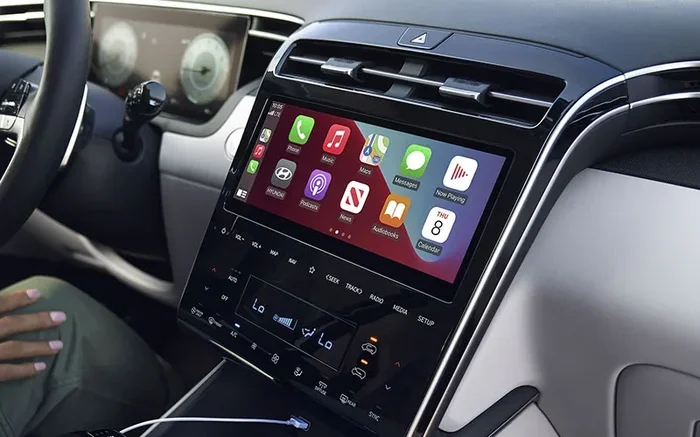
How Do I Reset My Hyundai Bluetooth Fast And Simple
Resetting your Hyundai Bluetooth is easier than you think. Whether your Bluetooth won’t connect, keeps dropping, or won’t pair with a new device, a simple reset usually solves the problem. This guide walks you through every method step by step so you can get back to hands-free calling and music streaming in no time.
Key Takeaways
- Soft Reset: A quick power cycle often fixes minor Bluetooth glitches on your Hyundai.
- Full System Reset: Resetting the infotainment system clears deeper connection issues and pairing conflicts.
- Delete and Re-Pair: Removing old devices from your Bluetooth list can solve most connection problems.
- Check for Updates: Keeping your Hyundai software up to date prevents Bluetooth issues.
- Know When to Seek Help: Some problems need a dealership visit or professional diagnosis.
- Prevent Future Issues: Simple habits keep your Hyundai Bluetooth working smoothly every day.
📑 Table of Contents
- Why Your Hyundai Bluetooth Might Need a Reset
- How to Reset Your Hyundai Bluetooth: Step-by-Step Guide
- Common Hyundai Bluetooth Problems and Their Solutions
- Tips to Keep Your Hyundai Bluetooth Running Smoothly
- When to Seek Professional Help for Bluetooth Issues
- Quick Tips for a Successful Bluetooth Reset
- Comparing Bluetooth Reset Methods
- Key Takeaways
- Conclusion
Why Your Hyundai Bluetooth Might Need a Reset
Your Hyundai Bluetooth connection can act up for many reasons. Sometimes it’s a simple software glitch. Other times, it’s a deeper system issue that needs a full reset.
Bluetooth connection problems are incredibly common in modern vehicles. Your phone, your car, and the Bluetooth module all need to communicate perfectly. When one part of that chain breaks, you get frustrating static, dropped calls, or no connection at all.
Think of your Hyundai infotainment system like a mini computer. Just like your phone or laptop, it sometimes needs a fresh start. Software builds up, cached data gets messy, and connections get tangled. A reset clears all that out and gives your system a clean slate.
Knowing how to reset your Hyundai Bluetooth saves you time and money. You won’t need to visit a dealership for every little hiccup. Most reset methods take just a few minutes, and you can do them in your driveway or garage.
In this guide, we cover every reset method. We also share troubleshooting tips and prevention strategies. By the end, you’ll be a Bluetooth expert for your Hyundai.
How to Reset Your Hyundai Bluetooth: Step-by-Step Guide
There are several ways to reset Hyundai Bluetooth. The method you choose depends on what kind of problem you’re facing. Let’s walk through each one.
Method 1: The Soft Reset (Power Cycle)
A soft reset is the easiest and fastest fix. It works like restarting your phone. This method clears temporary glitches without deleting any of your settings.
Here’s how to do it:
- Turn off your Hyundai ignition.
- Open the driver’s door and wait 30 seconds.
- Close the door and turn the ignition back on.
- Wait for the infotainment system to fully boot up.
- Try connecting your Bluetooth device again.
This simple Hyundai Bluetooth reset fixes many minor connection issues. It’s always the first thing you should try. Think of it like turning your computer off and on again.
Method 2: Delete and Re-Pair Your Device
Sometimes the problem isn’t your car. It’s the stored Bluetooth data. Old pairing information can get corrupted over time. Deleting and re-pairing your device often solves this.
Follow these steps to remove a Bluetooth device:
- Go to your Hyundai infotainment settings on the touchscreen.
- Find the Bluetooth or Phone menu.
- Look for your paired devices list.
- Select the device you want to remove.
- Choose “Delete” or “Forget Device.”
- Turn off Bluetooth on your phone.
- Turn Bluetooth back on and search for new devices.
- Select your Hyundai from the list and pair.
This method works great for Bluetooth pairing problems. It clears out any old data that might be causing conflicts. Many drivers find this solves their issue without needing a full system reset.
Method 3: Reset the Infotainment System
If a soft reset doesn’t work, you may need to reset the entire infotainment system. This is a deeper reset that clears more data. It’s like a factory reset for your car’s audio and connection system.
Here’s how to do it on most Hyundai models:
- Press and hold the volume knob for about 10 seconds.
- The screen should go dark or show a reset message.
- Wait for the system to restart completely.
- Navigate through the initial setup prompts.
- Reconnect your Bluetooth device.
Note: This method may reset your radio presets and some system preferences. Make sure you remember your favorite radio stations before proceeding. The good news is your Bluetooth pairing data will be cleared too, giving you a fresh start.
Method 4: Factory Reset the Entire System
A factory reset is the most thorough option. It restores every setting to its original factory state. Use this only if other methods fail.
To factory reset a Hyundai infotainment system:
- Go to Settings on your touchscreen.
- Find the System or General menu.
- Look for “Factory Reset” or “Reset to Default.”
- Confirm the reset when prompted.
- Wait for the system to restart.
This method takes longer than the others. But it solves the most stubborn Bluetooth connection issues. After the reset, you’ll need to set up your preferences again. But your Bluetooth should work perfectly.
Common Hyundai Bluetooth Problems and Their Solutions
Not every Bluetooth problem requires a reset. Some issues have quick fixes that take less than a minute. Let’s look at the most common problems drivers face.
Bluetooth Won’t Connect at All
This is the most frustrating issue. You turn on Bluetooth, but your phone doesn’t find your Hyundai. Or your car doesn’t find your phone.
Try these fixes first:
- Make sure Bluetooth is turned on in both your phone and car.
- Turn Bluetooth off and back on again on your phone.
- Restart your phone completely.
- Check that your phone isn’t connected to another device.
- Move your phone closer to the car’s antenna.
If none of that works, try the Hyundai Bluetooth reset methods we covered above. A soft reset or device deletion usually fixes this problem.
Bluetooth Connects but No Sound
Your phone pairs with the car, but you can’t hear music or calls. This is a common issue with a simple fix.
Check these things:
- Make sure your media audio is enabled in Bluetooth settings.
- Check your car’s volume isn’t muted.
- Ensure your phone’s media volume is turned up.
- Verify that “Audio Streaming” is enabled for the paired device.
Sometimes the audio profile gets switched to “Hands-Free Only.” Going back into your Bluetooth settings and enabling media audio fixes this quickly.
Bluetooth Keeps Disconnecting
A stable connection should stay connected. If your Hyundai car Bluetooth keeps dropping, here’s what to check:
- Make sure your phone battery isn’t too low.
- Check that your phone isn’t too far from the car.
- Remove other Bluetooth devices that might be interfering.
- Delete and re-pair the connection.
- Reset your Hyundai Bluetooth using the methods above.
Interference from other devices is a hidden cause. If you have multiple Bluetooth devices in your car, they can compete for the same signal. Disconnect unused devices and see if that helps.
Bluetooth Pairing Fails Repeatedly
If your phone keeps failing to pair with your Hyundai, the pairing process itself is the problem. Try these steps:
- Delete the Hyundai from your phone’s Bluetooth list.
- Delete your phone from the car’s Bluetooth list.
- Restart both devices.
- Start the pairing process fresh.
- Make sure you’re entering the correct PIN if prompted.
Pairing failures often happen after a software update on either your phone or your car. The new software changes how devices communicate. A fresh pairing session usually resolves this.
Tips to Keep Your Hyundai Bluetooth Running Smoothly
Prevention is always better than fixing problems. A few simple habits keep your Hyundai Bluetooth connection strong and reliable.
Keep Your Software Updated
Hyundai releases software updates that fix bugs and improve performance. Check for infotainment updates regularly. Some updates happen automatically. Others require a visit to the dealership or a USB update.
Updated software means fewer Bluetooth connectivity troubleshooting sessions. It’s worth checking for updates at least once every few months.
Limit the Number of Paired Devices
Your Hyundai Bluetooth system can handle several paired devices. But too many paired devices slow things down. They can also cause connection conflicts.
Keep only the devices you use regularly on the list. Delete old devices you no longer use. This keeps your Bluetooth settings Hyundai clean and efficient.
Restart Your Phone Regularly
Your phone’s Bluetooth module needs a fresh start too. Restarting your phone clears temporary Bluetooth cache and resets the connection hardware.
Make it a habit to restart your phone once a week. This simple step prevents many Bluetooth hands-free Hyundai issues before they start.
Avoid Using Bluetooth While the Car Is Off
Some drivers like to play music through their car speakers while parked. But this drains your car battery and can confuse the Bluetooth module.
Use Bluetooth only when the car is running. This keeps the system stable and protects your battery. It’s a small habit that makes a big difference.
Keep Your Phone Charged
A low battery phone can cause Bluetooth drops and pairing failures. Make sure your phone has enough charge before driving.
Using a car charger is a great way to keep your phone powered. It also ensures your Bluetooth audio streaming Hyundai stays uninterrupted during long trips.
When to Seek Professional Help for Bluetooth Issues
Most Bluetooth problems are easy to fix at home. But some issues need professional attention. Knowing when to visit a dealership saves you time and frustration.
See a professional if:
- None of the reset methods work after multiple tries.
- Your Bluetooth works on other cars but not your Hyundai.
- You see error messages on your infotainment screen.
- The Bluetooth module seems completely unresponsive.
- You notice physical damage to your car’s antenna or audio system.
A dealership technician can run diagnostic tests on your Bluetooth module Hyundai. They can check for hardware failures that no reset can fix. Sometimes the Bluetooth antenna or the infotainment unit itself needs replacement.
Don’t hesitate to contact your local Hyundai dealer. Many Bluetooth issues are covered under warranty. And professional diagnosis is often free for newer vehicles.
Quick Tips for a Successful Bluetooth Reset
Before you start any reset, keep these tips in mind:
- Have your phone ready: Make sure it’s charged and Bluetooth is turned on.
- Know your model: Different Hyundai models have slightly different reset steps.
- Be patient: Some resets take a few minutes to complete. Don’t turn off the car mid-process.
- Write down your presets: A full reset will erase radio presets and some settings.
- Try the simplest fix first: Start with a soft reset before moving to deeper resets.
These quick tips make the reset process smoother. They help you avoid common mistakes and get your Bluetooth working faster.
Comparing Bluetooth Reset Methods
Not sure which reset method to try? Here’s a quick comparison of the main options.
| Method | Time Needed | Difficulty | Best For |
|---|---|---|---|
| Soft Reset | 1-2 minutes | Easy | Minor glitches, quick fix |
| Delete and Re-Pair | 3-5 minutes | Easy | Pairing problems, no sound |
| Infotainment Reset | 5-10 minutes | Medium | Persistent connection drops |
| Factory Reset | 15-20 minutes | Hard | Stubborn issues, full system failure |
Start with the easiest method and work your way down. Most drivers find that a soft reset or device deletion solves their problem. Only a small percentage need a full factory reset.
Key Takeaways
- A soft reset is your first go-to fix: It takes under two minutes and solves many minor Bluetooth glitches.
- Deleting and re-pairing your device clears corrupted pairing data that causes most connection problems.
- Resetting the infotainment system is a deeper fix for persistent Bluetooth issues that a soft reset can’t handle.
- A factory reset should be your last resort: It wipes all settings and takes the most time.
- Keep your software updated to prevent Bluetooth issues before they start.
- Limit paired devices to keep your Bluetooth system running efficiently.
- Seek professional help if none of the reset methods work or if you suspect hardware damage.
Conclusion
Knowing how to reset your Hyundai Bluetooth is an essential skill for every Hyundai owner. Bluetooth problems are annoying, but they’re almost always fixable at home. A simple reset, a device deletion, or a software update usually brings your connection back to life.
Start with the soft reset method. It’s fast and it works for most minor issues. If that doesn’t help, move on to deleting and re-pairing your device. For stubborn problems, a full infotainment reset or factory reset does the trick.
Remember to follow the prevention tips we shared. Keep your software updated, limit paired devices, and restart your phone regularly. These small habits prevent most Bluetooth problems before they happen.
Your Hyundai Bluetooth connection is designed to make driving safer and more enjoyable. Hands-free calling, music streaming, and navigation audio all depend on a working Bluetooth system. With the steps in this guide, you’ll keep that system running smoothly for years to come.
Don’t let Bluetooth frustration ruin your drive. Try these reset methods today and get back to the road with confidence. Your Hyundai was built to connect, and now you know exactly how to keep it that way.
Frequently Asked Questions
How long does it take to reset Hyundai Bluetooth?
A soft reset takes about one to two minutes. Deleting and re-pairing a device takes three to five minutes. A full infotainment reset can take five to ten minutes. A factory reset is the longest, usually around fifteen to twenty minutes. Most drivers find that a quick soft reset solves their problem in under two minutes.
Why won’t my Hyundai Bluetooth connect to my phone?
There are several reasons this can happen. Your phone and car Bluetooth might not be turned on. Old pairing data could be corrupted. Your phone might be connected to a different device. Software glitches in either the phone or the car can also cause this. Try turning Bluetooth off and back on, then re-pairing the devices. If that doesn’t work, a soft reset or infotainment reset usually fixes the issue.
Will resetting my Hyundai Bluetooth delete my phone contacts?
No, resetting your Hyundai Bluetooth does not delete contacts from your phone. It only clears Bluetooth pairing data from your car’s system. Your phone contacts stay safe on your device. However, a factory reset of the entire infotainment system may reset some car settings like radio presets. Your phone data is never affected by any car Bluetooth reset.
What should I do if my Hyundai Bluetooth keeps disconnecting?
First, check that your phone battery isn’t low and that you’re not too far from the car. Remove any other Bluetooth devices that might be causing interference. Delete the Hyundai from your phone’s Bluetooth list and re-pair. If the problem continues, try a soft reset or infotainment reset. If none of these work, visit your Hyundai dealer for a diagnostic check.
Do I need any special tools to reset my Hyundai Bluetooth?
No special tools are needed. You only need your phone and your car keys. All reset methods can be done through your car’s touchscreen or physical controls. Some newer Hyundai models let you access reset options through the settings menu. A USB cable can be helpful if you need to update your infotainment software, but it’s not required for a Bluetooth reset.
How often should I reset my Hyundai Bluetooth?
You shouldn’t need to reset your Hyundai Bluetooth regularly. A reset is only needed when you notice connection problems. Most drivers go months or even years between resets. If you find yourself resetting your Bluetooth frequently, it could signal a deeper issue. In that case, it’s best to visit a Hyundai dealership for professional diagnosis. Regular software updates and good pairing habits can help you avoid frequent resets.