How Do I Reset My Toyota Tundra Head Unit Step By Step
Resetting your Toyota Tundra head unit is easier than most truck owners think. Whether your Tundra infotainment system is frozen, glitching, or just acting up, a simple reset can bring it back to life. This guide walks you through every method, from a quick soft reset to a full factory reset, so you can get your Tundra audio system working perfectly again.
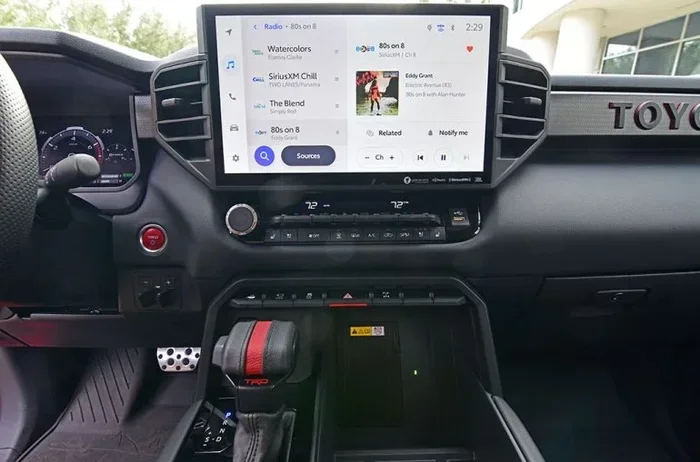
Your Toyota Tundra’s head unit is the brain of your truck’s audio and infotainment system. It controls your radio, Bluetooth, navigation, backup camera, and even your climate display. When it starts acting up, the whole truck feels off.
Maybe your Tundra touchscreen froze right in the middle of a road trip. Perhaps your audio system keeps cutting out, or the display won’t respond to your taps. Whatever the problem, resetting the head unit is usually the fastest fix. And the good news? You do not need any special tools or a trip to the dealer.
In this guide, we will walk you through how to reset your Toyota Tundra head unit step by step. We cover every method from the simplest restart to a complete factory reset. You will also learn common mistakes to avoid and expert tips that save you time and frustration. Let us get your Tundra’s system running smoothly again.
Key Takeaways
- Soft reset fixes minor glitches: A quick restart can solve most Tundra head unit problems without losing any data.
- Hard reset clears deeper issues: Holding the power button for 10-20 seconds forces a full system reboot.
- Factory reset erases all settings: Use this as a last resort when nothing else works.
- No tools are needed: Every reset method can be done right from your Tundra’s dashboard.
- Resetting solves Bluetooth and navigation issues: Many connectivity problems go away after a simple reset.
- Back up your settings first: Save your radio presets and Bluetooth pairings before doing a factory reset.
- Know when to seek help: Some issues need a Toyota dealer or professional mechanic.
📑 Table of Contents
- Why Your Toyota Tundra Head Unit Might Need a Reset
- How Do I Reset My Toyota Tundra Head Unit: Soft Reset Method
- Hard Reset: Force a Full System Reboot
- Factory Reset: The Complete Tundra Head Unit Reset
- Common Tundra Head Unit Problems and How a Reset Fixes Them
- Expert Tips to Prevent Future Head Unit Issues
- When to Visit a Toyota Dealer for Head Unit Help
- Frequently Asked Questions About Resetting Your Tundra Head Unit
- Final Thoughts on Resetting Your Toyota Tundra Head Unit
Why Your Toyota Tundra Head Unit Might Need a Reset
Before we dive into the steps, it helps to understand why head unit problems happen in the first place. Modern Toyota Tundra trucks come packed with technology. The infotainment system runs complex software that manages audio, navigation, phone connections, and more. Over time, this system can accumulate temporary glitches.
Here are the most common reasons your Tundra head unit might need a reset:
- Software freezes or unresponsive touchscreen: The most common issue. Your Tundra display stops responding to taps or swipes.
- Bluetooth pairing problems: Your phone connects and disconnects randomly or will not pair at all.
- Audio distortion or no sound: The radio works but sounds muffled, crackly, or completely silent.
- Navigation system errors: Maps load slowly, show the wrong location, or refuse to start.
- After a software update: Sometimes a Tundra infotainment update causes temporary instability.
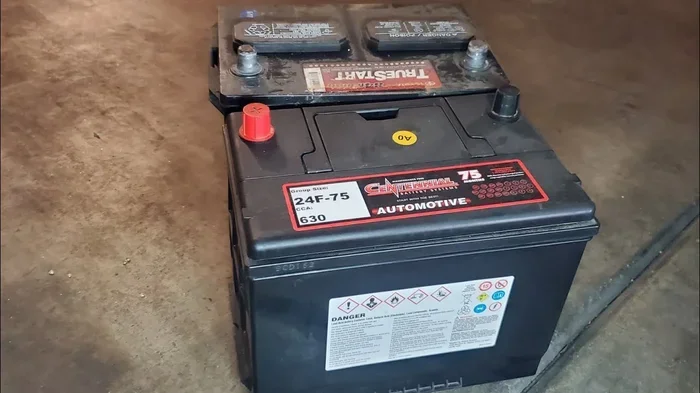
- Power surges or battery issues: A weak battery or jump start can confuse the system.
- General slowdowns: The system takes forever to boot up or responds with a delay.
Most of these problems are temporary and fixable with a reset. You do not need to be a tech expert. The steps are simple and safe. Just follow along, and your Tundra’s head unit will be back to normal.
How Do I Reset My Toyota Tundra Head Unit: Soft Reset Method
A soft reset is the first thing you should try. It is like restarting your phone. The system shuts down and starts back up fresh. You will not lose any saved settings, presets, or paired devices. This method works for most minor glitches and freezes.
Step-by-Step Soft Reset for Your Tundra
Follow these steps carefully. Each one is simple and takes less than a minute.
- Turn off your Tundra’s engine. Put the truck in park and press the start/stop button to shut it down.
- Press and hold the power button. Find the power button on your head unit. It is usually on the top right corner of the display. Press and hold it for about 10 seconds.
- Wait for the screen to go black. The display will turn off completely. This tells you the system has fully powered down.
- Wait 30 seconds. Give the system a moment to fully discharge any residual power.
- Press the power button again. Hold it for 2-3 seconds. The Tundra logo should appear as the system boots back up.
- Check if the problem is solved. Test your audio, Bluetooth, and touchscreen. Everything should work normally now.
This method is the safest and quickest way to fix most Tundra head unit issues. If the soft reset does not work, move on to the next method below.
Quick Tips for Soft Reset Success
- Do this once a month: A regular soft reset keeps your Tundra infotainment system running smoothly.
- Make sure the truck is in park: The system will not respond properly if the truck is in drive.
- Hold the button long enough: A quick tap will not work. You need a full 10-second hold.
- Check your battery voltage: A weak battery can cause repeat freezes. A healthy battery helps prevent future issues.
Hard Reset: Force a Full System Reboot
If the soft reset does not fix the problem, it is time to try a hard reset. A hard reset forces the Tundra head unit to completely power off and restart. Think of it as a more aggressive version of the soft reset. It clears deeper system errors and refreshes the entire Toyota Tundra audio system.
A hard reset is safe to perform. It will not damage your system or erase your data. However, it may take a little longer for the system to fully reboot.
How to Perform a Hard Reset on Your Tundra
- Start by turning off the engine. Same as the soft reset. Make sure the truck is completely powered down.
- Locate the reset pinhole. Some Tundra models have a tiny reset button on the back or side of the head unit. It is usually a small pinhole labeled “Reset.”
- Use a paperclip or SIM eject tool. Gently insert it into the pinhole and press for 5-10 seconds.
- Alternatively, hold the power and volume buttons together. On models without a reset pinhole, press and hold both the power button and the volume down button simultaneously for 15 seconds.
- Release the buttons when the screen goes black. The system is fully powering down.
- Wait 60 seconds. This longer wait ensures all capacitors are fully discharged.
- Press the power button to restart. The system should boot up normally with the Toyota logo.
If your Tundra head unit was frozen or unresponsive, the hard reset almost always brings it back. The system clears out any corrupted temporary files and starts fresh.
When to Use a Hard Reset vs. Soft Reset
Here is a quick comparison to help you decide which method to try first.
- Soft reset: Use for minor freezes, slow response, or audio glitches. Quick and safe. No data loss.
- Hard reset: Use when the soft reset fails, the screen is completely frozen, or Bluetooth and navigation stop working. Still safe with no data loss.
- Factory reset: Use only as a last resort. Erases all custom settings and paired devices.
Factory Reset: The Complete Tundra Head Unit Reset
A factory reset is the most thorough option. It wipes all your custom settings, radio presets, Bluetooth pairings, and navigation preferences. The system returns to the exact state it was in when you first bought the truck. Use this only when the soft and hard resets do not solve your problem.
How to Factory Reset Your Toyota Tundra Head Unit
- Go to the Settings menu. Tap the gear icon on your Tundra infotainment home screen.
- Find the System or Setup option. Scroll down and look for “System Setup” or “Factory Settings.”
- Select “Reset to Factory Defaults.” The system will warn you that all data will be erased.
- Confirm the reset. Tap “Yes” or “Reset Now” to proceed.
- Wait for the process to complete. This can take 3-5 minutes. Do not turn off the truck during this time.
- Reconfigure your settings. Set your radio presets, reconnect Bluetooth, and adjust your preferences.
Important: Before doing a factory reset, write down your radio presets and note your Bluetooth paired devices. This saves you time when setting everything back up.
What Gets Wiped in a Factory Reset
- Radio presets and equalizer settings
- Bluetooth paired phones and devices
- Navigation saved addresses and favorites
- Display brightness and theme preferences
- Voice recognition training data
- Any custom settings you adjusted
Everything else stays intact. Your truck’s memory, safety settings, and camera functions are not affected by a factory reset of the head unit.
Common Tundra Head Unit Problems and How a Reset Fixes Them
Not all Tundra head unit problems are the same. Here are the most common issues truck owners face and how resetting the system solves each one.
Frozen or Unresponsive Touchscreen
This is the number one reason Tundra owners look up how to reset their head unit. The touchscreen stops responding to taps and swipes. A soft reset usually fixes this within 30 seconds. If the screen is completely frozen and the soft reset does not work, a hard reset will force it to restart.
Bluetooth Keeps Disconnecting
Bluetooth problems are frustrating, especially when you are driving. The connection drops randomly or your phone will not pair. Resetting the head unit clears the Bluetooth memory and forces the system to re-establish connections. A soft reset often solves this. If not, try unpairing and re-pairing your phone after the reset.
No Sound or Distorted Audio
If your Tundra audio system produces no sound or sounds crackly and distorted, a reset can help. The issue is often caused by a software glitch in the Tundra media system. A hard reset refreshes the audio processing and usually restores clear sound.
Navigation System Not Working
Your Tundra navigation may show errors, load slowly, or display the wrong location. A reset clears the temporary navigation cache and refreshes the GPS connection. After the reset, the navigation system should work normally again.
System Boots Slowly After an Update
Toyota sometimes releases software updates for the Tundra infotainment system. After an update, the system may boot slowly or behave strangely. A soft reset helps the system settle into the new software. In most cases, the problem goes away after one restart.
Expert Tips to Prevent Future Head Unit Issues
Once you get your Tundra head unit working again, you want to keep it that way. Here are expert tips that help prevent future problems and keep your Toyota Tundra infotainment system running smoothly for years.
Keep Your Software Updated
Toyota releases updates that fix bugs and improve performance. Check for updates through the Settings menu on your head unit. Staying current prevents many of the glitches that lead to resets in the first place.
Avoid Overloading the System
Too many paired Bluetooth devices can slow down your Tundra head unit. Delete devices you no longer use. Keep your navigation data organized and avoid storing excessive media files on the system.
Protect the Electrical System
A weak battery or faulty alternator can cause head unit problems. Have your battery tested regularly, especially before winter. A healthy electrical system keeps your Tundra display and audio system stable.
Restart Your System Monthly
Just like your phone, your Tundra head unit benefits from a regular restart. A monthly soft reset clears temporary files and keeps everything running fast. It takes less than a minute and can save you from bigger problems later.
Use Genuine Toyota Accessories
Aftermarket accessories can sometimes interfere with your Tundra media system. Stick with genuine Toyota parts and accessories when possible. They are designed to work seamlessly with your head unit.
When to Visit a Toyota Dealer for Head Unit Help
Most Tundra head unit problems are solved with a simple reset. But sometimes the issue goes deeper. Here are signs that you need professional help from a Toyota dealer or qualified mechanic.
- The reset does not fix the problem after multiple attempts. There may be a hardware issue with the head unit itself.
- Flickering or dead pixels on the display. This points to a physical screen problem, not a software glitch.
- The system keeps crashing repeatedly after every reset. There could be a deeper software conflict that needs a dealer-level fix.
- You hear buzzing or popping from the speakers. This is usually a speaker or wiring issue, not a head unit problem.
- The backup camera or other integrated features stop working. These share wiring with the head unit and may need professional diagnosis.
A Toyota dealer has access to specialized diagnostic tools and software. They can run deep system checks and update firmware that you cannot access from the dashboard. If your Tundra head unit reset attempts fail, do not hesitate to schedule a service appointment.
Frequently Asked Questions About Resetting Your Tundra Head Unit
How long does it take to reset a Toyota Tundra head unit?
A soft reset takes about 30 seconds. A hard reset takes 1-2 minutes. A factory reset can take 3-5 minutes while the system reinstalls default settings. The actual process is quick, but give the system a full minute after it restarts to ensure everything loads properly before testing.
Will resetting my Tundra head unit erase my saved music and playlists?
A soft reset and hard reset do not erase your saved music or playlists. However, a factory reset will clear all custom settings, including saved media preferences. Your actual music files stored on a USB drive or SD card are never affected by any type of reset.
How often should I reset my Toyota Tundra head unit?
You do not need to reset your head unit regularly. Only reset it when you notice problems like freezing, audio issues, or Bluetooth disconnections. A monthly soft reset can help keep the system running smoothly, but it is not required.
Can I reset my Tundra head unit while driving?
No. You should always reset your Tundra head unit when the truck is parked and the engine is off. Resetting while driving can distract you and may cause the system to behave unexpectedly. Safety first, always park before performing any reset.
What is the difference between a soft reset and a factory reset?
A soft reset simply restarts the system without changing any settings or data. It is like turning your phone off and back on. A factory reset erases all custom settings and returns the system to its original out-of-the-box state. Always try a soft reset first and only use a factory reset as a last resort.
My Tundra head unit resets itself randomly. Is this normal?
No. Random resets are not normal and usually indicate an underlying problem. This could be caused by a weak battery, loose wiring, or a failing head unit. Have your truck checked by a mechanic or Toyota dealer if the head unit keeps resetting on its own.
Final Thoughts on Resetting Your Toyota Tundra Head Unit
Resetting your Toyota Tundra head unit is one of the simplest and most effective things you can do to keep your truck’s technology running smoothly. Whether you use the soft reset for quick fixes, the hard reset for stubborn problems, or the factory reset as a last resort, each method has its place. The key is to start simple and work your way up only if needed.
Most Tundra owners find that a soft reset solves their problem within seconds. It takes almost no time and requires zero technical knowledge. Keep the steps in this guide handy, and you will never be stuck with a frozen screen or glitchy audio system for long.
Remember to back up your settings before a factory reset, keep your software updated, and restart your system monthly. These simple habits prevent most head unit issues before they start. And if nothing works, your Toyota dealer is always there to help.
Now that you know exactly how to reset your Toyota Tundra head unit step by step, you are ready to tackle any problem that comes your way. Your Tundra’s infotainment system will be back to running like new in no time. Happy trails, and enjoy the drive.