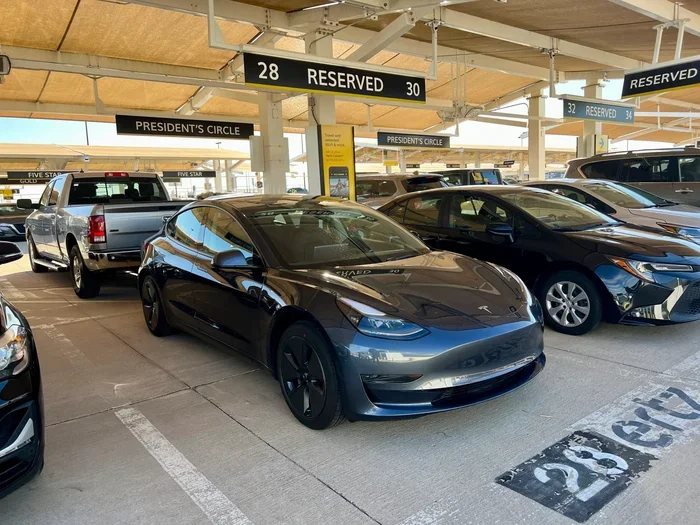
Can You Use The Tesla App With A Rental?
Yes, you can use the Tesla app with a rental vehicle. Simply download the app, create or log into your Tesla account, and enter the rental vehicle details to gain full access. You can control climate settings, locate Superchargers, view vehicle status, and more, making your Tesla rental experience feel seamless and personal.
Key Takeaways
- Full App Access: You can use the Tesla app with a rental car just like you would with your own vehicle.
- Easy Setup: Adding a rental to your Tesla account takes only a few minutes through the app menu.
- Key Features Available: Climate control, navigation, Supercharger locator, Sentry Mode, and Dashcam all work on rentals.
- Common Issues Are Fixable: Most problems like Bluetooth pairing or login errors have simple solutions.
- Pro Tips Help: Using the phone key feature and pre-conditioning the cabin before pickup saves time and energy.
📑 Table of Contents
- How the Tesla App Works With Rental Vehicles
- Features You Can Access on a Rental Tesla
- Setting Up the Tesla App for Your Rental Vehicle
- Common Issues and How to Fix Them
- Tips for Getting the Most Out of Your Rental Tesla
- Is a Tesla Rental Worth It Compared to a Traditional Rental Car?
- Final Thoughts on Using the Tesla App With a Rental
How the Tesla App Works With Rental Vehicles
The Tesla mobile app is one of the most powerful tools in the electric vehicle world. It lets you control nearly every aspect of your car from your phone. And the best part? It works with rental Teslas too. When you rent a Tesla, you are not just getting a car. You are getting access to a full ecosystem of smart features that make driving easier, safer, and more fun.
Here is how it works. The Tesla app communicates with your vehicle through a cloud connection and Bluetooth. When you add a rental car to your Tesla account, the app recognizes the vehicle through its unique Vehicle Identification Number, or VIN. From that moment on, you can control the car remotely, monitor its status, and use all the features you would expect from an owned Tesla.
Many people wonder whether a rental Tesla has the same capabilities as a personal one. The answer is almost always yes. Tesla does not lock out features for rental vehicles. Every software update, every feature, and every setting is available to renters just as it is to owners. This is one of the biggest advantages of renting a Tesla over a traditional car.
Why the Tesla App Matters for Renters
When you rent a regular car, you get a key and maybe a paper map. When you rent a Tesla, you get a smart device on wheels that you can control from anywhere. The app lets you do things like turn on the air conditioning before you even step outside. It shows you where the nearest Tesla Supercharger is and how much charge your car has left. These are not luxury add-ons. They are standard features that make the Tesla rental experience far superior to renting a gas-powered car.
The app also gives you peace of mind. You can check on the car’s security status, see if Sentry Mode is active, and review Dashcam footage. For renters who are new to Tesla, this level of control and visibility is incredibly reassuring.
Features You Can Access on a Rental Tesla
Once you use the Tesla app with a rental, you unlock a long list of features. Let us break down what you can do and how each feature enhances your rental experience.
Climate Control and Pre-Conditioning
One of the most popular features is remote climate control. You can turn on the heat or air conditioning before you get in the car. This is especially useful in extreme weather. In summer, you can cool down the cabin before you sit down. In winter, you can warm it up and even defrost the windshield. The app lets you set the temperature, fan speed, and whether you want to use Tesla Climate Control on battery power or wait for the car to be plugged in.
Navigation and Supercharger Locator
The built-in navigation in a Tesla is excellent. But the app takes it further. You can send a destination directly from your phone to the car’s screen. The app also shows you all nearby Tesla charging stations with real-time availability. This means you never have to worry about running low on charge. You can plan your route around Supercharger stops and see exactly how long each stop will take.
Sentry Mode and Dashcam
Security is a big deal, especially when you are driving a rental car in an unfamiliar area. Tesla Sentry Mode uses the car’s cameras to monitor the surroundings and record any suspicious activity. The Tesla Dashcam records your front, rear, and side cameras while you drive. Both features save footage to a USB drive or to your phone through the app. For renters, this adds a layer of protection that most rental cars simply do not offer.
Phone Key and Key Card
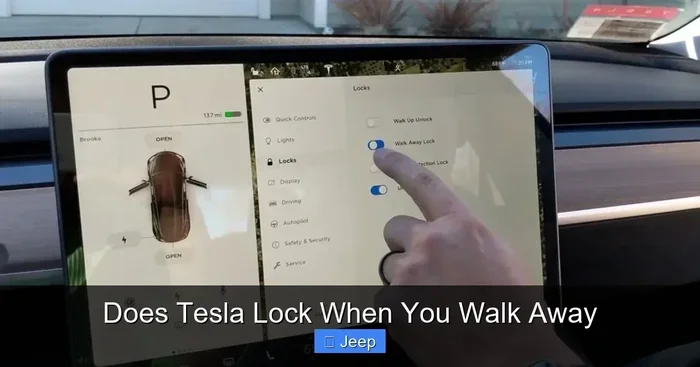
You can use your phone as the key to unlock and start the rental Tesla. The Tesla phone key uses Bluetooth and NFC technology. Just hold your phone near the door handle to unlock, and place it on the center console to start the car. Some renters also receive a Tesla key card from the rental company as a backup. Both methods work perfectly with the app.
Vehicle Settings and Customization
The app gives you access to all Tesla vehicle settings. You can adjust ride height, change the steering feel, set the regenerative braking level, and customize the autopilot settings. You can also check tire pressure, view maintenance alerts, and see detailed energy usage stats. It really feels like your own car once you get into the app.
Setting Up the Tesla App for Your Rental Vehicle
Setting up the Tesla app for a rental is straightforward. Follow these steps to get connected quickly and start enjoying all the features right away.
Step-by-Step Setup Guide
- Download the Tesla app from the App Store or Google Play Store if you have not already.
- Log into your Tesla account. If you do not have one, create a free account with your email address.
- Add the rental vehicle. Go to the “Vehicles” section in the app and tap “Add Vehicle.”
- Enter the VIN. The rental company can provide the Vehicle Identification Number. Type it into the app to pair the car with your account.
- Verify the connection. The app will confirm the vehicle is linked. You should now see the car on your main screen with its current charge level and status.
- Explore the features. Try remote climate control, navigation, and phone key to make sure everything works smoothly.
Quick Tips for a Smooth Setup
- Make sure Bluetooth is turned on on your phone for the phone key feature to work.
- Keep the app updated to the latest version to avoid compatibility issues.
- Ask the rental company for the VIN before you leave the lot so you can set up the app in advance.
- Enable notifications in the app so you get alerts about charge levels, Sentry Mode events, and software updates.
Common Mistakes to Avoid During Setup
Here are a few things that trip up renters all the time:
- Using a different Tesla account. If you log in with an account that is different from the one the car is registered to, you may not get full access. Always use your personal Tesla account.
- Skipping the VIN entry. Without the VIN, the app cannot pair with the car. Do not skip this step.
- Ignoring Bluetooth permissions. If you deny Bluetooth access when the app asks, the phone key will not work. Make sure to grant all necessary permissions.
- Not updating the app. Older app versions may not support the latest Tesla features or software updates on the rental car.
Common Issues and How to Fix Them
Even though the Tesla app works well with rentals, you might run into a few hiccups. Here are the most common problems renters face and how to solve them quickly.
App Not Connecting to the Rental Car
If the app does not recognize the rental vehicle, try these steps. First, make sure you entered the VIN correctly. A single wrong letter or number will prevent the connection. Second, check your internet connection. The app needs a stable data or Wi-Fi connection to communicate with the car. Third, try logging out and back into your Tesla account. This often refreshes the connection and resolves the issue.
Phone Key Not Working
The phone key relies on Bluetooth and NFC. If it is not working, make sure Bluetooth is enabled and your phone is within range of the car. On some phones, you may need to enable NFC in your settings. If the phone key still fails, use the Tesla key card as a backup. Simply hold the card against the center console to unlock and start the car.
Climate Control Not Responding Remotely
If you cannot turn on climate control from the app, check if the car is plugged in. Some Teslas restrict remote climate use to when the car is connected to power, especially in cold weather. Also, make sure the car is not in a deep sleep mode. Opening a door or tapping the touchscreen on the car will wake it up.
Navigation Not Sending to the Car
If you cannot send a destination from the app to the car, make sure both the app and the car are connected to the internet. The car uses its built-in modem for this. If the car is in a low-signal area, try sending the destination again once you have better coverage.
Expert Insight
According to Tesla support documentation, the app uses a cloud-based connection to communicate with the vehicle. This means that as long as both the phone and the car have internet access, the app should work reliably. If you are in a remote area with no cell service, some features like remote climate control and live navigation may be limited until you regain connectivity. Always download your route on the car’s screen before heading into areas with poor signal.
Tips for Getting the Most Out of Your Rental Tesla
Renting a Tesla is a great experience, but a little preparation goes a long way. Here are some expert tips to help you get the most from your Tesla rental experience.
Pre-Condition the Car Before Pickup
If the rental company allows it, use the app to pre-condition the cabin before you arrive. In winter, this means a warm car waiting for you. In summer, it means a cool interior. You can also pre-condition while the car is still plugged in, which preserves your battery range for driving.
Plan Your Charging Stops
Even though Teslas have excellent range, it is always smart to plan your charging stops. Use the app’s Tesla Supercharger locator to find stations along your route. The app shows you real-time availability, so you can avoid crowded stations and save time. A good rule of thumb is to charge up whenever you drop below 20 percent battery.
Explore the Autopilot Features
Most rental Teslas come with Autopilot standard. Take some time in a safe, open area to explore the features. Autopilot handles steering, acceleration, and braking on highways. It can also change lanes, navigate to your Supercharger, and park itself. Just remember that Autopilot is a driver-assist feature, not a fully autonomous system. Always keep your hands on the wheel and your eyes on the road.
Use the App to Monitor Energy Usage
The app gives you detailed stats on how much energy you are using and how far you can go on your current charge. This is incredibly helpful for planning trips. You can also view your trip history, see how much you have saved compared to gas cars, and track your efficiency over time.
Download Offline Maps
If you are heading to an area with spotty cell service, download offline maps in the car’s navigation system before you leave. This ensures you always have a route available, even without an internet connection.
Quick Tips for Rental Tesla Owners
- Always start with a full charge when you pick up the rental car.
- Save your favorite Superchargers in the app for quick access.
- Use the app to lock and unlock the car instead of the key card when possible.
- Enable Sentry Mode when parking in unfamiliar or high-traffic areas.
- Check the tire pressure through the app before a long drive.
- Adjust the regenerative braking to “Low” for a more traditional driving feel if you are new to Teslas.
Is a Tesla Rental Worth It Compared to a Traditional Rental Car?
Many renters wonder whether a Tesla is worth the extra cost compared to a standard rental car. Let us look at the key differences.
| Feature | Tesla Rental | Traditional Rental |
|---|---|---|
| App Control | Full remote access via Tesla app | Limited or no app features |
| Fueling / Charging | Supercharger network, home charging | Gas stations only |
| Technology | Large touchscreen, Autopilot, over-the-air updates | Basic infotainment, no self-driving features |
| Interior Space | Spacious, minimalist design, frunk storage | Standard trunk, limited storage |
| Running Costs | Lower fuel costs, less maintenance | Higher fuel costs, more maintenance |
| Silent Ride | Nearly silent electric motor | Engine noise and vibration |
| Security Features | Sentry Mode, Dashcam, phone key | Basic alarm, physical keys |
As you can see from the table, the Tesla rental offers advantages in nearly every category. The app integration alone sets it apart. With a traditional rental car, you get a key and maybe a GPS unit. With a Tesla, you get a connected smart vehicle that fits in your pocket.
The upfront cost of a Tesla rental may be slightly higher than a comparable gas car. But when you factor in lower energy costs, less maintenance, and the superior driving experience, most renters find the Tesla to be well worth the investment. Plus, the ability to use the Tesla app with a rental means you have more control and convenience than any other rental option on the market.
Expert Insights on the Tesla Rental Value Proposition
Industry experts agree that electric vehicle rentals are growing rapidly in popularity. Consumers are increasingly drawn to the combination of sustainability, technology, and cost savings. Tesla, in particular, benefits from its strong brand loyalty and the unique features that the app provides. A rental Tesla is not just a car. It is a preview of what personal EV ownership feels like, and for many renters, it sparks an interest in buying their own Tesla down the road.
Final Thoughts on Using the Tesla App With a Rental
The Tesla app transforms a rental car into a smart, connected experience. From the moment you add the vehicle to your account, you have access to a suite of features that make driving, charging, and monitoring your car effortless. Whether you are renting a Tesla Model 3 for a city commute or a Tesla Model Y for a family road trip, the app keeps you in control at all times.
Setting up the app is quick and easy. The features are intuitive and powerful. And when issues arise, they are almost always simple to fix. The key is to come prepared, know what to expect, and take advantage of every tool the app offers.
So the next time you are considering a rental, seriously think about going electric with a Tesla. And when you pick up the car, make sure to use the Tesla app with a rental to unlock the full experience. You will wonder how you ever rented a car without it.
Frequently Asked Questions
Do I need a Tesla account to use the app with a rental?
Yes, you need a Tesla account to use the app with a rental vehicle. Creating an account is free and only takes a few minutes. Once you have an account, you can add the rental car using its VIN and start controlling the vehicle from your phone.
Can I use the Tesla app if I have never owned a Tesla before?
Absolutely. The Tesla app is designed for all users, whether you own a Tesla or are renting one for the first time. You do not need any prior experience with Tesla vehicles. The app is intuitive and easy to navigate, making it simple for first-time renters to get started.
Does the rental company need to do anything to enable the Tesla app?
Usually, no. Tesla vehicles come with the software and connectivity built in. However, it is a good idea to confirm with the rental company that the car is connected to Wi-Fi and that all features are active. Some companies may also provide you with the VIN ahead of time so you can set up the app before pickup.
Can I use the Tesla app to control a rental car after I return it?
No, once you return the rental car, it will be removed from your Tesla account or will no longer be accessible through the app. The app connection is tied to the rental period. After you return the vehicle, you will lose remote access to its features.
Is there an extra fee to use the Tesla app with a rental?
There is no extra fee to use the Tesla app itself. The app is free to download and use. However, some features like Supercharging or certain premium connectivity features may have associated costs. Check with the rental company for details on what is included in your rental package.
What should I do if the Tesla app stops working during my rental?
If the app stops working, first check your internet connection and make sure Bluetooth is enabled. Try logging out and back into your account. If the problem persists, restart the car by holding the two scroll buttons on the steering wheel until the screen goes black and the Tesla logo appears. You can also contact Tesla support through the app for real-time assistance.